


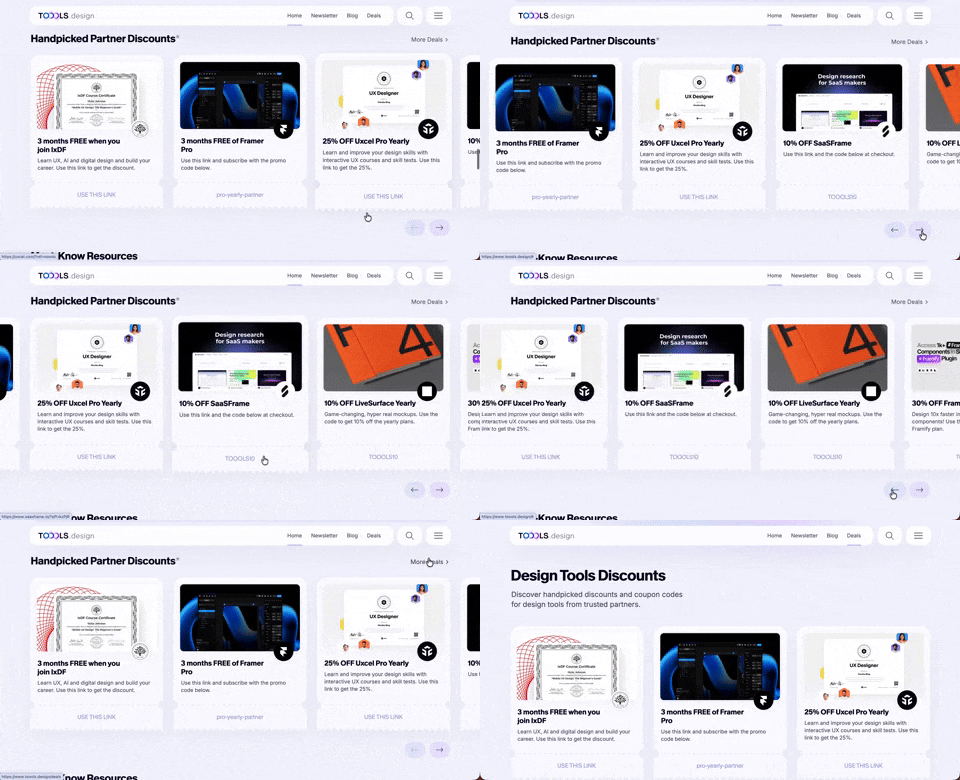
411. Ticket Carrousel (TOOOLS.design)
Users can browse a curated selection of offers by clicking pagination arrows, enabling efficient discovery and decision-making.
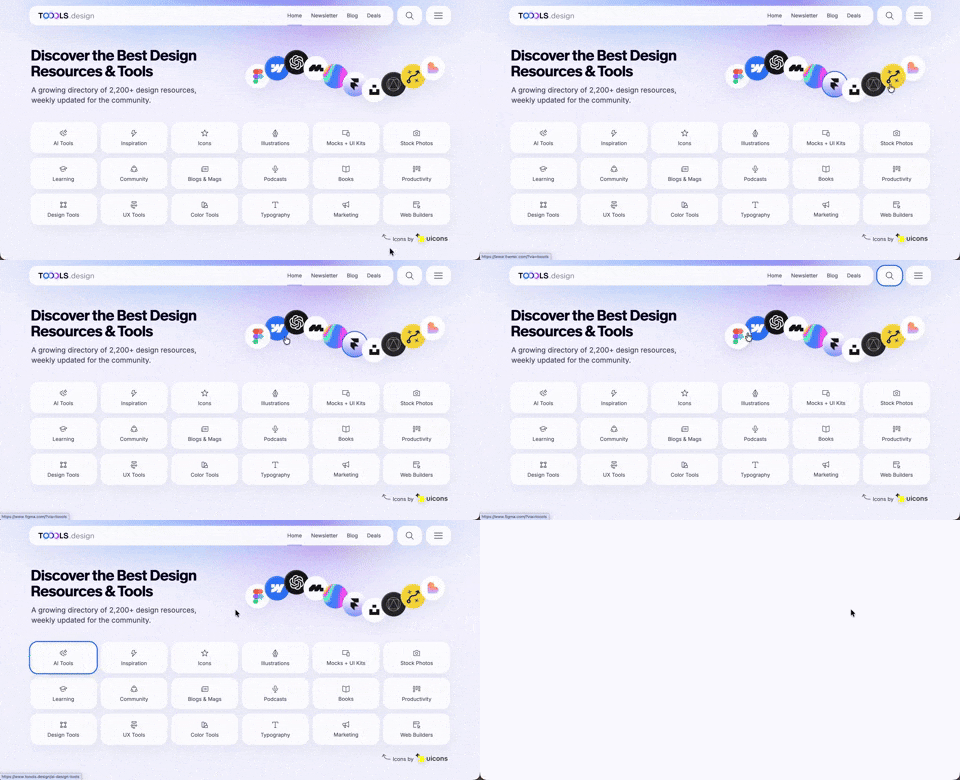
410. Hero Interactive Background (TOOOLS.design)
This pattern uses an animated, interactive background to engage users and visually highlight featured content, enhancing initial appreciation and pathfinding.

409. Customize Toolbar (2-pane interaction)
Users can personalize their toolbar by toggling specific buttons on or off, enhancing workflow efficiency and tailoring the interface to their needs.
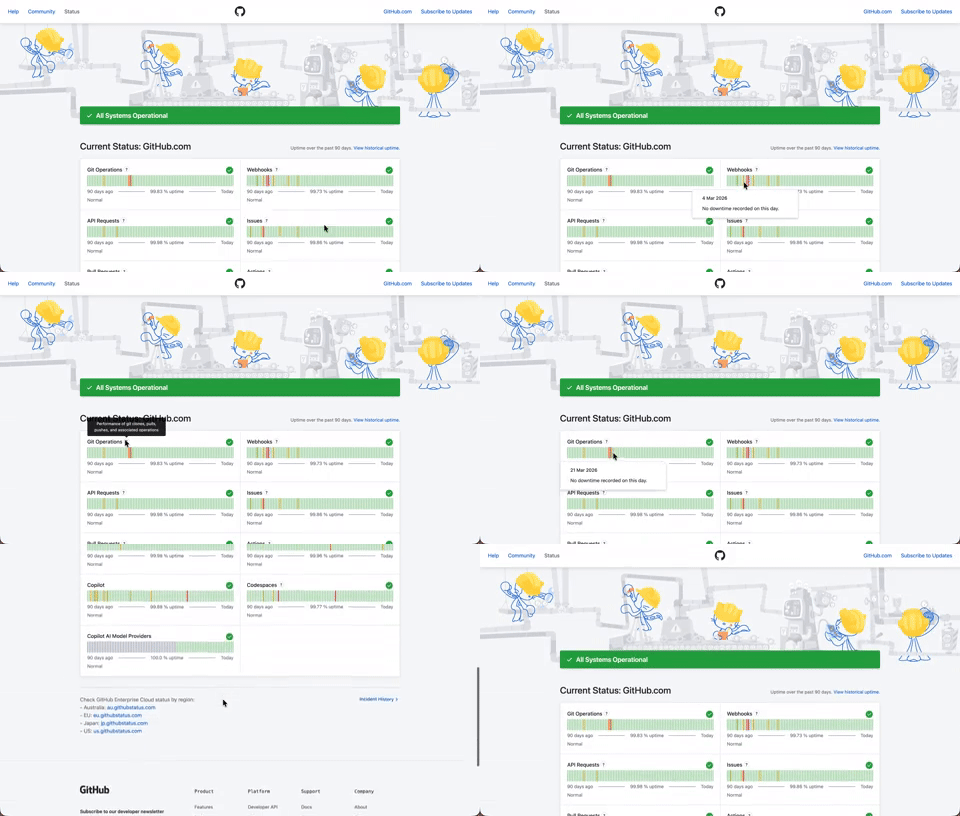
408. Status Page per Hour Indicators
Users can quickly assess system health over time via color-coded hourly indicators, revealing operational status and outage events at a glance.

406. Fixed Bottom-Right Chat Bubble
Offers always-available, AI-powered guidance and support through a fixed bottom-right chat

405. Ferrari Luce Website (by LoveFrom)
This pattern describes a desktop web landing page, featuring a fixed navigation bar, footer, and interactive elements such as carousels, buttons, and hypertext links. It integrates animations, video, and anchor scrolling to create an engaging user experience. Notable behavior: Animation; Carrousel; Fixed on Scroll.

404. Sidebar Backdrop Menu
This pattern provides a full-height, animated sidebar menu that slides in from the left, offering clear navigation options while dimming the main content for focused interaction.

403. File Upload and Background Loader
Users can easily upload files or paste URLs, receiving clear visual feedback and background loading indicators for a seamless experience.

402. Transition: Zoom-to-Dock for Minimize
This transition visually guides the user as a window minimizes, smoothly shrinking and moving to its new location in the dock, enhancing spatial awareness and system feedback.

401. In-App News Notification
This pattern provides timely, relevant news and updates within the application, enhancing user awareness and engagement without interrupting core workflows.

400. 3D Button Shadow
This pattern uses a subtle 3D shadow animation on hover to provide clear visual feedback, enhancing user awareness and guiding interaction.

399. Snooze newsletter (Joshwcomeau.com)
This pattern confirms a successful subscription update, offering a clear path to re-enable emails if the user changes their mind.

397. Modal w/ Card Options
This modal presents users with clear, card-based options to initiate a task, guiding them efficiently through initial decision-making.

394. Page Outline Scroller (touch)
This pattern allows users to quickly navigate long documents by tapping and holding the scrollbar to reveal a page outline for rapid section jumping.

393. Colored Checkboxes
Users can easily select multiple communication preferences with visually distinct, colored checkboxes that provide immediate feedback on their choices.

392. SaaS for Construction Workers
This pattern uses a dynamic carousel of images and text to showcase product features, engaging users with interactive content and clear calls to action.

390. Icon Software Landing Page
This landing page effectively guides users to download icon management software by showcasing its intuitive interface and customization features.

389. Text Edit Inline Input
Users can directly edit text content in place, providing a seamless and efficient way to update information without navigating away.

388. Drag & Drop and Checkbox to Select Multiple Item
Users can efficiently organize multiple items by dragging and dropping them into a target category, enhancing content management and task completion.

386. Skeleton Loader
A skeleton loader provides a visual placeholder for content that is still loading, reassuring users that the page is active and data is on its way.

383. Video Animation on Touch
This pattern uses a dynamic video animation that plays upon user touch, providing engaging visual feedback and enhancing interaction.
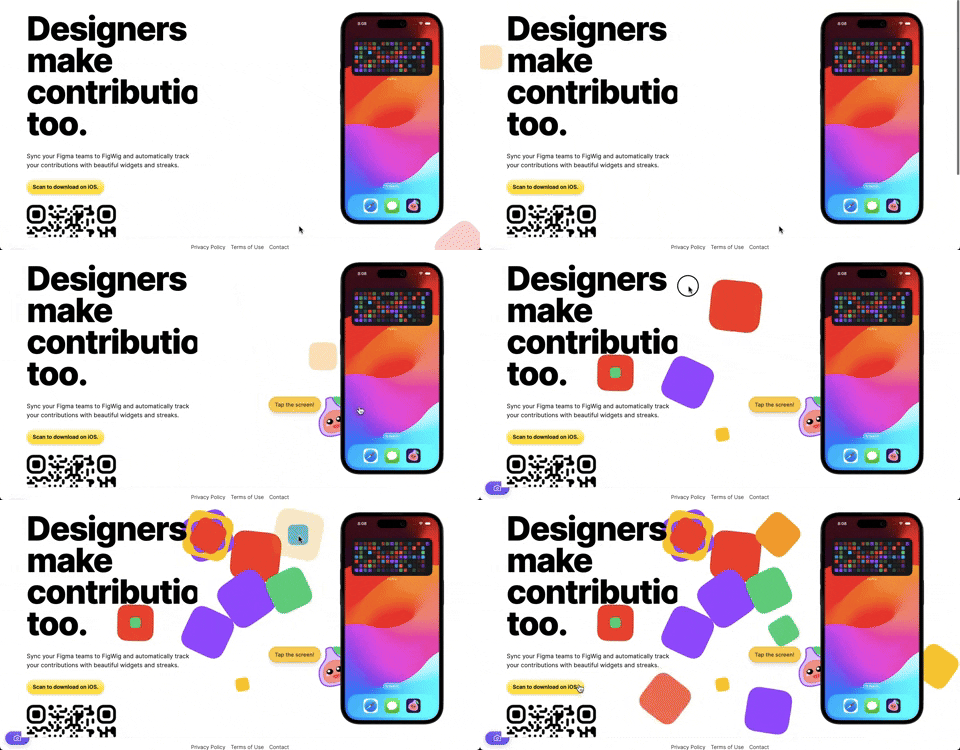
382. Interactive Background Animation
This pattern uses subtle, interactive background animations to engage users and provide dynamic visual feedback as they scroll or interact with the page.

379. Dropdown Filters
Dropdown filters enable users to quickly refine content views by selecting specific criteria from a compact, accessible menu.

378. Modal Blackout w/ Animation
This pattern uses an animated blackout modal to focus user attention on critical information or actions, ensuring clear decision-making.
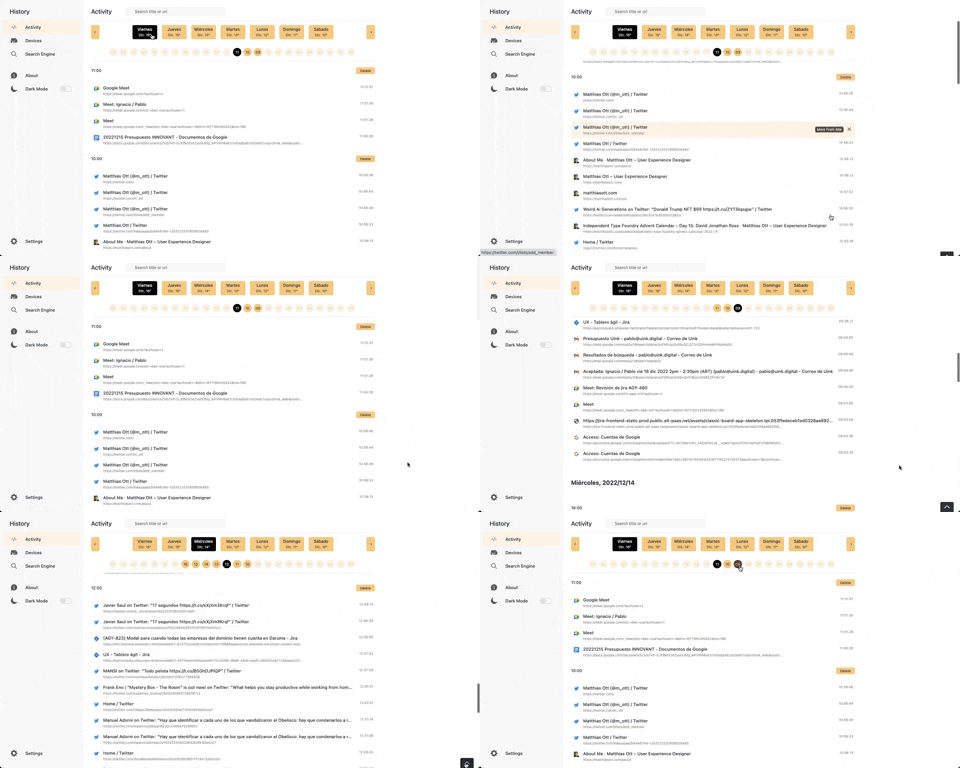
363. Better History - Back to Top on scroll
This pattern allows users to quickly navigate to the top of a long list by clicking a fixed "Back to Top" button that appears on scroll.
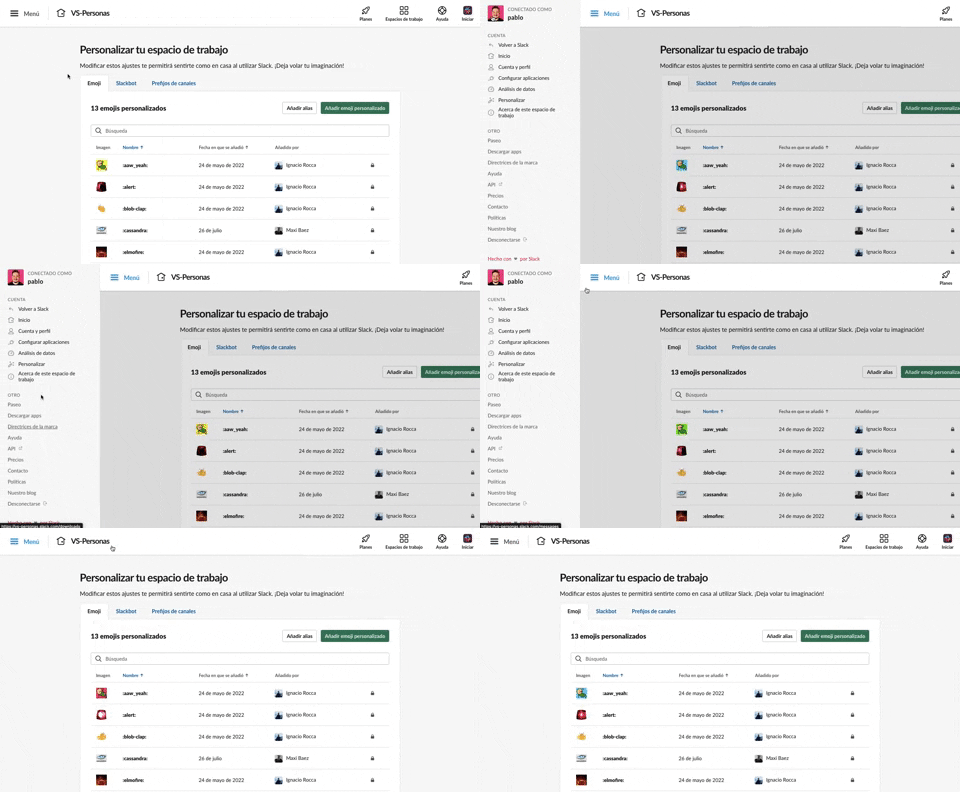
375. Toggle/Show Sidebar Menu
Users can toggle a persistent sidebar menu to reveal or hide navigation options, optimizing screen space while maintaining easy access to key features.
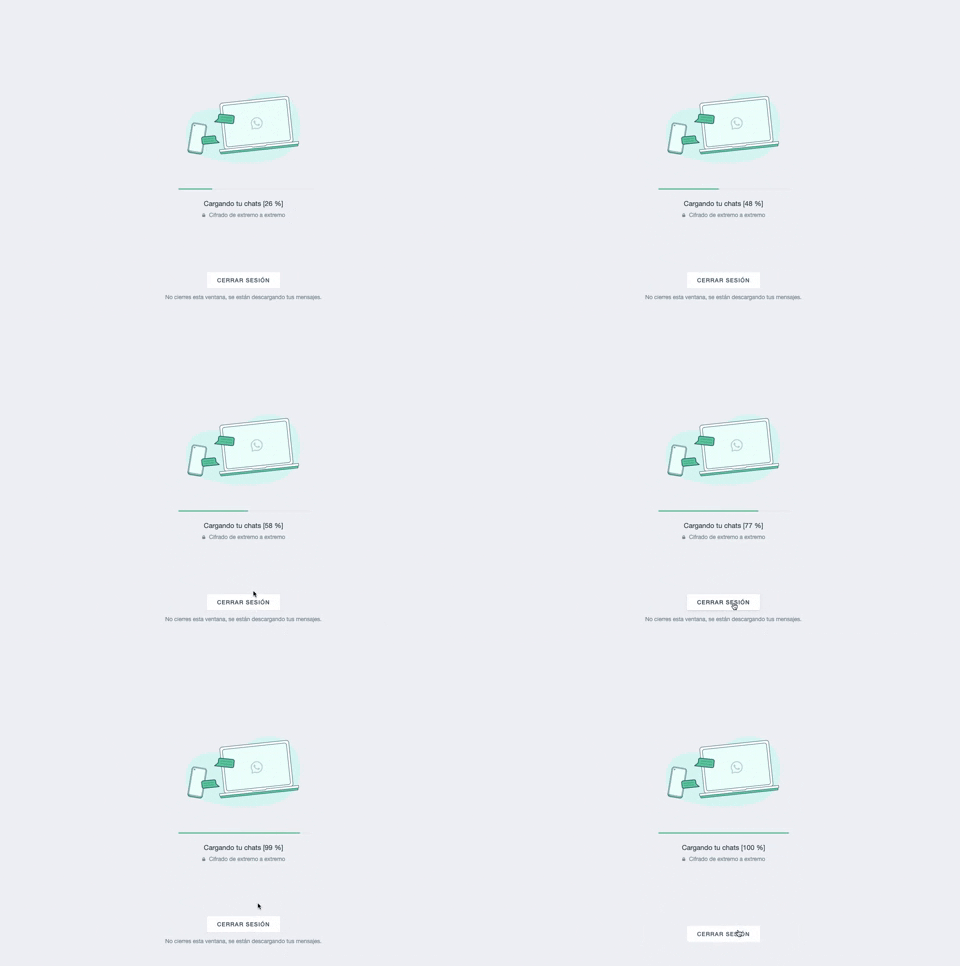
361. WhatsApp - Progress Bar Loading
This progress bar visually informs users about the loading status of their chats, providing a clear percentage to manage expectations during data synchronization.
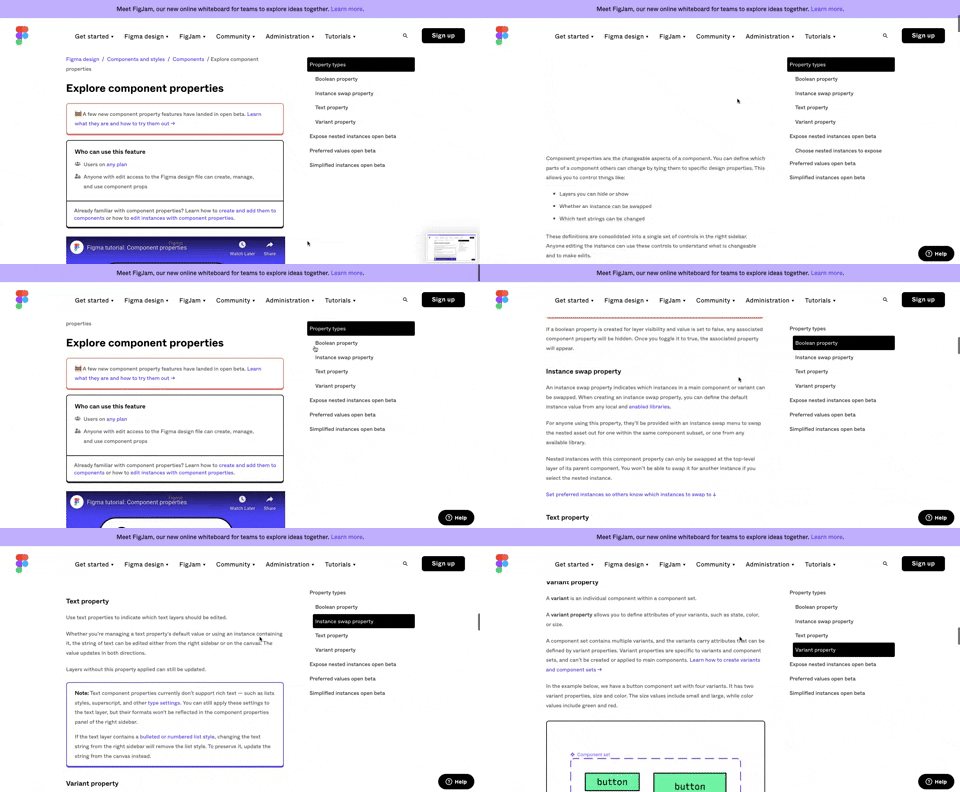
360. Page Outline Menu
This menu provides an interactive outline of page content, allowing users to quickly navigate to specific sections and understand the page structure at a glance.
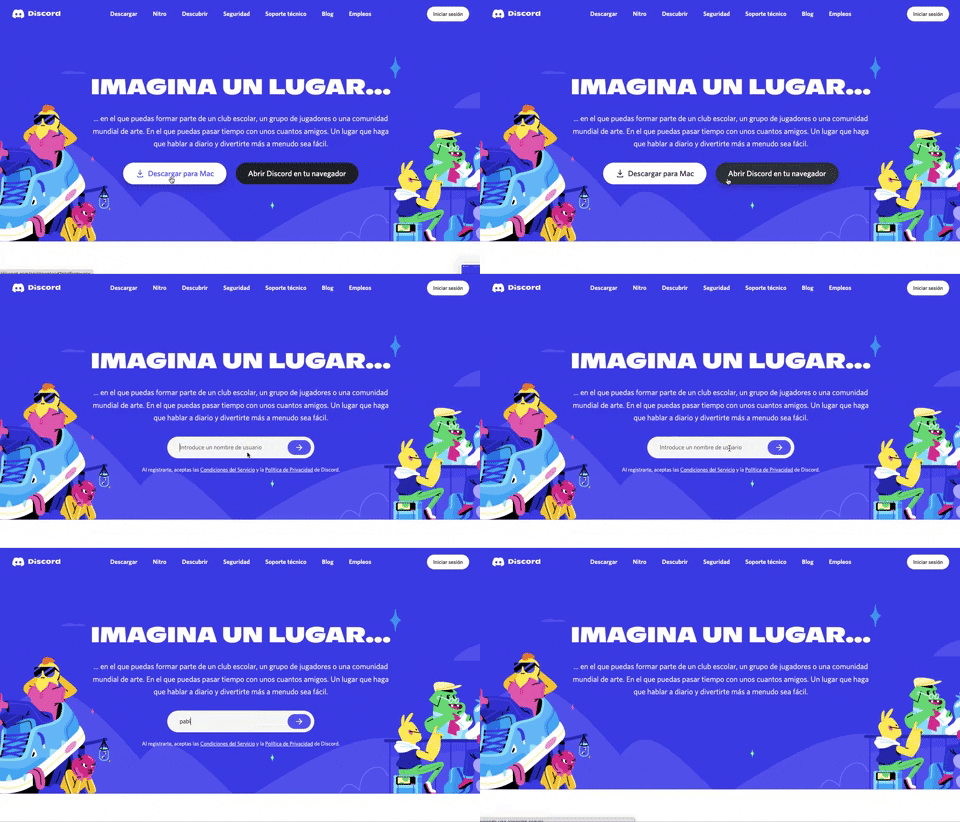
359. Discord - Button to Input Transition
This pattern allows users to seamlessly transition from a clear call-to-action button to an input field, streamlining the path to engagement.
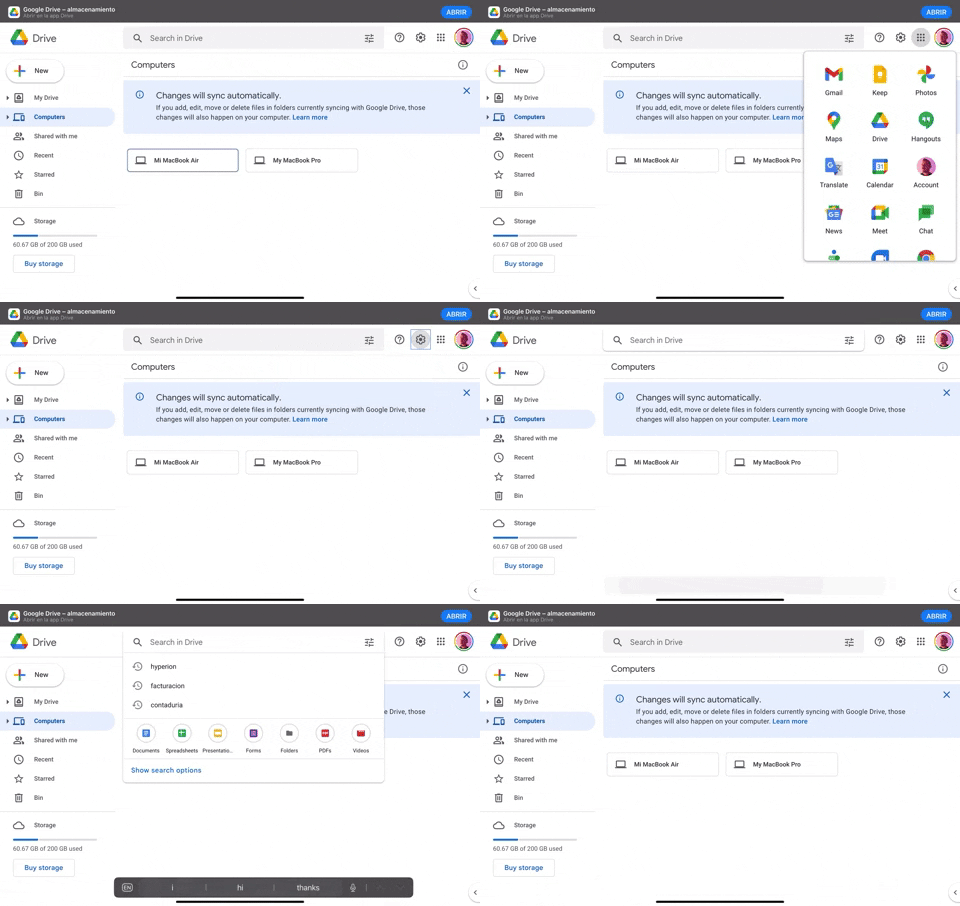
370. Floating Navbar Menus
Floating navbar menus provide persistent navigation options, allowing users to quickly access key sections and features without losing their current context.
369. Fixed Form with Steps
This pattern describes a multi-step form that maintains a fixed position on the screen, typically presented within a side panel. It is designed to guide users through a sequence of inputs, often involving text fields, for processes such as collecting feedback, raising awareness, or expressing appreciation. This pattern is suitable for web and tablet interfaces, ensuring a consistent user experience during data entry. Notable behavior: Form Submission; Step Navigation; Active Step.
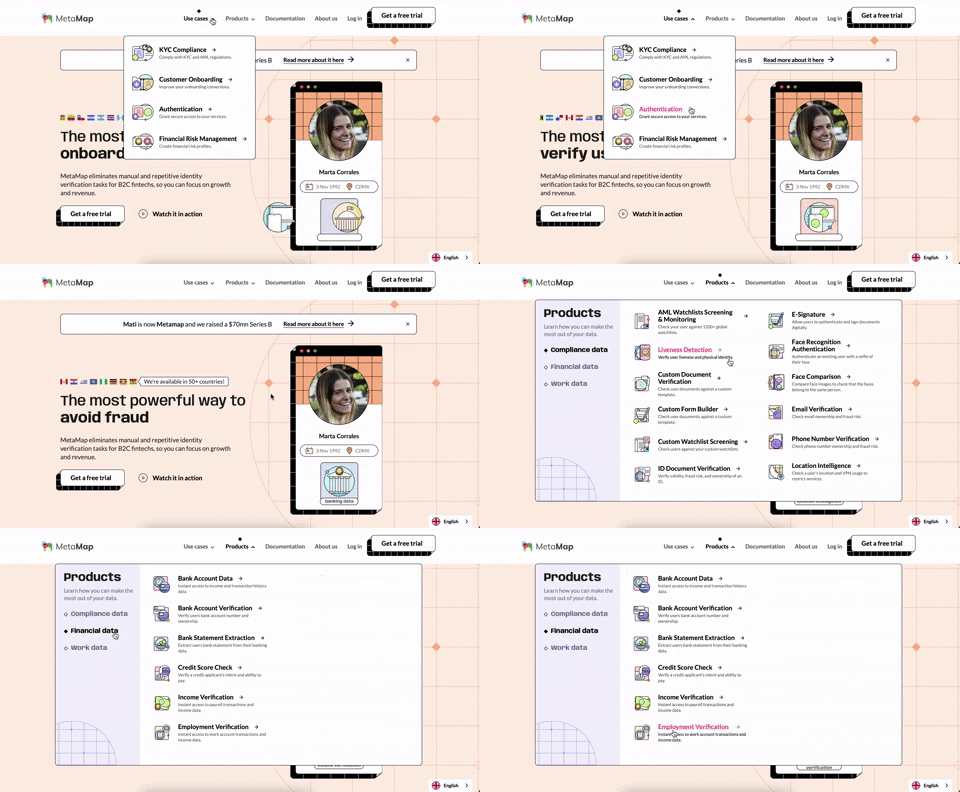
356. MetaMap - Multi-Layout Topbar Menu
This topbar menu uses a dropdown to reveal categorized links, enabling users to quickly navigate to relevant sections and understand the product's diverse offerings.
355. Jira - Feature Presentation Tooltip
A feature presentation tooltip, as seen in Jira, guides users through new functionalities or important updates. It often appears during onboarding or to raise awareness, utilizing tooltips with hypertext links and pagination for multi-step tours on both desktop and web interfaces.
354. Figma - Floating Form with Steps
Desktop, Feedback, Consent, Awareness, Web, English, Text Input, Side Panel
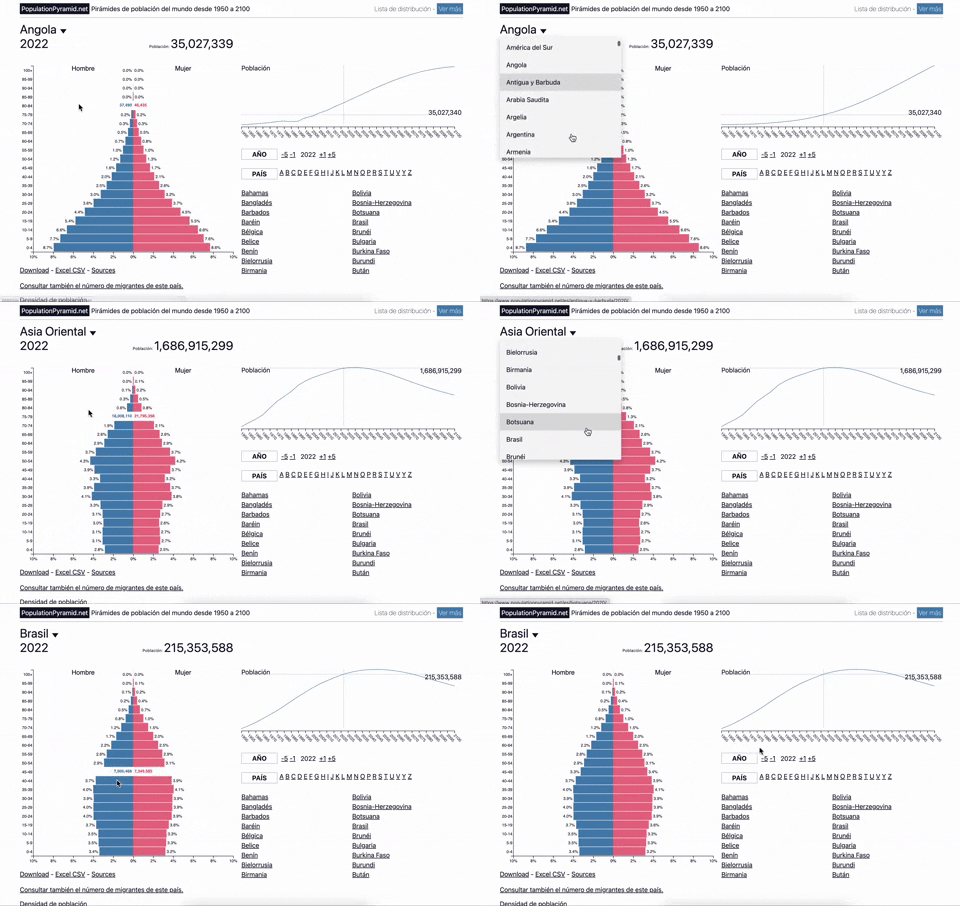
353. Population Pyramid - Visualizations with live filters
Users can dynamically filter population data by country and year, enabling quick comparisons and insights into demographic trends.
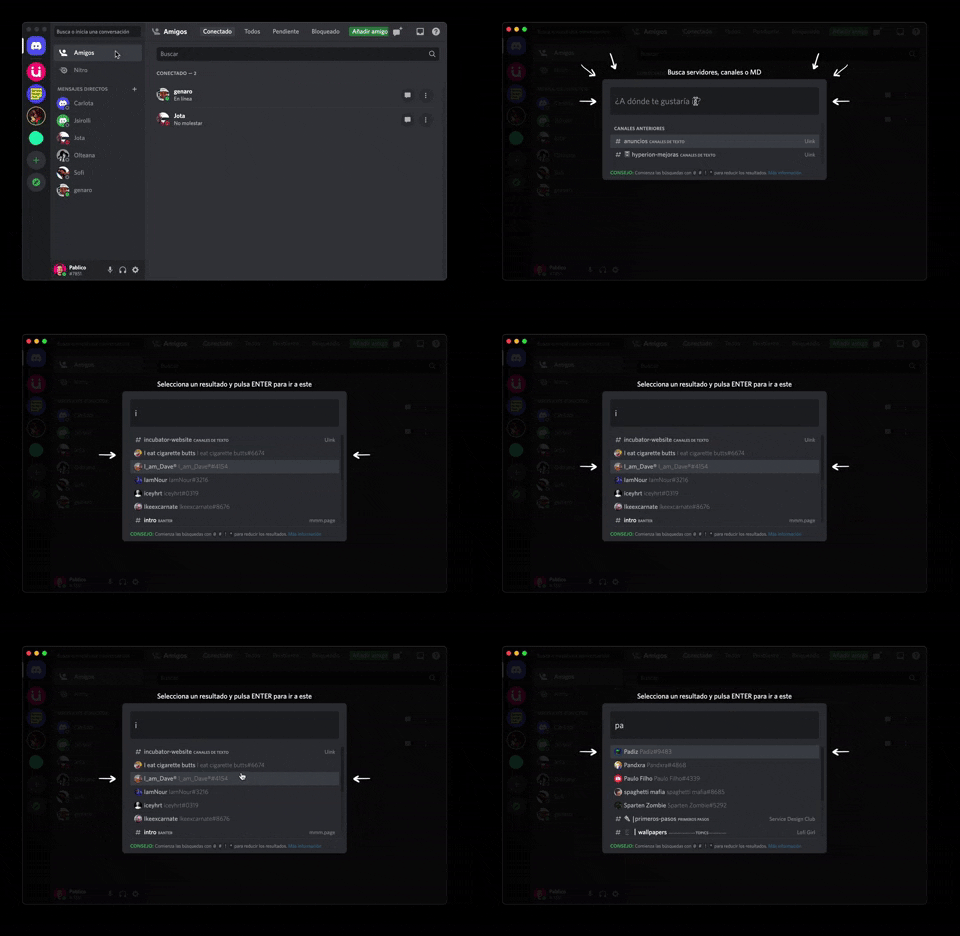
362. Modal Blackout w/ Form & Animations
A modal with a blackout overlay and animated transitions provides a focused input form, ensuring users can quickly add friends without distraction.
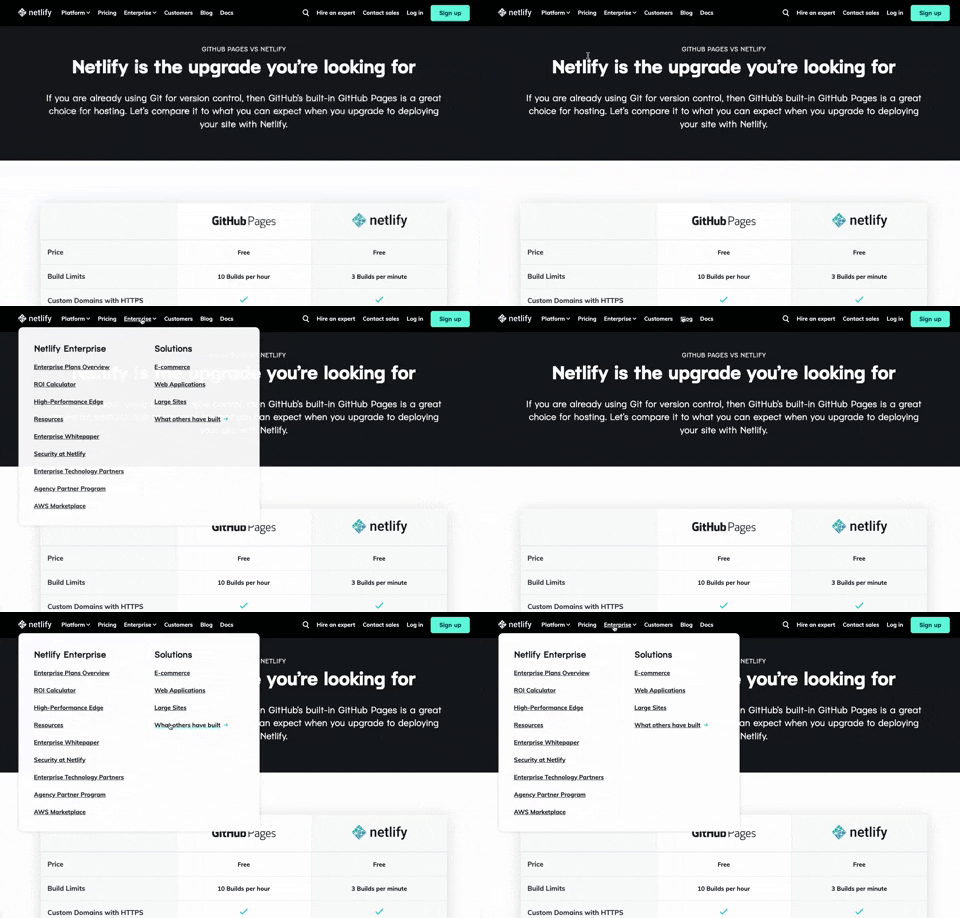
350. Netifly - Multi-layout Topbar Menu
This topbar menu dynamically adjusts its layout and content, offering users clear navigation and relevant options as they explore different sections of the site.
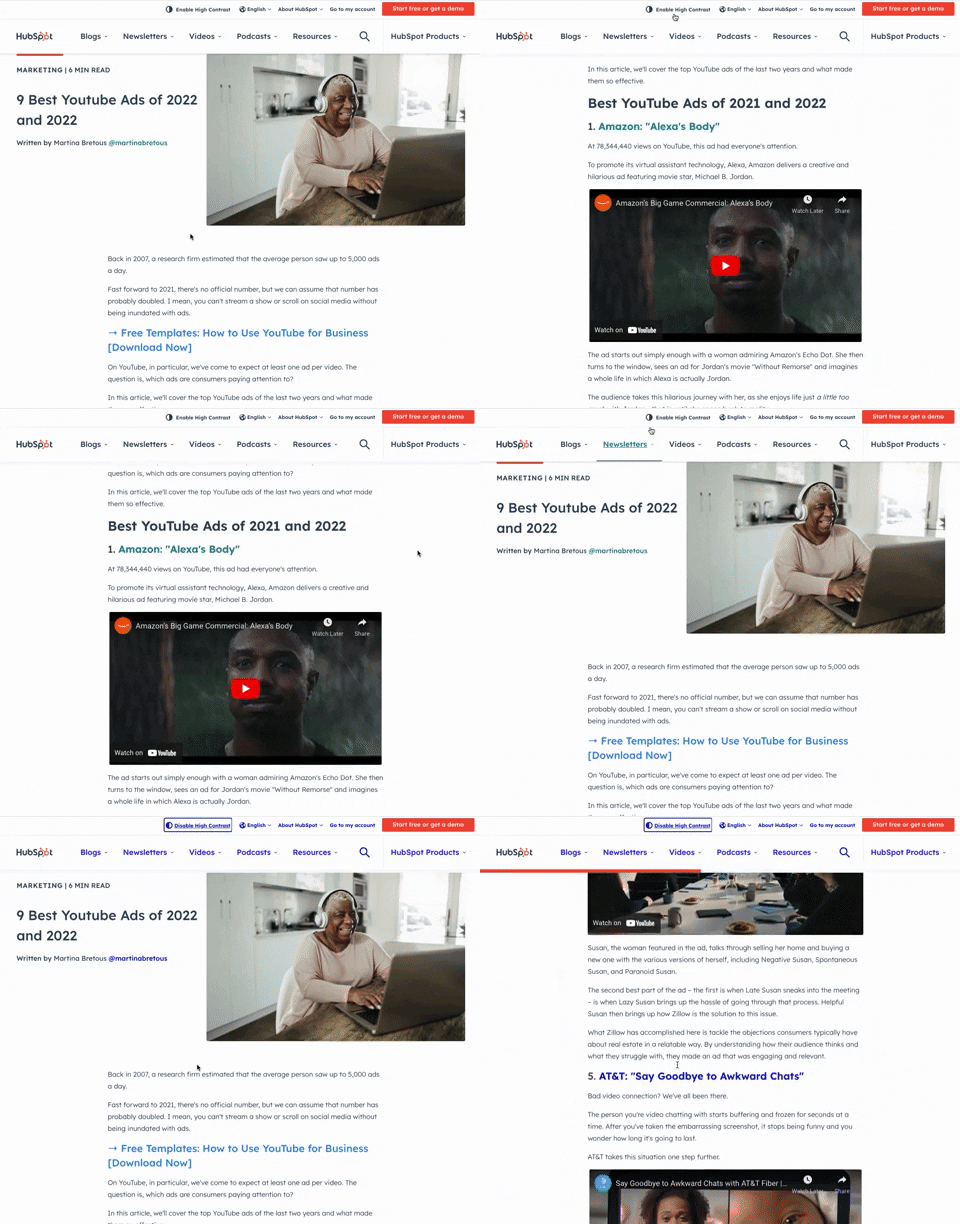
349. HubSpot - Toggle High Contrast
Users can toggle high contrast mode to improve readability and accessibility, enhancing the visual experience for those with low vision.

359. Toggle List/Grid View
Users can switch between list and grid views to optimize content display for their preference, enhancing readability and navigation.
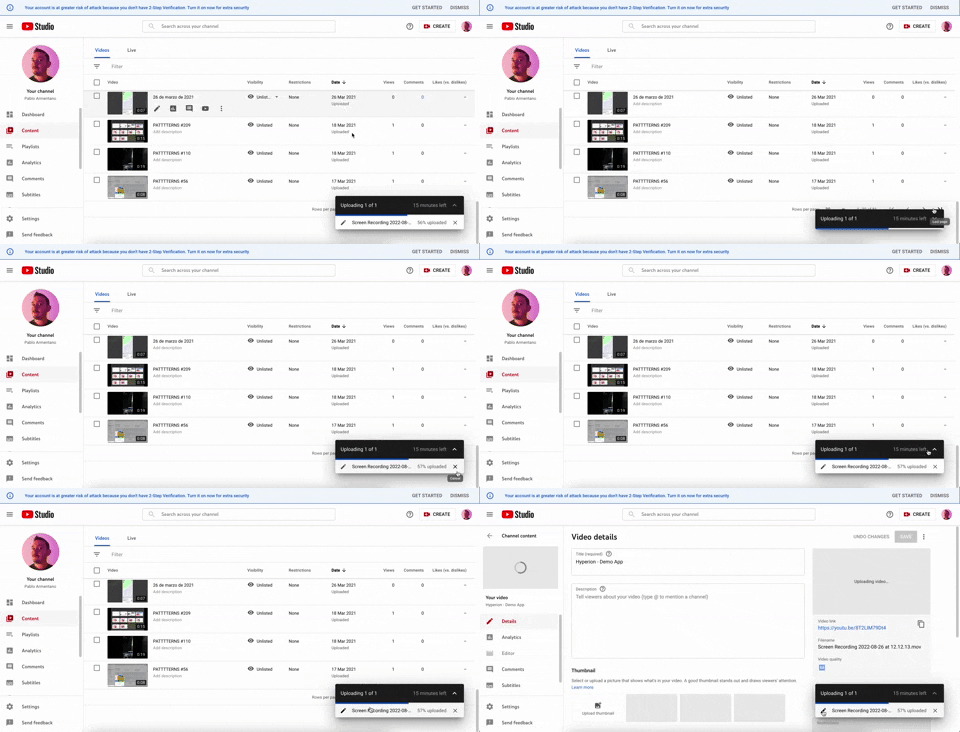
347. YouTube - Floating Progress Bar
This floating progress bar provides persistent, non-intrusive feedback on background tasks, allowing users to monitor progress while continuing other work.
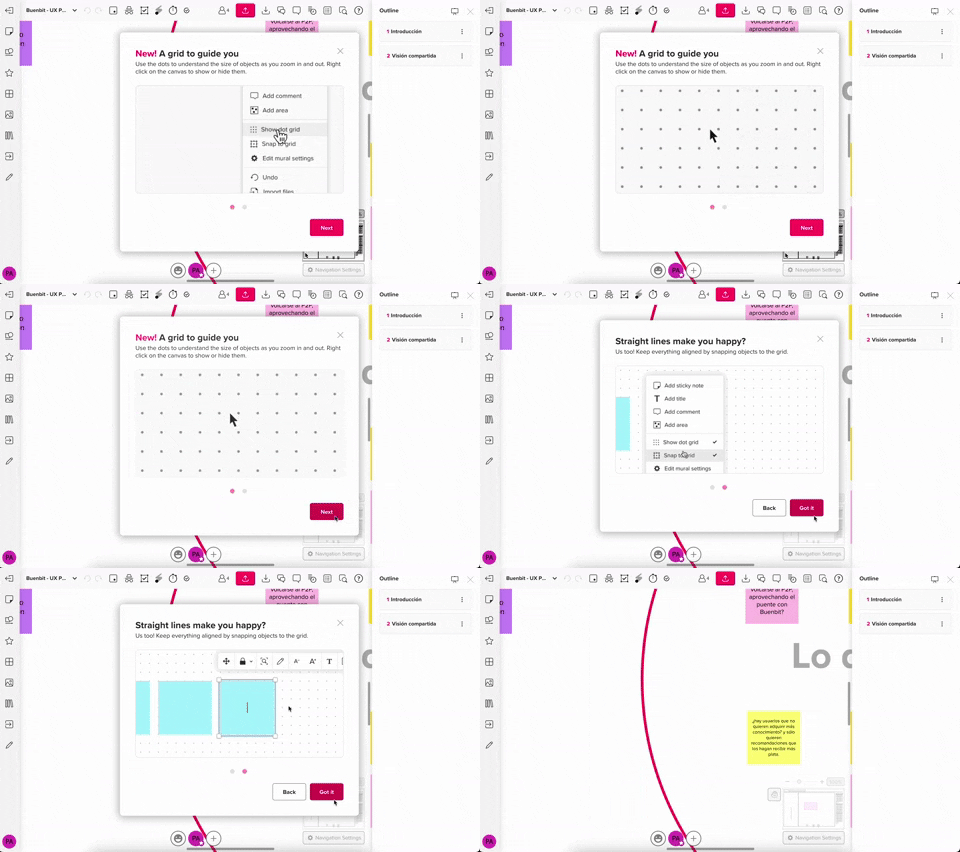
357. Modal w/ Steps & Animation (No blackout)
This modal guides users through multi-step processes with clear instructions and animated transitions, enhancing awareness without obscuring the underlying content.

355. Navigation Tabs with Slider (Swipe)
Users can effortlessly navigate distinct content categories by tapping tabs or swiping horizontally, ensuring quick access to desired information.
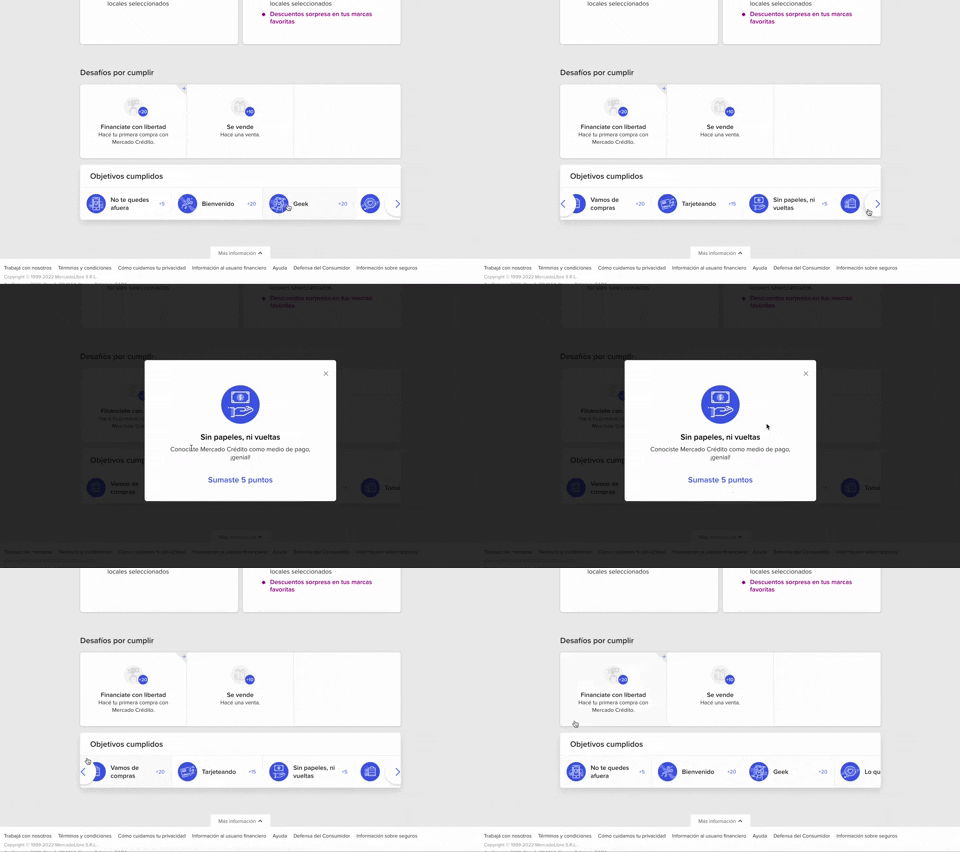
344. MercadoLibre - Horizontal Item Slider
This horizontal item slider allows users to effortlessly browse a curated selection of items, enhancing discoverability and engagement with minimal scrolling.
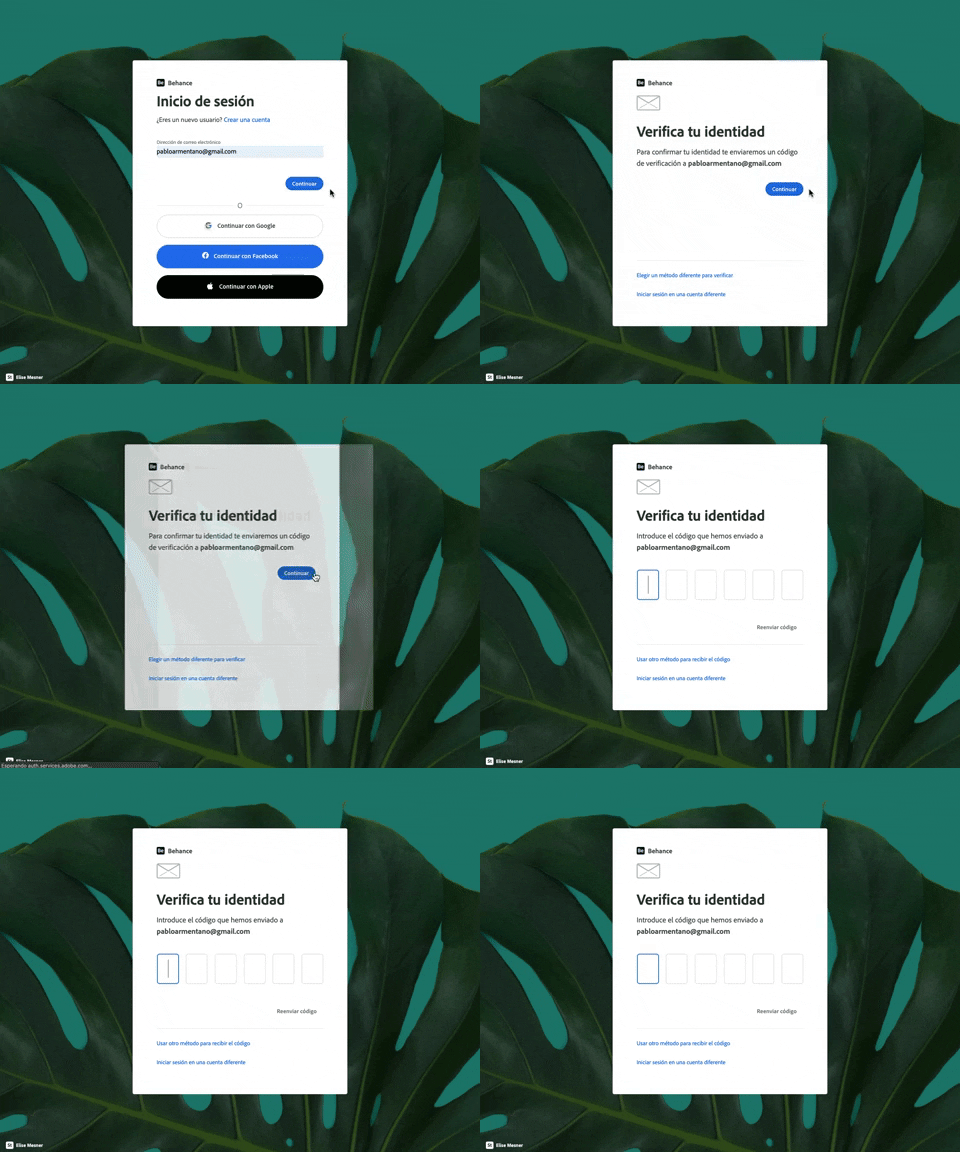
343. Behance - Login with Code Validation
Users input their email for login, then receive and enter a validation code to securely access their account.
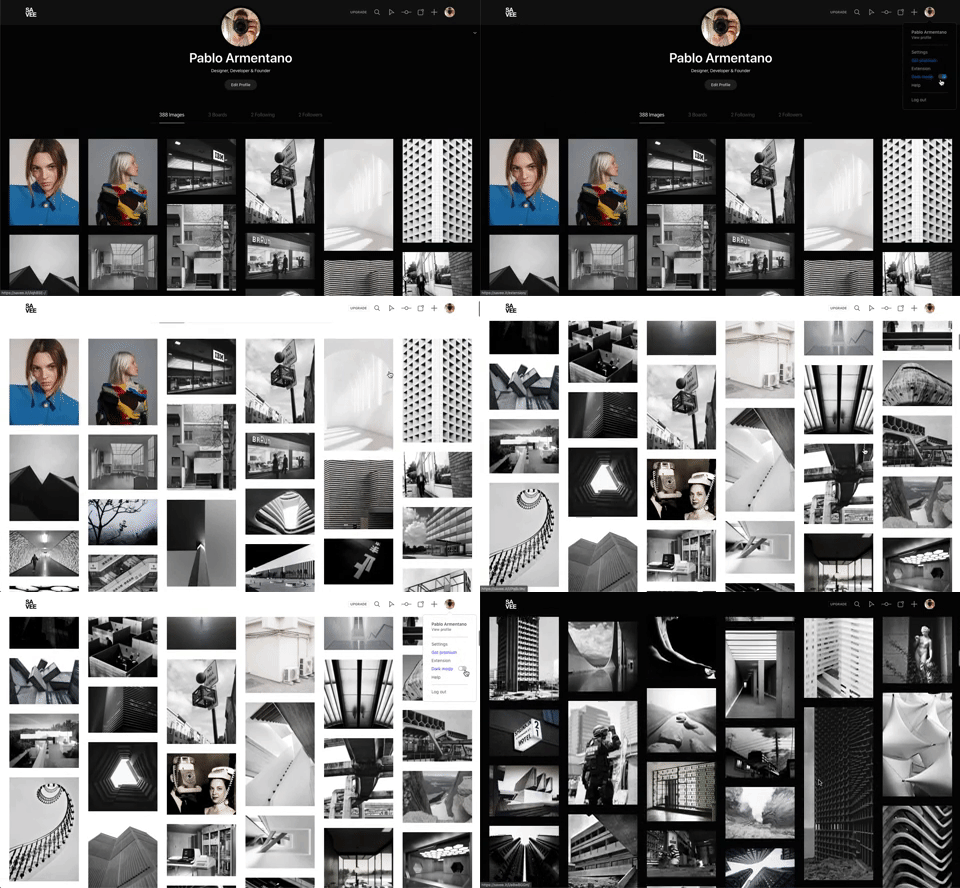
342. Savee - Light/Dark Mode Switcher
Users can instantly toggle between light and dark display modes, enhancing visual comfort and accessibility based on their preference or environment.
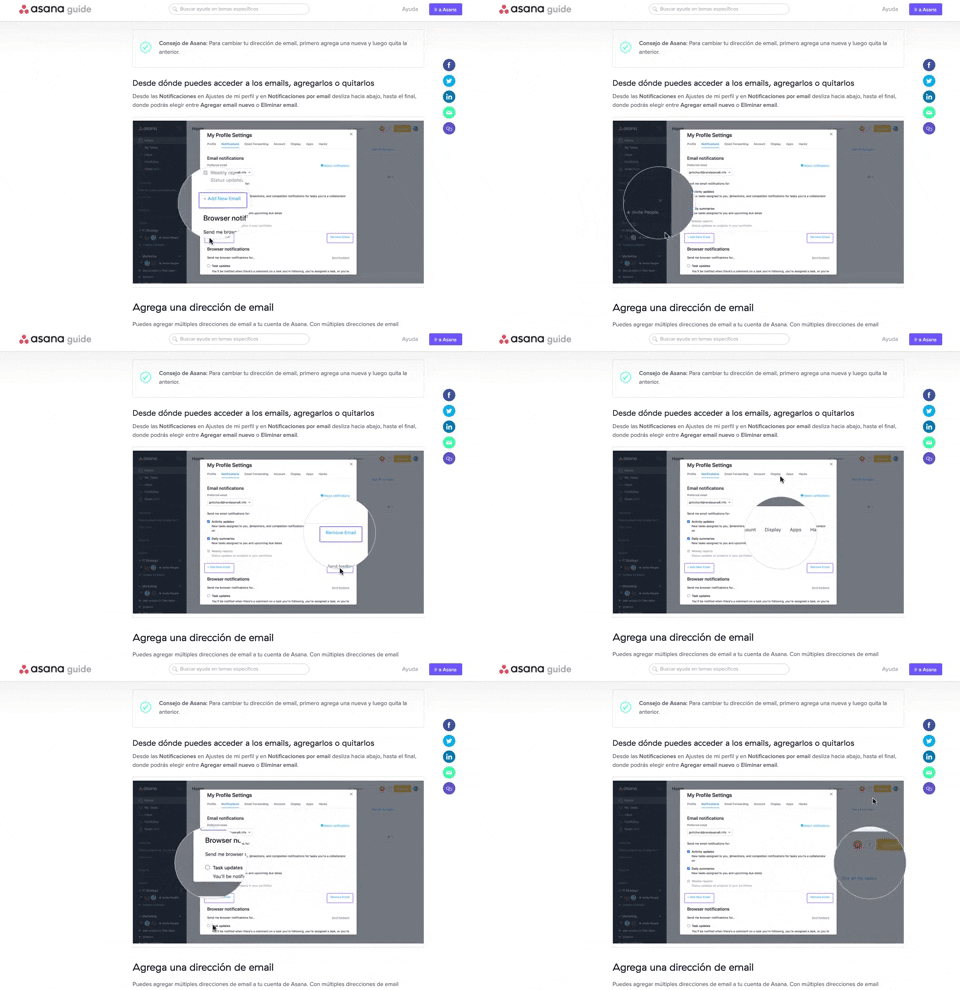
340. Asana - Zoom/Magnifier Over Image
This pattern enhances clarity by dynamically magnifying specific image regions, guiding users to key details and improving comprehension of visual instructions.
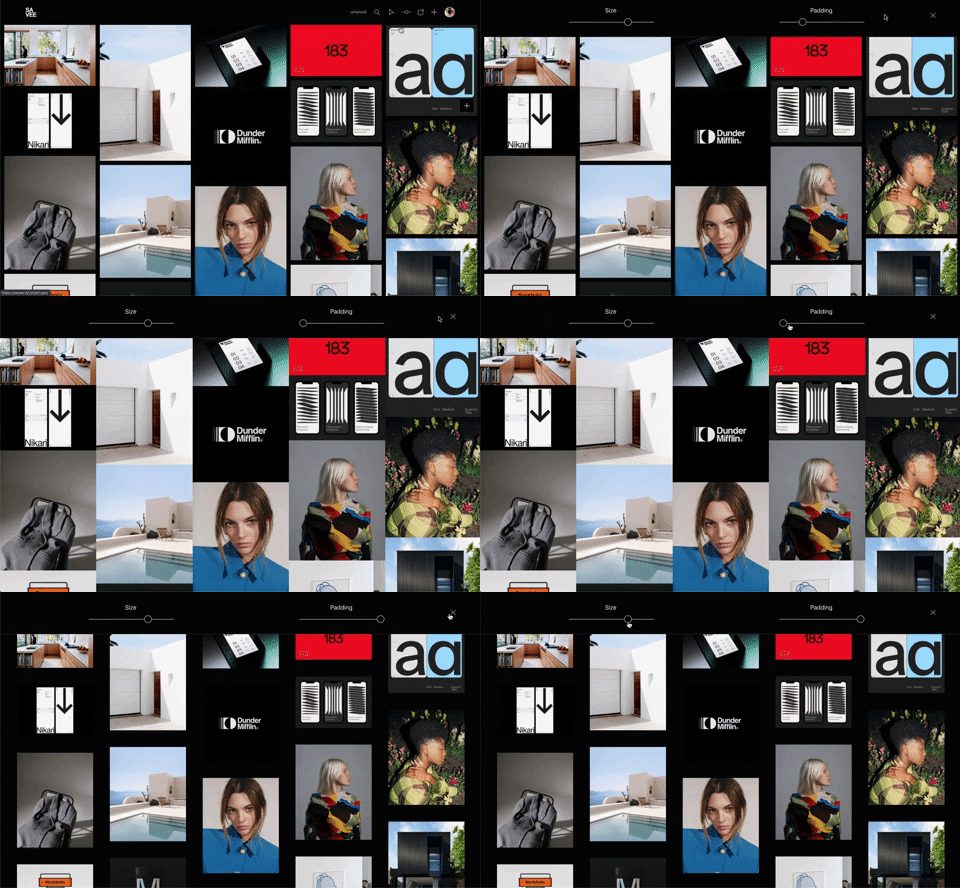
341. Image Grid Customization Sliders
Users can dynamically adjust the number of columns and spacing in an image grid using intuitive sliders, enhancing visual organization and content exploration.
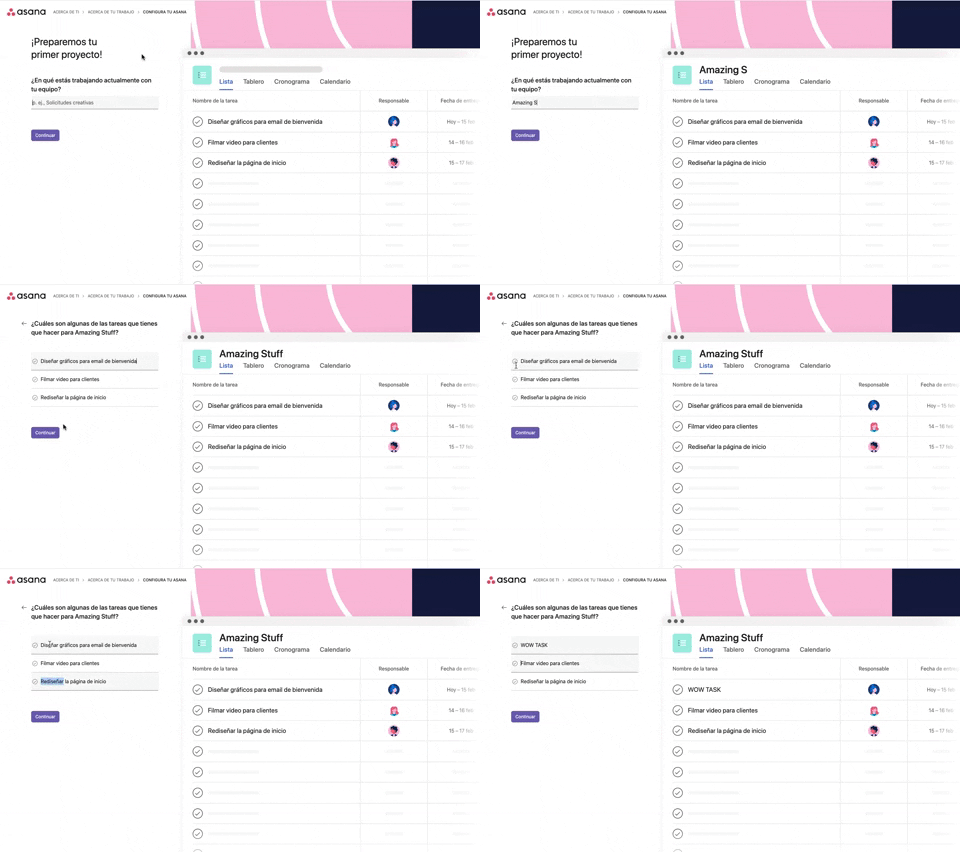
339. Asana - Platform Onboarding Simulator
This pattern guides users through initial setup by simulating product features, allowing them to visualize outcomes and make informed decisions before committing.

346. Sidebar Menu With Collapsable Items (Show More)
This sidebar menu allows users to expand and collapse sections, efficiently managing screen space while providing access to numerous navigation options.

345. Vertical Accordion for FAQs
This vertical accordion allows users to efficiently reveal or hide detailed content sections, optimizing screen space and improving navigation for FAQs or contact information.
336. Floating Popover on Click
A UI pattern where a floating popover element appears adjacent to a trigger element upon a click interaction, providing additional context or actions without navigating away.
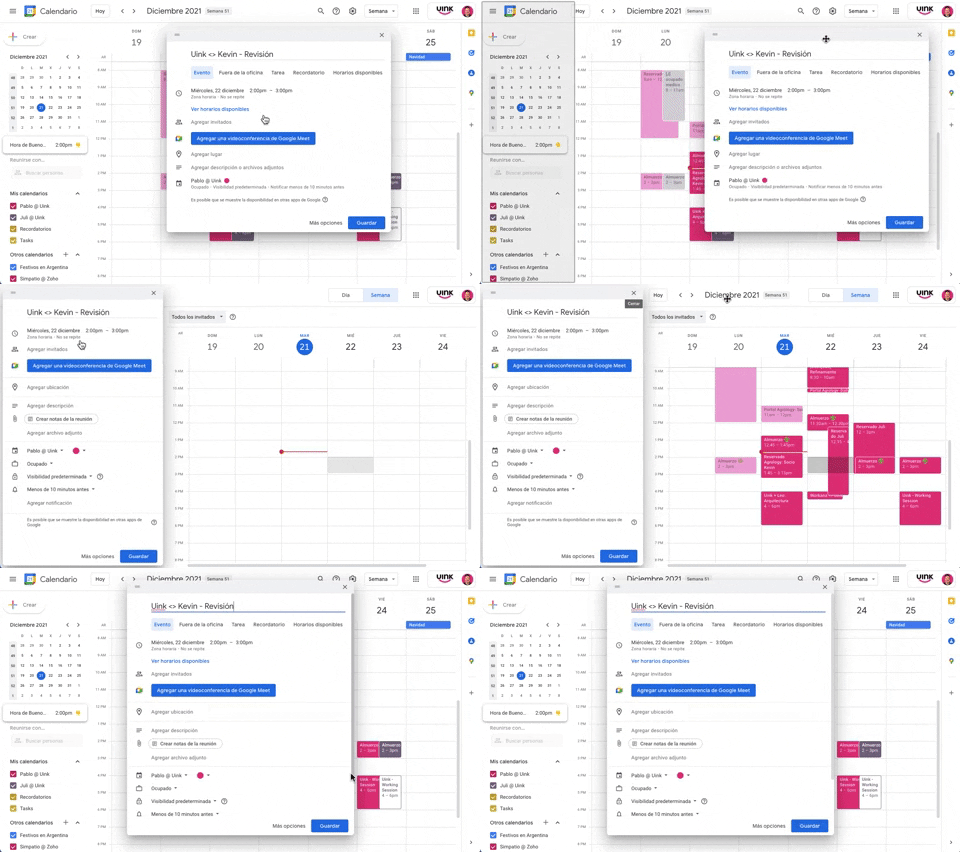
343. Modal/Dialog Drag & Drop to Fixed Position
Users can drag a modal dialog to a fixed side panel, allowing them to view and interact with underlying content without losing context.
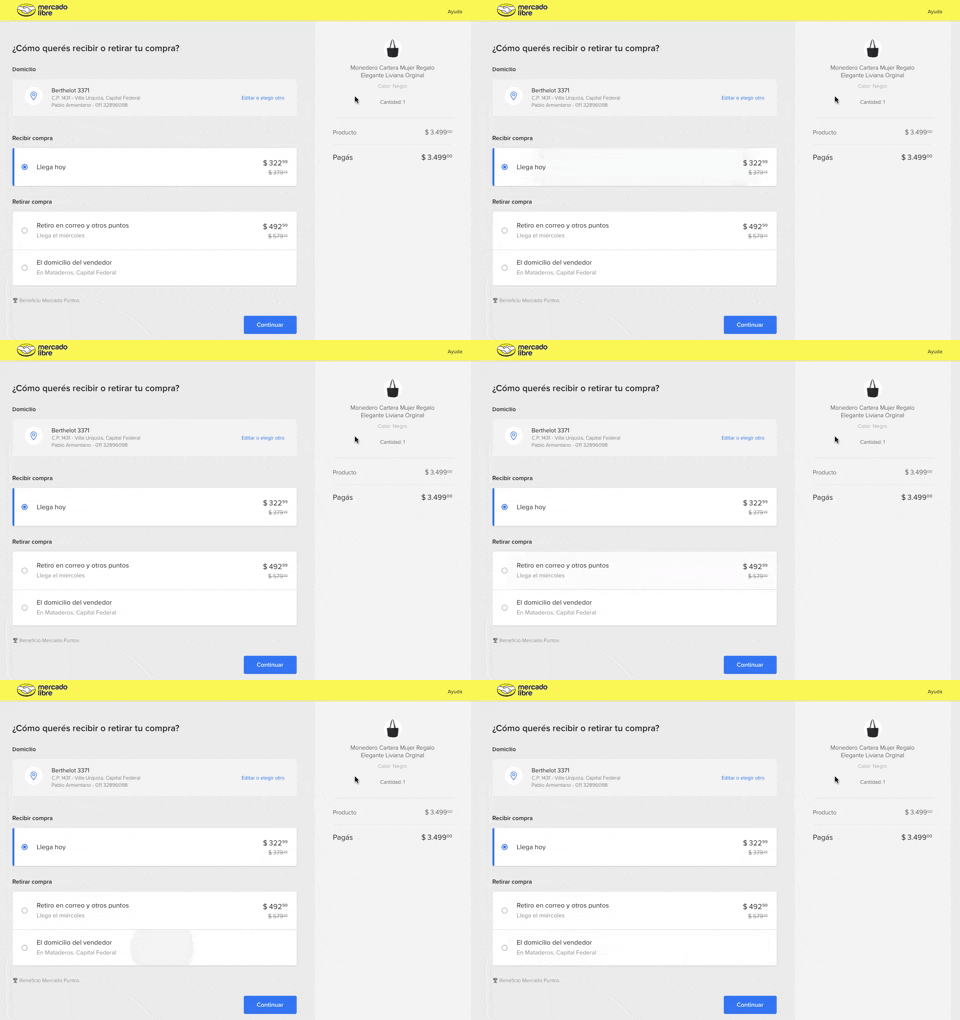
334. MercadoLibre - Call to Action Trigger Effect
This pattern uses a subtle, pulsing animation on the primary call to action to draw user attention and encourage progression through the flow.
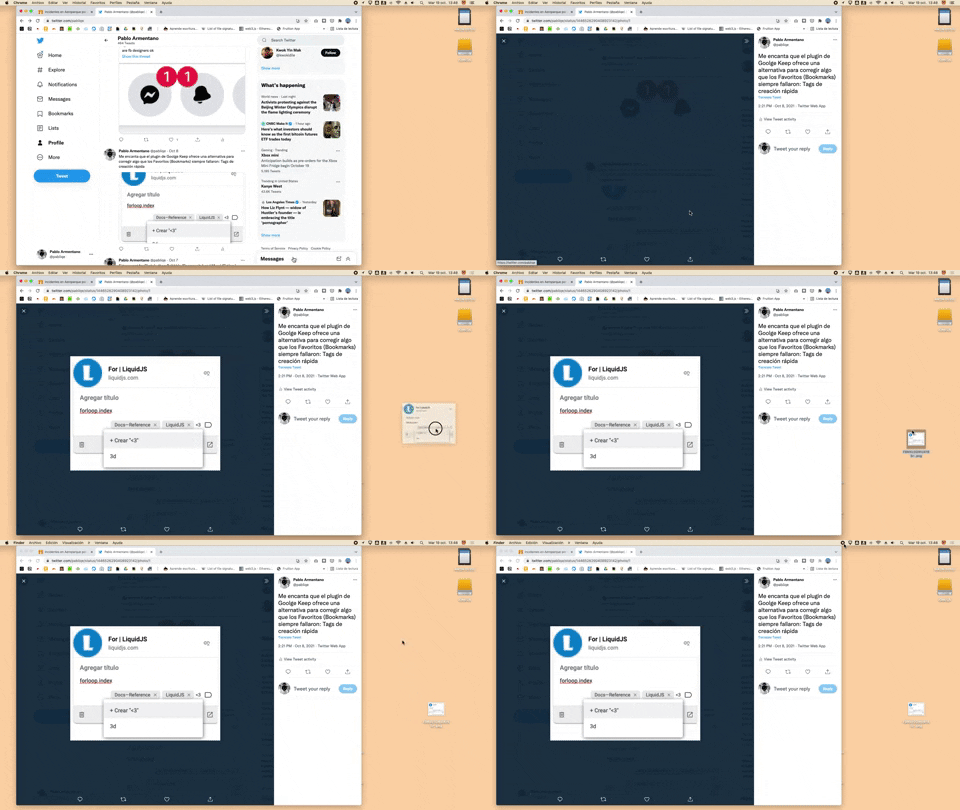
332. Drag & Drop to Create File from Web Image
Users can effortlessly create a new file on their desktop by dragging and dropping an image directly from a web browser.
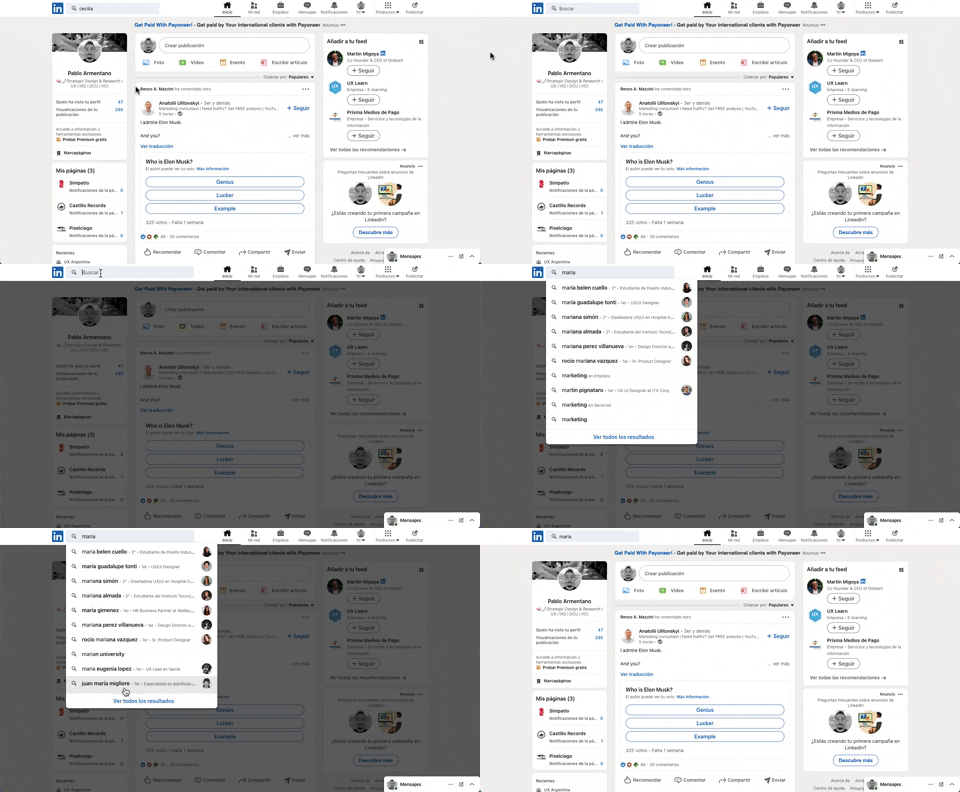
331. Linkedin - Search Bar Blackout
This pattern darkens the background and highlights the search bar, guiding users to focus on search input and results without distraction.
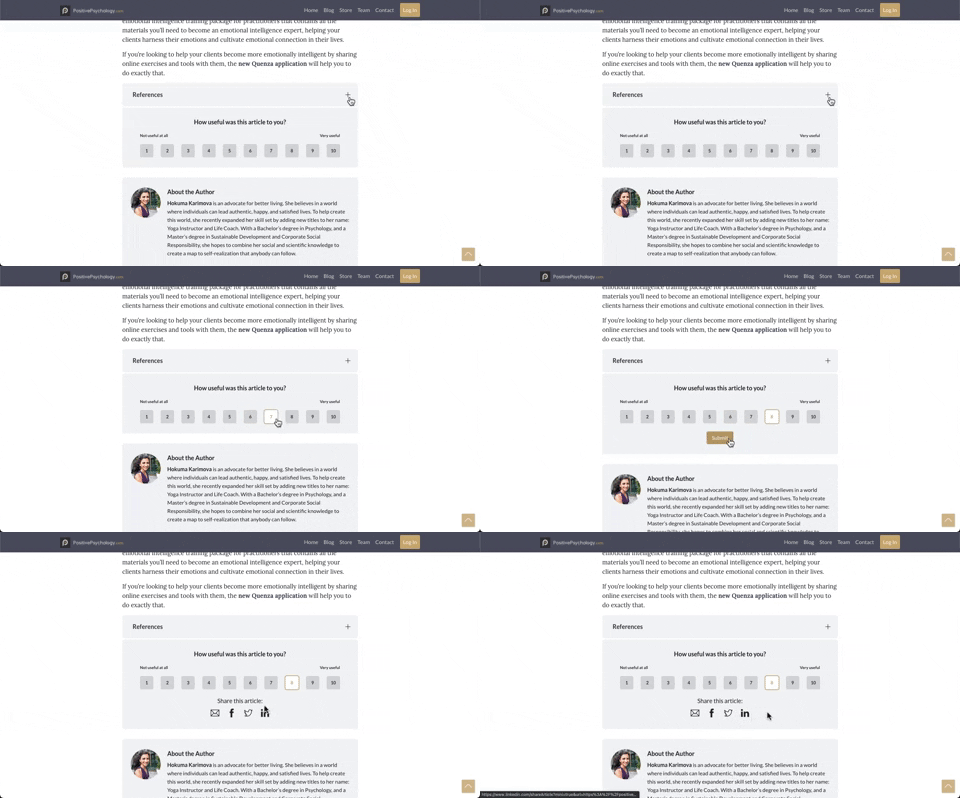
330. PositivePsychology - Article User Feedback
Users can quickly rate an article's usefulness on a 1-10 scale, providing immediate feedback to improve content quality and relevance.

322. Search on Menu Items
This pattern integrates a search input directly within a menu, typically a dropdown, enabling users to quickly filter and locate specific menu items. It enhances pathfinding and awareness, commonly found in desktop applications with navigation bars. Notable behavior: Typing; Filtering; Filtered Menu Items.
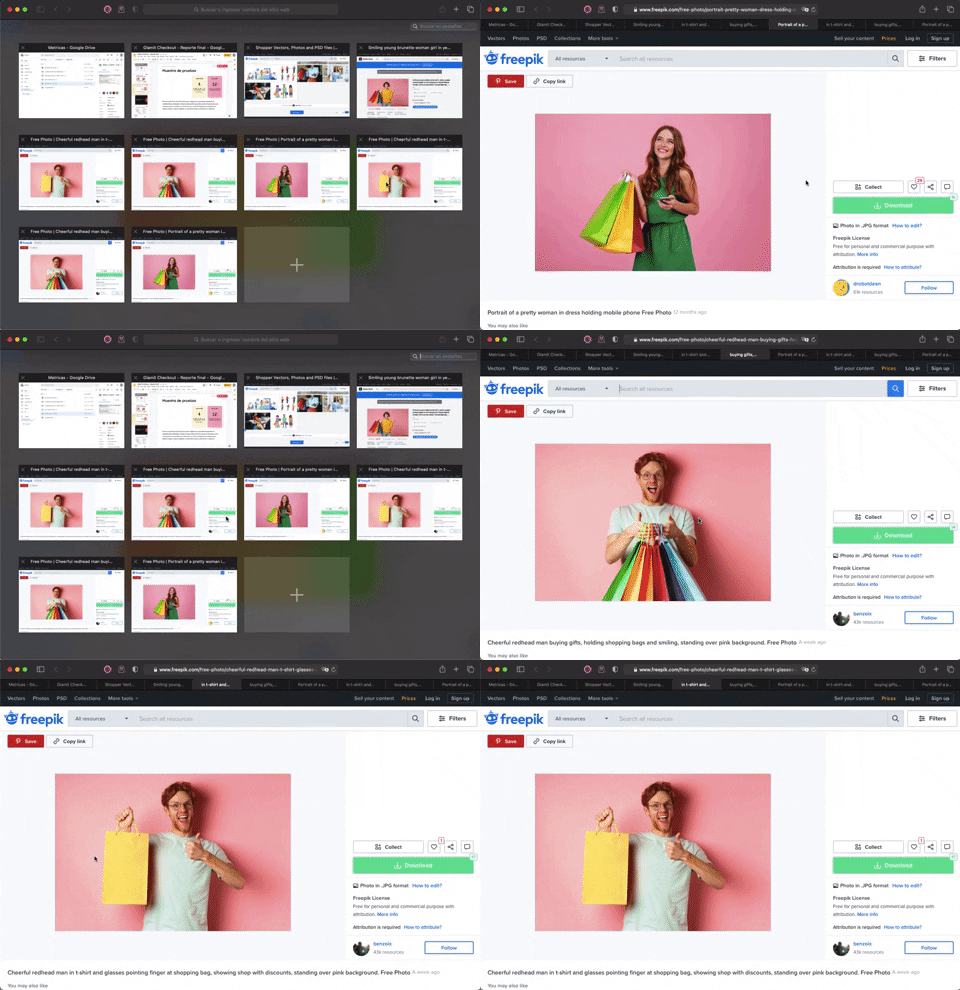
336. Transition: Zoom-In/Out for Browser Windows
This transition allows users to fluidly zoom between a grid of browser tab thumbnails and a full-screen view, enhancing navigation and context switching.
333. Static Tooltip with Steps
A non-dismissible tooltip presenting a sequence of steps, commonly employed for user onboarding or guiding through multi-stage workflows, enhancing user awareness and pathfinding.
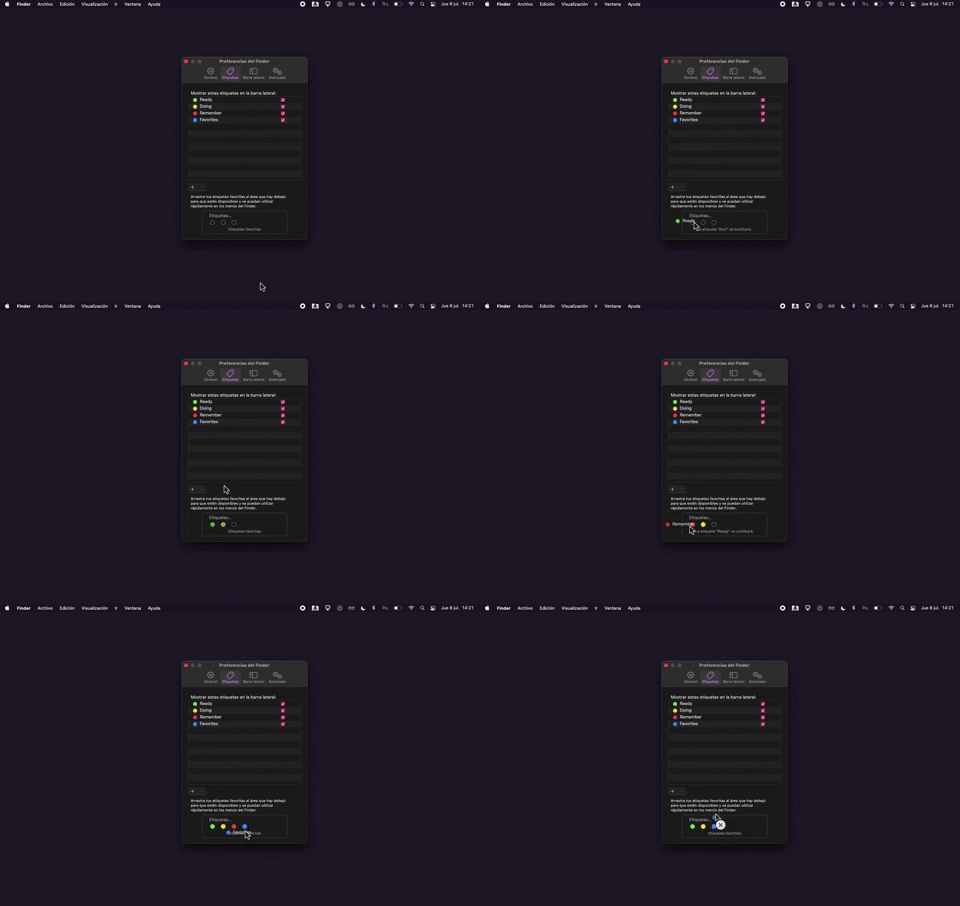
325. Drag & Drop Tag Colors to Slots
Users can intuitively assign color-coded tags to designated slots via drag-and-drop, enhancing organization and quick visual identification of items.
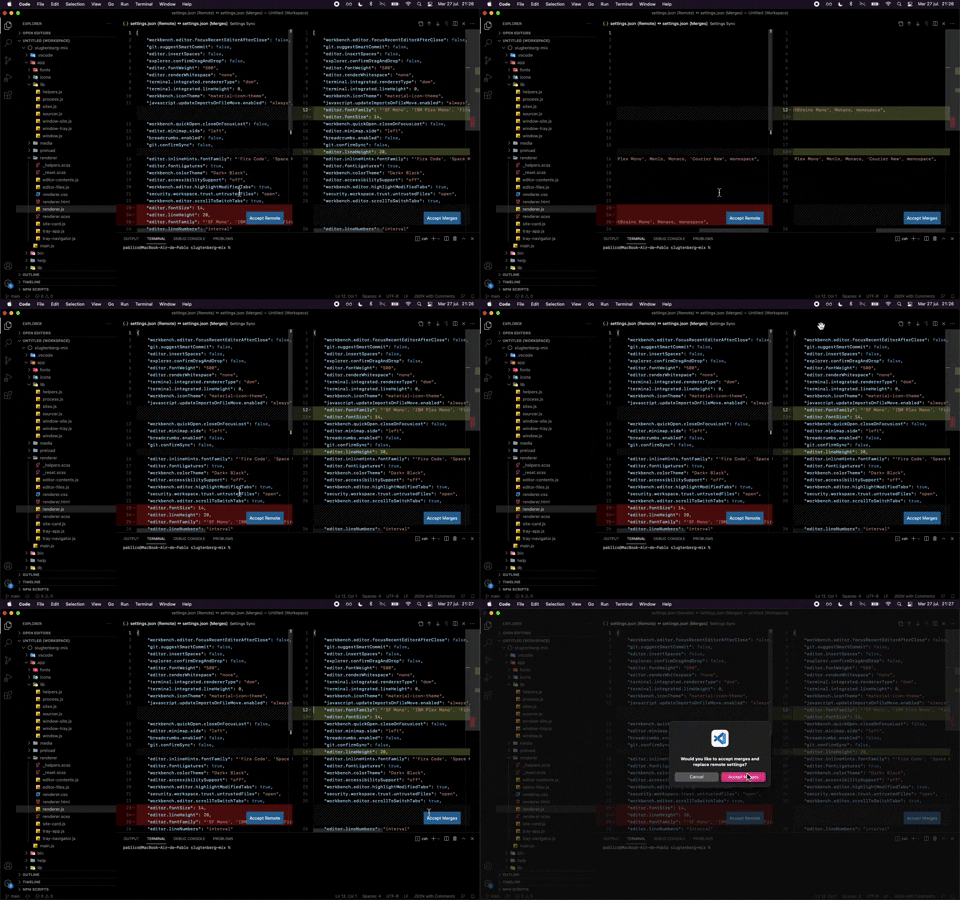
324. Visual Studio Code - Dual View Scroll Sync
This pattern allows users to efficiently compare and resolve differences between two versions of a file by synchronizing their scroll positions.
329. Postman - Onboarding Tooltips
Onboarding tooltips guide users through a new application or feature, highlighting key UI elements and functionalities. They typically appear sequentially to introduce core concepts and actions, improving initial user engagement and understanding within a desktop environment. Notable behavior: Hover; Click (to advance/dismiss); Visible.

321. Caloriemama - App Hero Swiper
This hero swiper provides a quick overview of daily calorie metrics, allowing users to easily track their budget, consumption, exercise, and remaining calories.
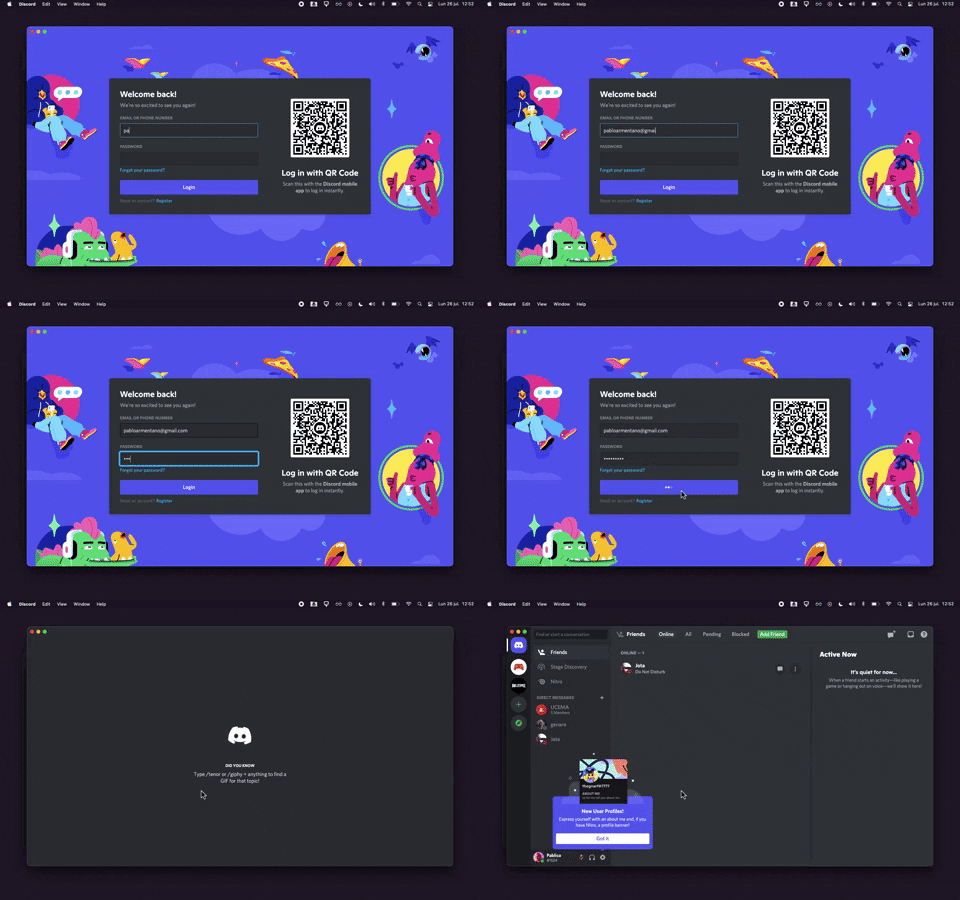
320. Discord - Sign In with Loading Tips
This sign-in pattern offers both traditional email/password input and a convenient QR code scan, enhancing user flexibility and reducing login friction with engaging loading tips.
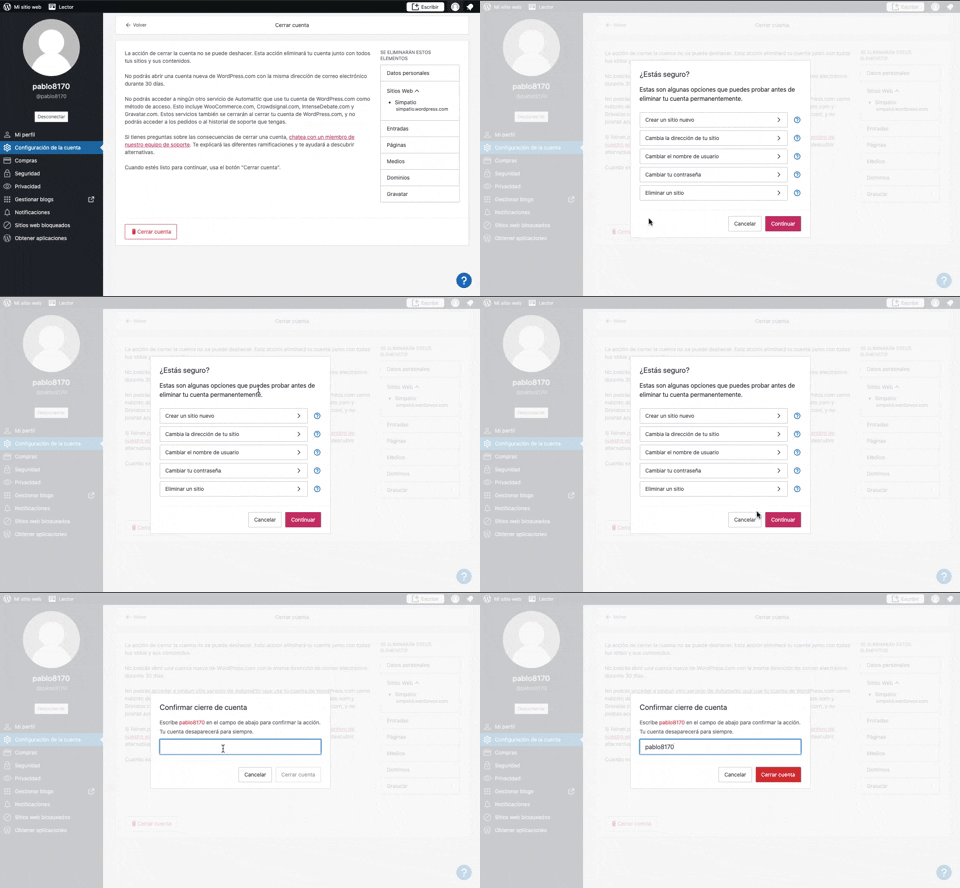
319. Modal Blackout w/ Multiple Choice
This pattern uses a modal blackout to confirm a user's intent to close an account, ensuring they understand the irreversible consequences before proceeding.
318. Binance - Tooltip on Features
A tooltip pattern used to provide contextual information or explanations for features, commonly activated on hover or focus, enhancing user understanding and decision-making in web and desktop applications.

317. Zoom In—Out Transition on Click
Users can tap a thumbnail to smoothly zoom into a full-screen view of the image, providing an immersive and focused viewing experience.

316. Apple - Tooltip on icon
This tooltip provides contextual guidance for an icon, explaining its function and how to use it, enhancing user understanding and feature adoption.

315. Signal - PIN Reminder
This pattern uses a persistent banner to remind users to verify their PIN, enhancing security and recall without interrupting core app functionality.
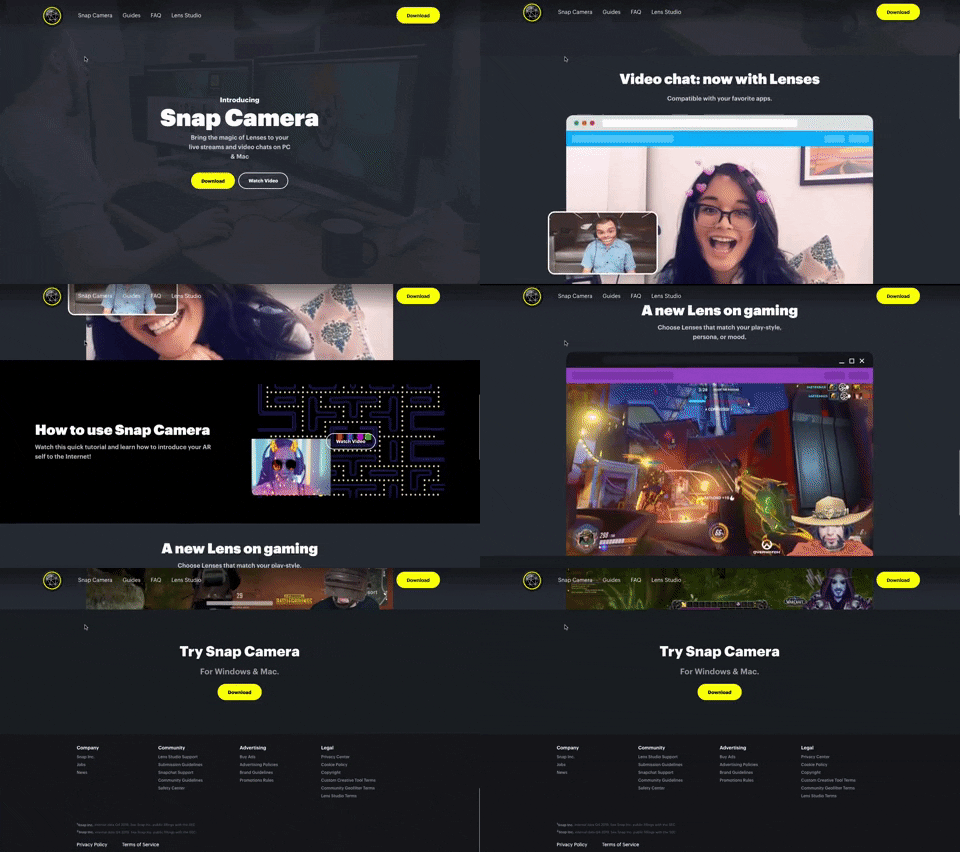
314. Snapchat - Snap Camera
A web landing page for the Snap Camera product, featuring a fixed navigation bar, interactive buttons, and animated video content to showcase its features and encourage user engagement. Notable behavior: Scrolling; Button Click; Fixed Header.
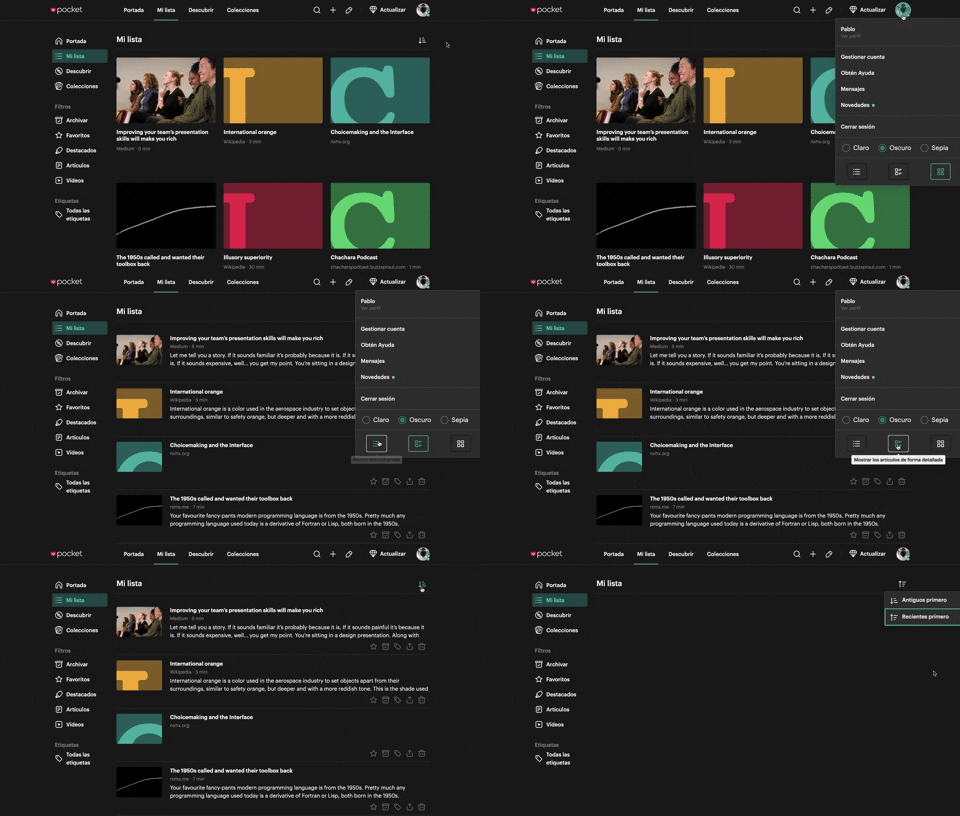
312. Pocket - View Switcher
Users can effortlessly switch between grid and list views of content, enhancing readability and personalizing their browsing experience.
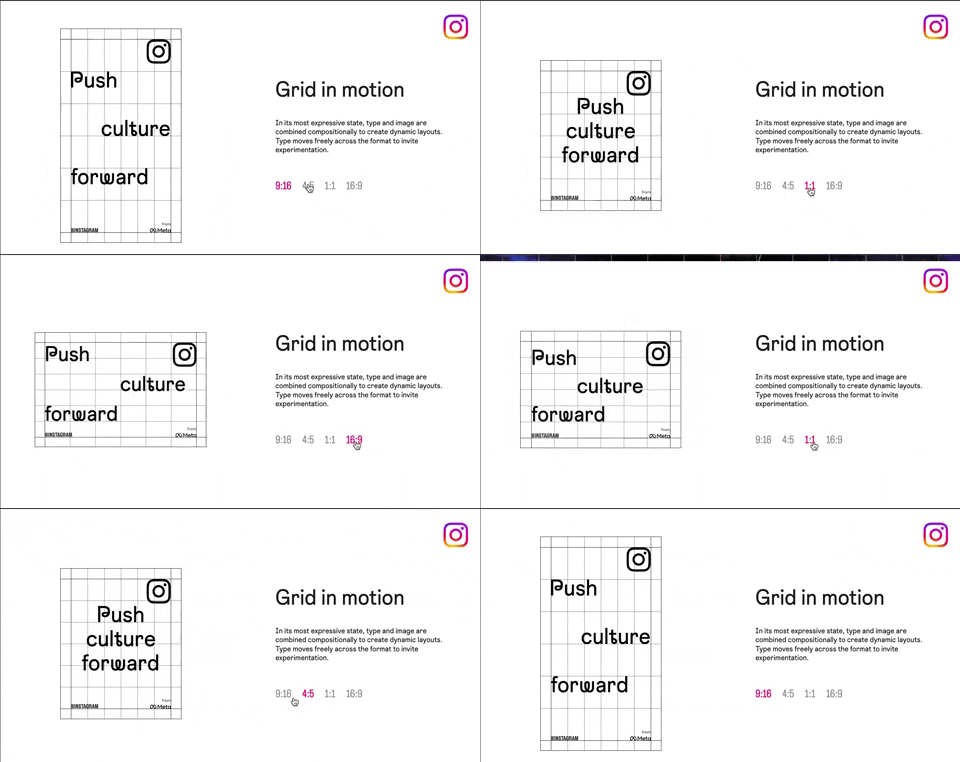
318. Instagram - Animated Illustration with Menu
Users can dynamically adjust content aspect ratios via a clickable menu, providing flexible viewing experiences and enhancing content adaptability.
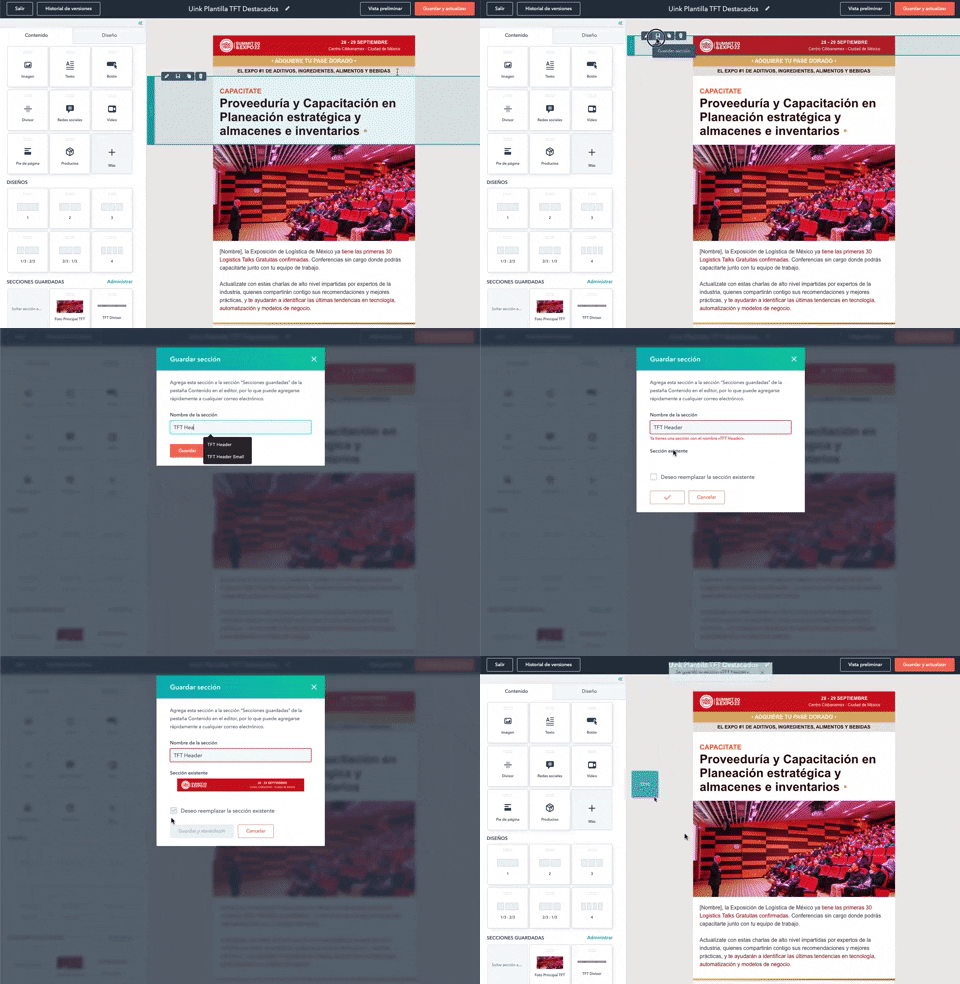
316. Modal Blackout for Delete Confirmation
This pattern uses a modal blackout to confirm a delete action, ensuring users are fully aware and can prevent accidental data loss.
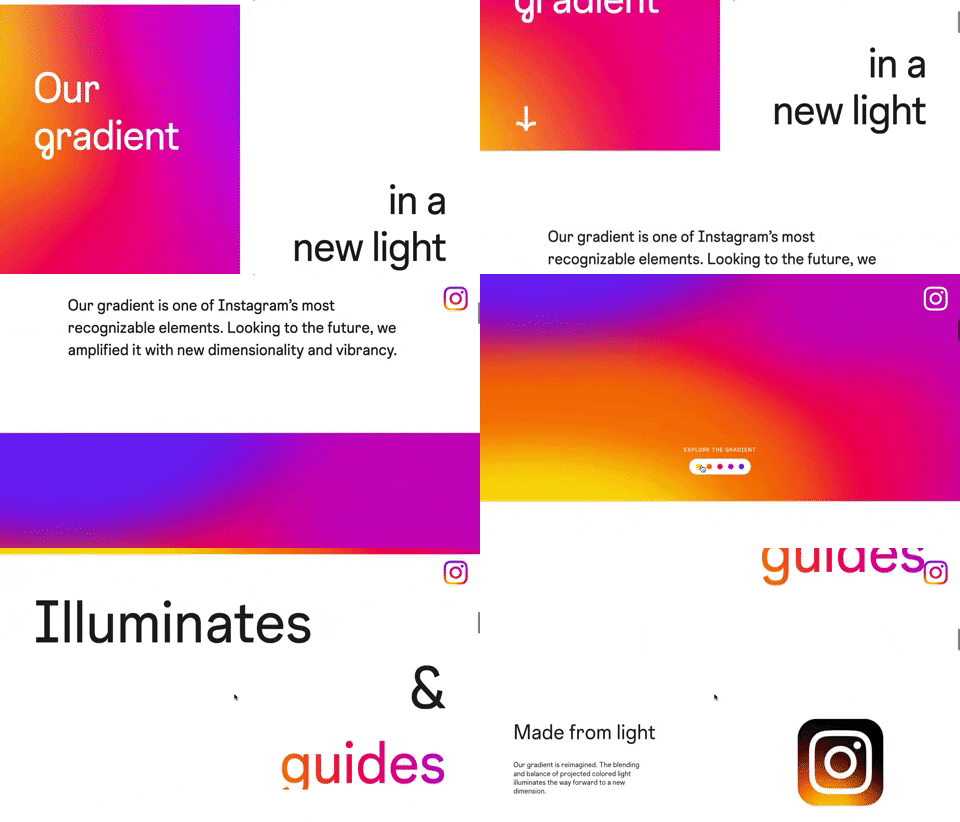
309. Instagram - Brand Gradient
This pattern uses a dynamic, animated brand gradient to visually engage users and highlight key messages as they scroll, enhancing brand recognition and content flow.
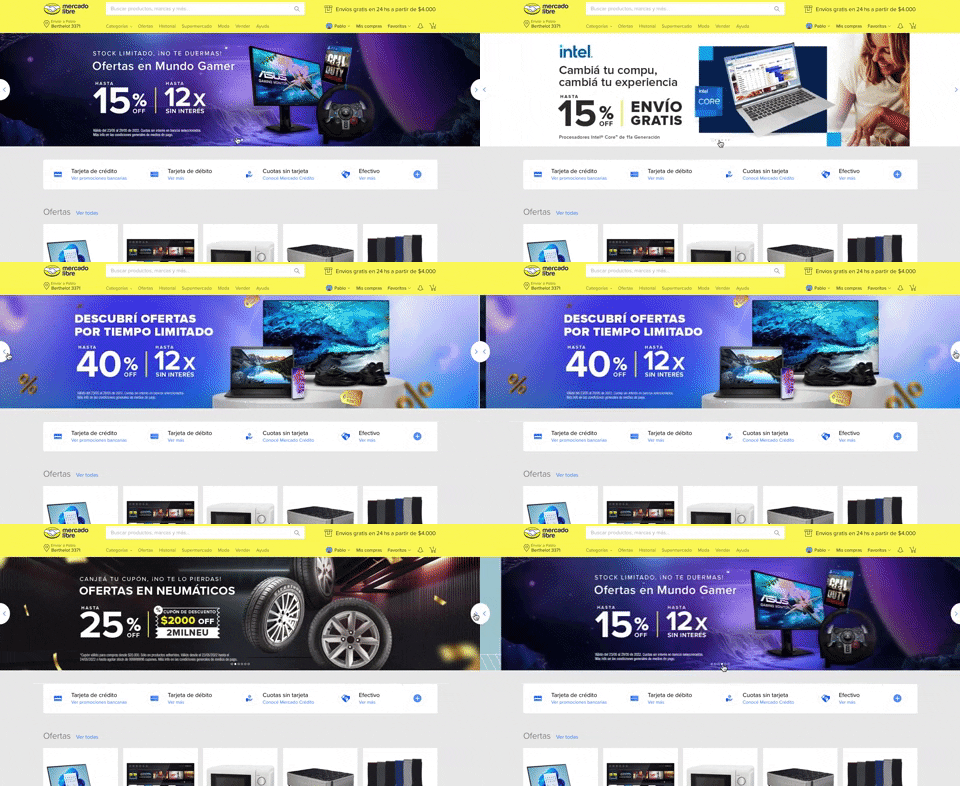
308. MercadoLibre - Hero Slider
Users can effortlessly browse featured promotions and products through a dynamic hero slider, enhancing awareness and guiding their pathfinding.
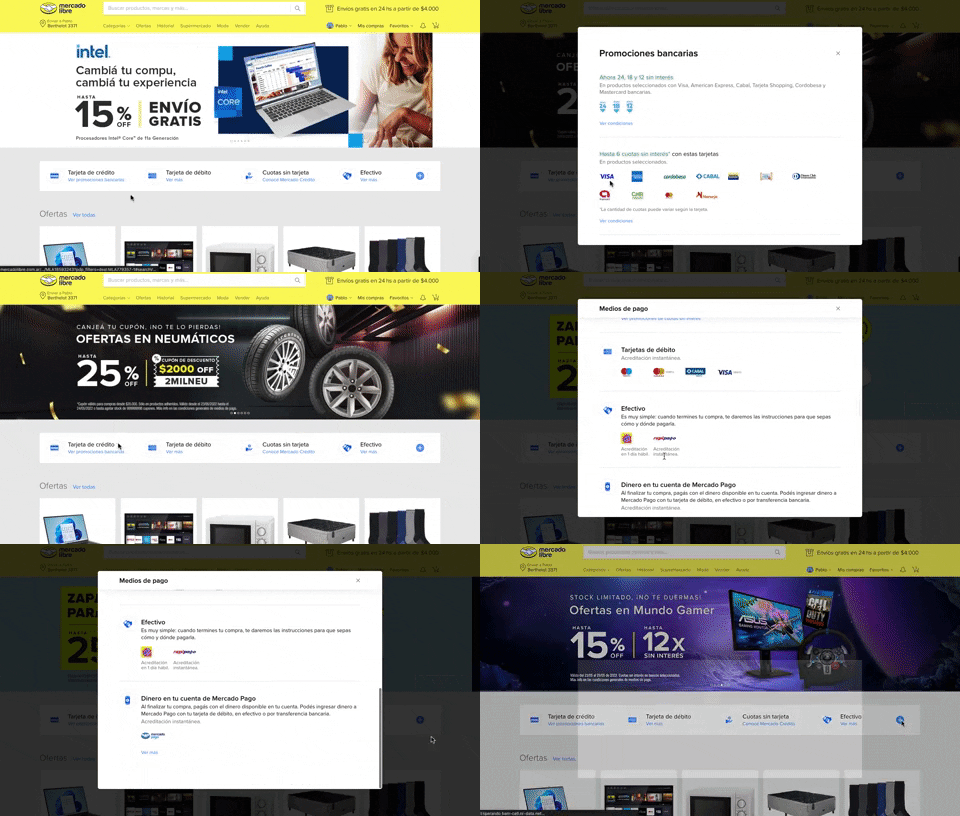
313. Modal Blackout w/ Scroll
This pattern displays a scrollable modal over a darkened background, allowing users to focus on its content while retaining context of the underlying page.
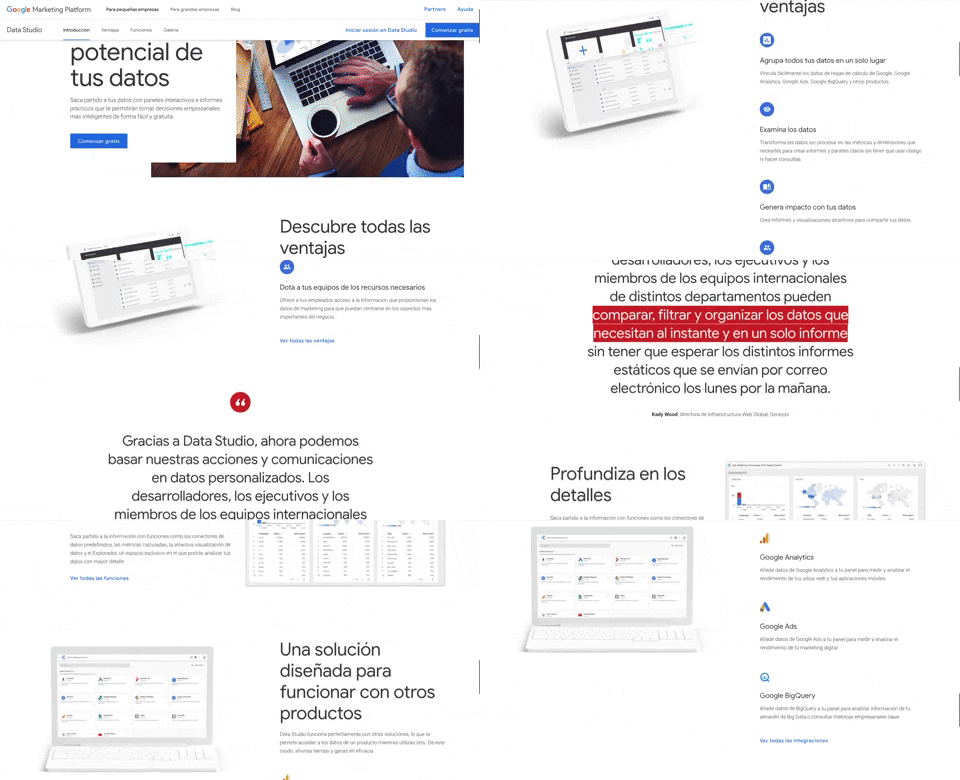
312. Google Data Studio
A fixed navigation bar ensures key actions like "Comenzar gratis" remain accessible as users scroll, improving discoverability and conversion.
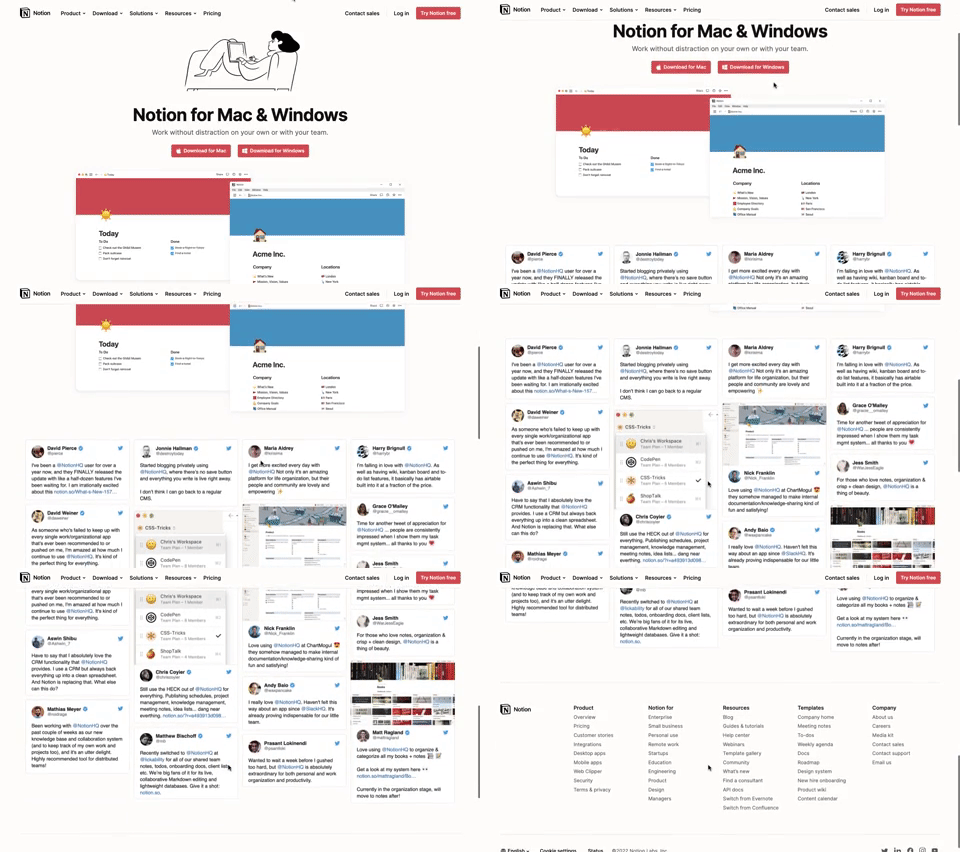
311. Landing Page for App Download
This landing page guides users to download the application for their specific operating system, simplifying the installation process.
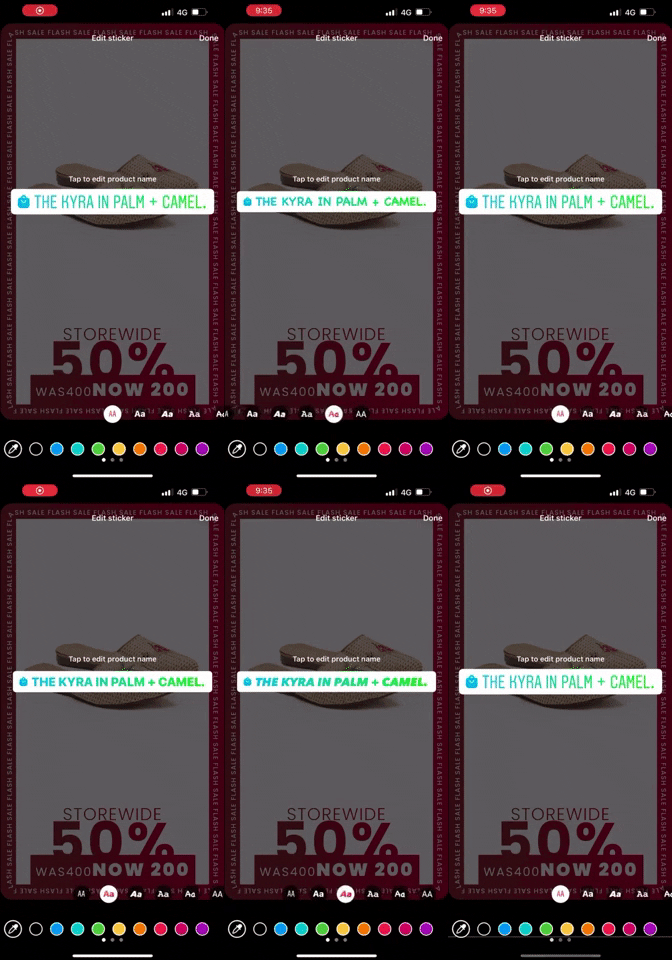
309. Horizontal Slider for Styles
Users can effortlessly browse and select various text styles and colors via a horizontal slider, enhancing creative expression and visual customization.

308. Spinners for Module Loading
This spinner provides visual feedback during module loading, reassuring users that the system is actively processing and preventing perceived delays.

307. Tooltip on Hover
Hovering over a truncated title reveals its full text in a tooltip, providing complete context without cluttering the interface.
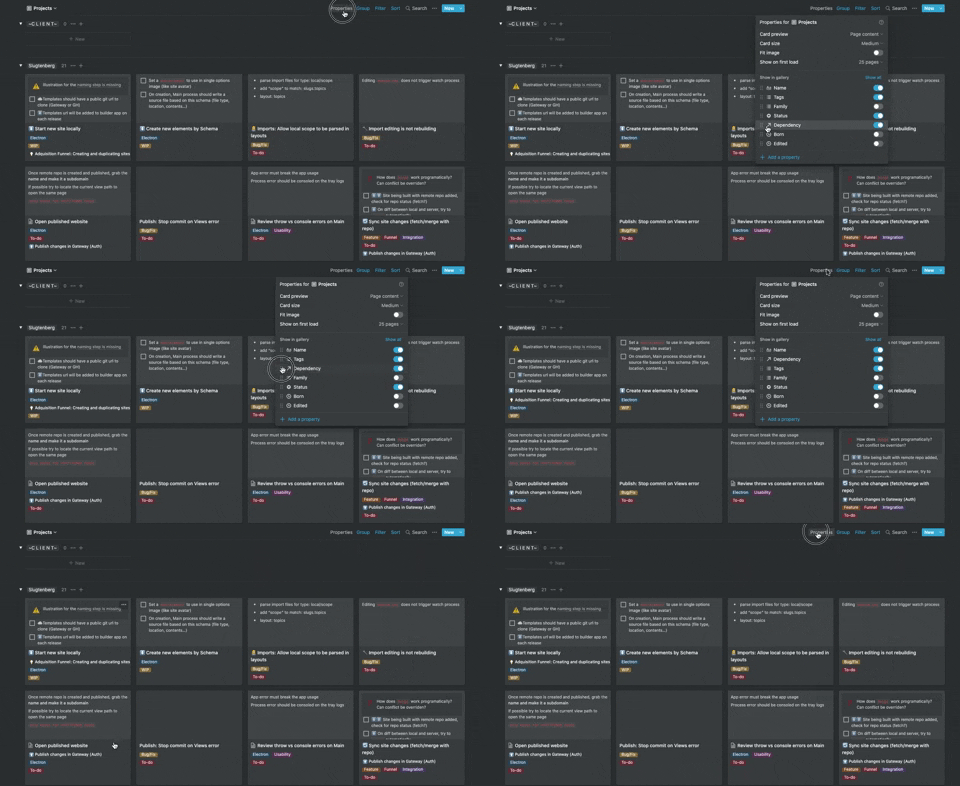
306. Drag & Drop for Reordering List Items (Mouse)
Users can intuitively reorder list items by dragging and dropping them, providing a direct and efficient way to customize their view.
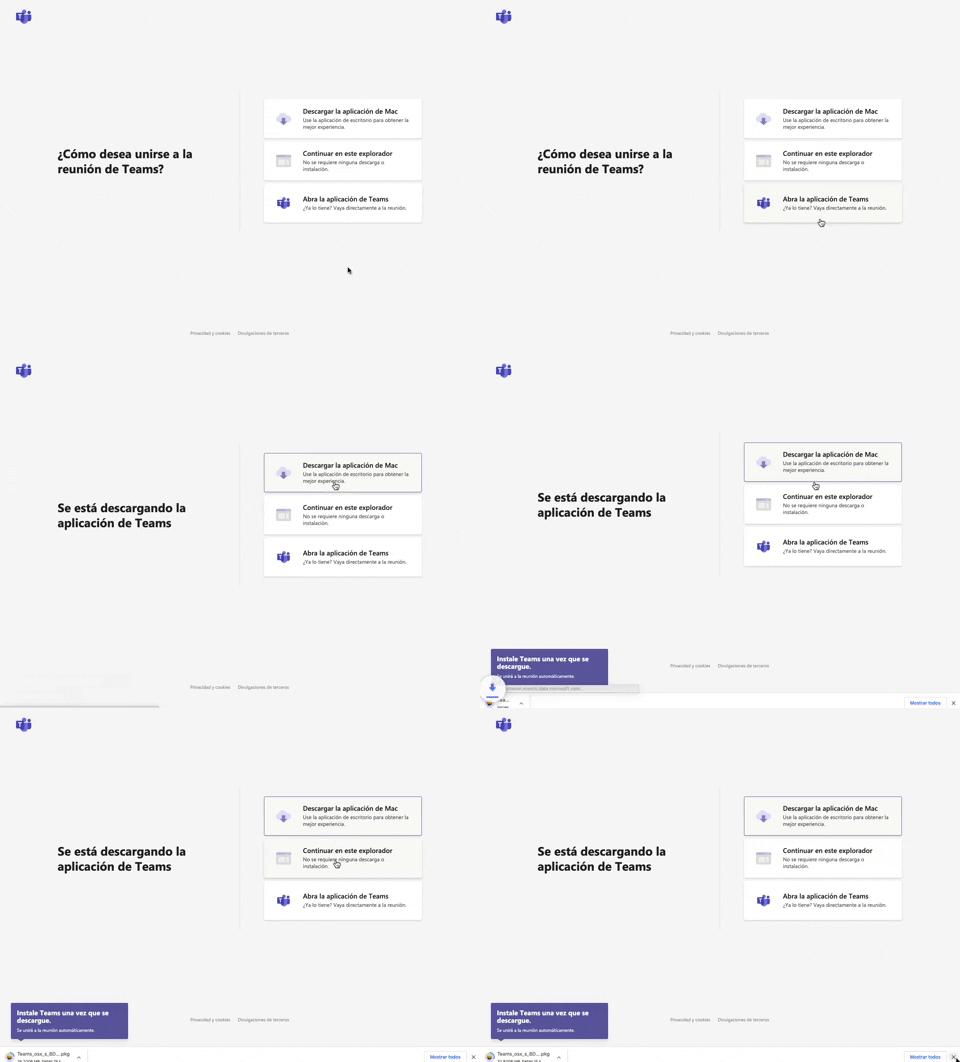
305. Button Combo for App Download
This pattern offers users clear choices to join a meeting, enabling them to download the app, continue in the browser, or open the existing application for optimal experience.
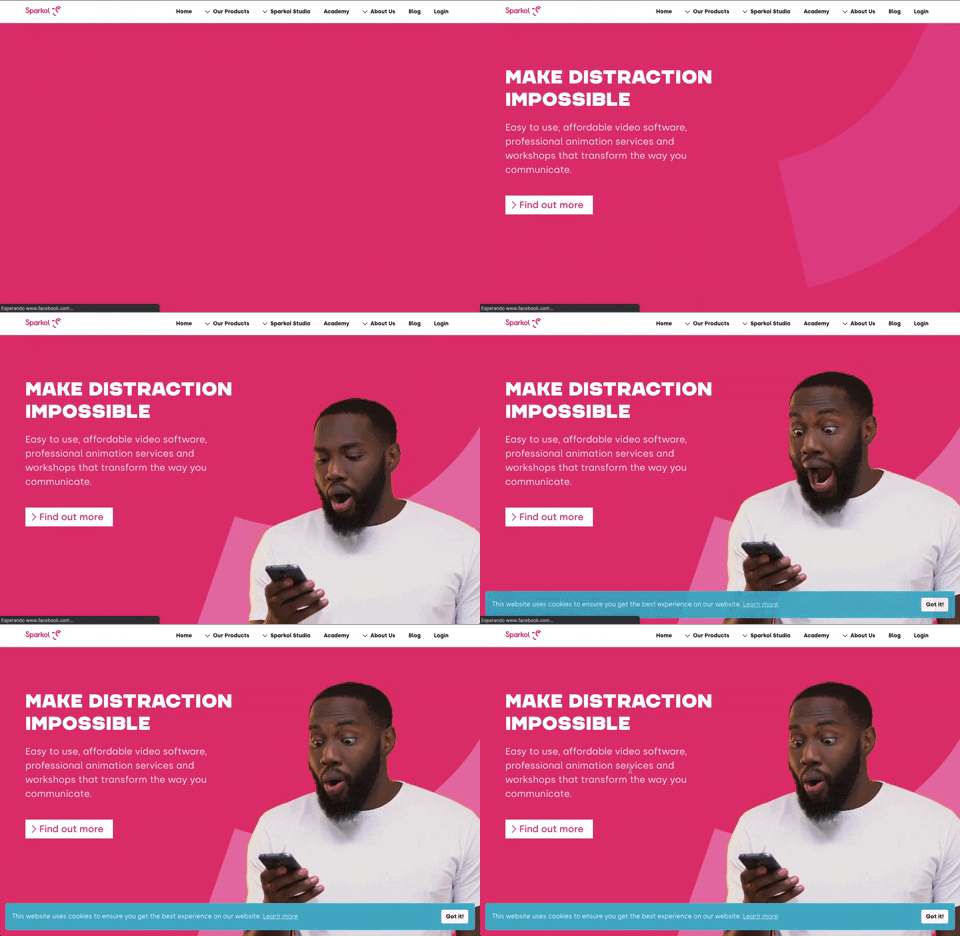
303. Background Animation (on Load)
A dynamic background animation on page load engages users immediately, providing visual interest and a sense of activity while content renders.
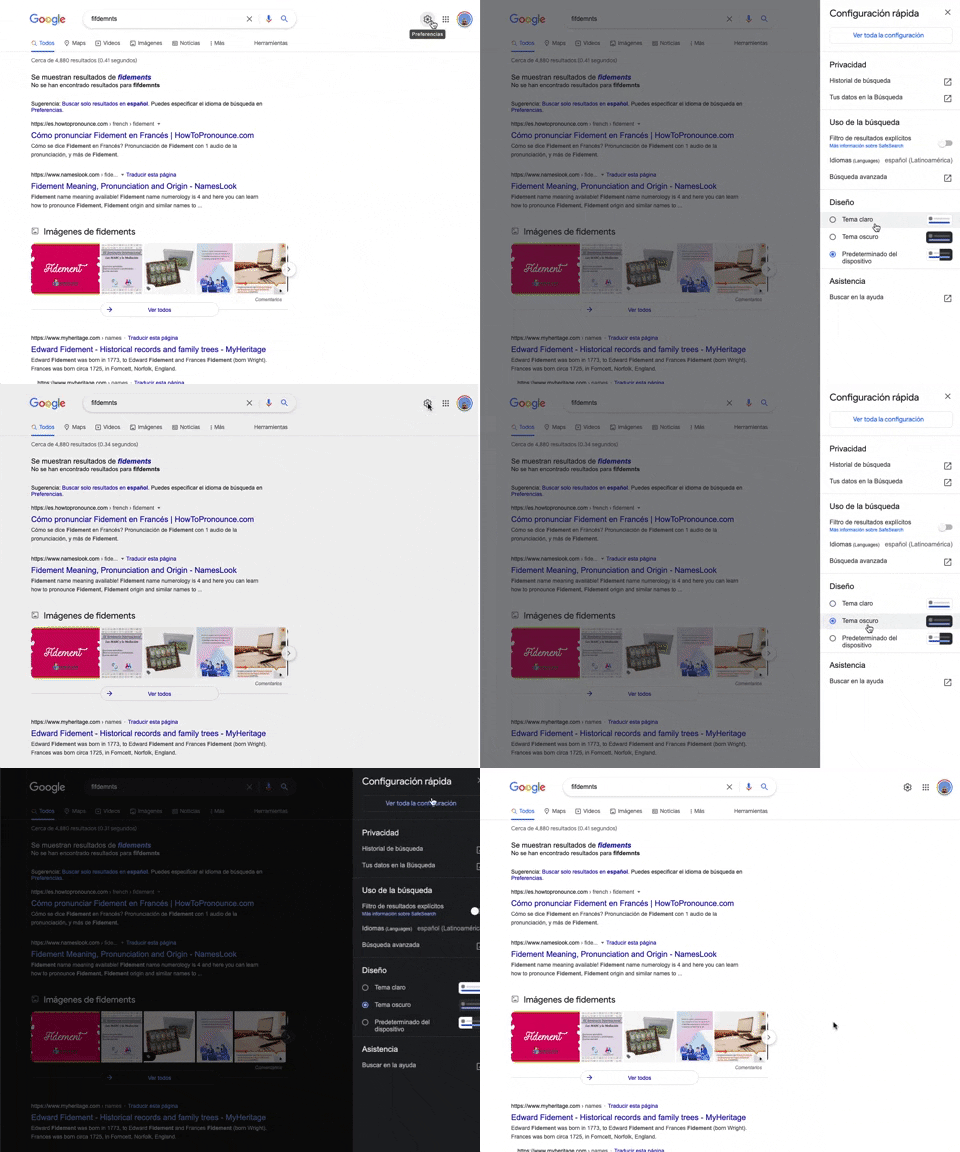
302. Theme Switcher in Side-drawer
Users can quickly toggle between light and dark themes via a side-drawer, enhancing visual comfort and accessibility without leaving the current page.
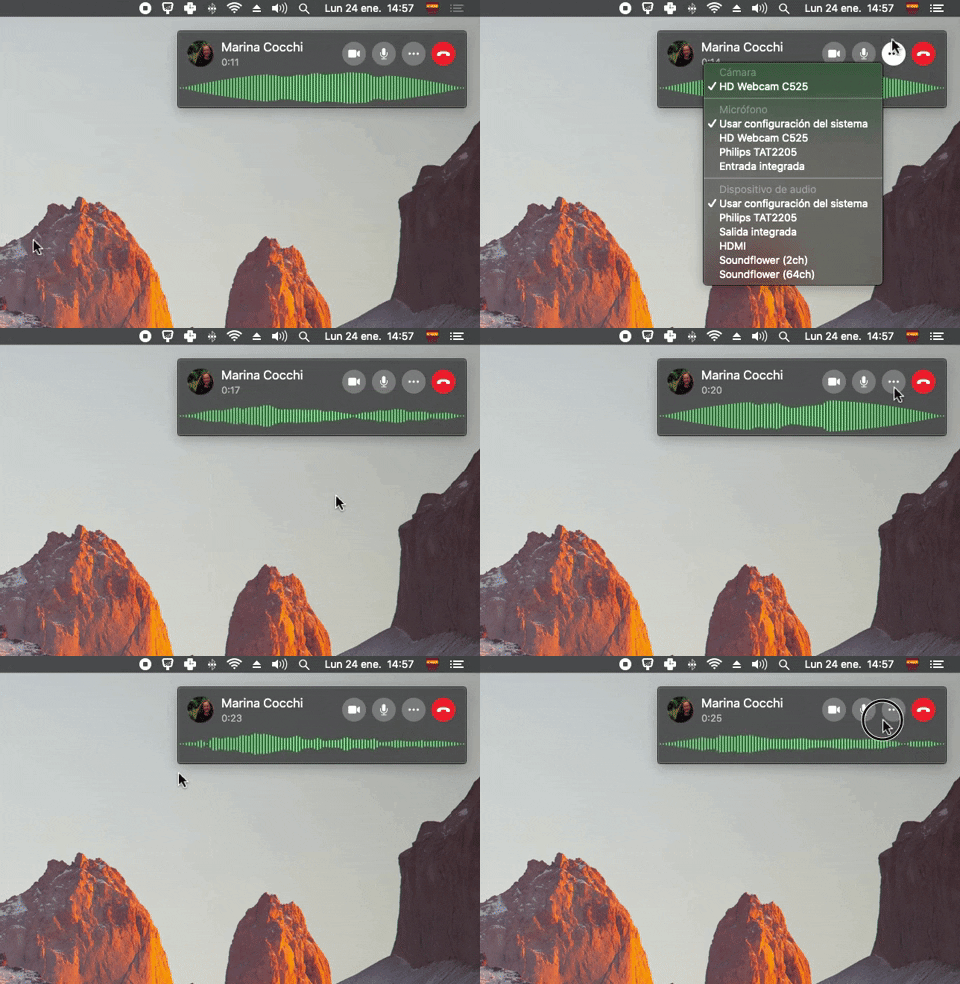
300. Sound Bars Graph
This pattern displays real-time audio levels as a dynamic graph, providing immediate visual feedback on sound input during a call.
299. Fixed Corner Popup with Steps
A multi-step popup positioned in a fixed corner of the screen, typically on desktop web, designed to guide users through a sequence of actions or provide progressive information, often for feedback or awareness purposes. Notable behavior: Step Navigation; Dismissal; Active Step.
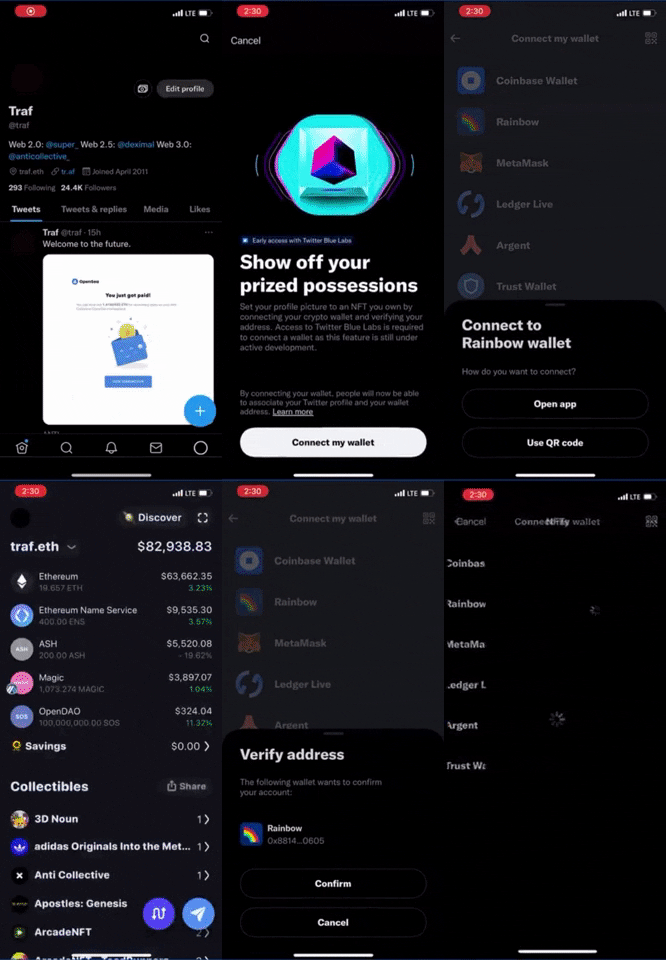
298. Avatar Sync with NFT
Users can easily update their profile avatar by selecting an NFT from their connected wallet, visually confirming the change instantly.
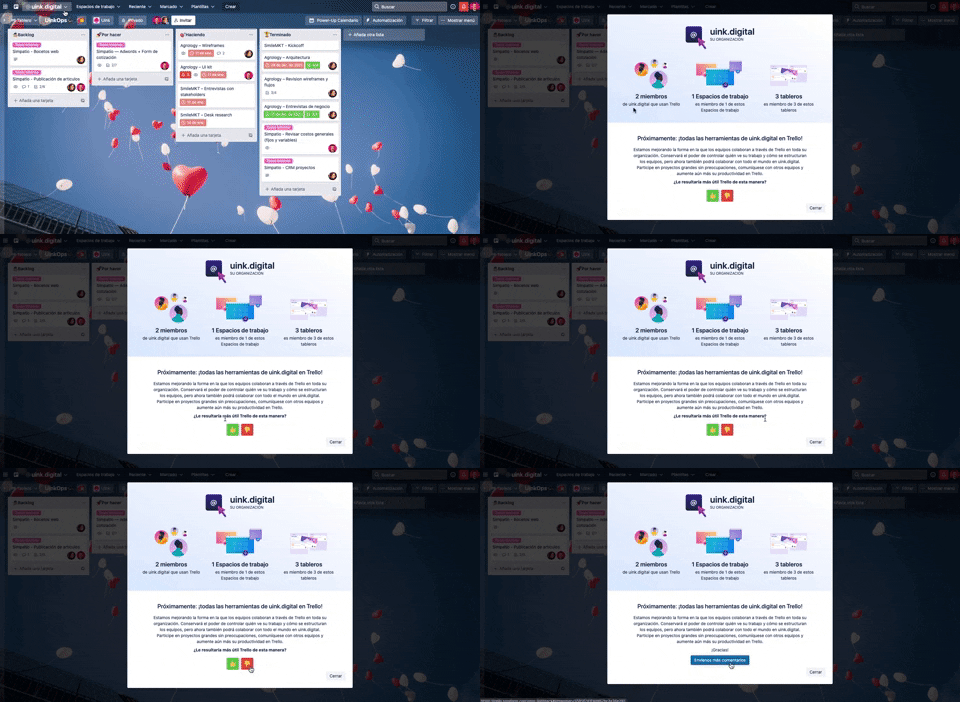
297. Thumbs Up/Down
Users can quickly express approval or disapproval for content, providing immediate feedback that helps prioritize or refine items.
_00.42.51.png?table=block&id=0252c6ff-06c8-496f-88d6-e8f876a3af4d&cache=v2&width=760&quality=80)
295. “NEW” Badge on Menu Items
A "NEW" badge next to a menu item instantly highlights recently added content or features, guiding users to discover and engage with fresh updates.

294. Full-Screen Steps Animated Transition
Users navigate a multi-step onboarding flow with smooth, full-screen animated transitions, enhancing engagement and clearly indicating progress through each stage.
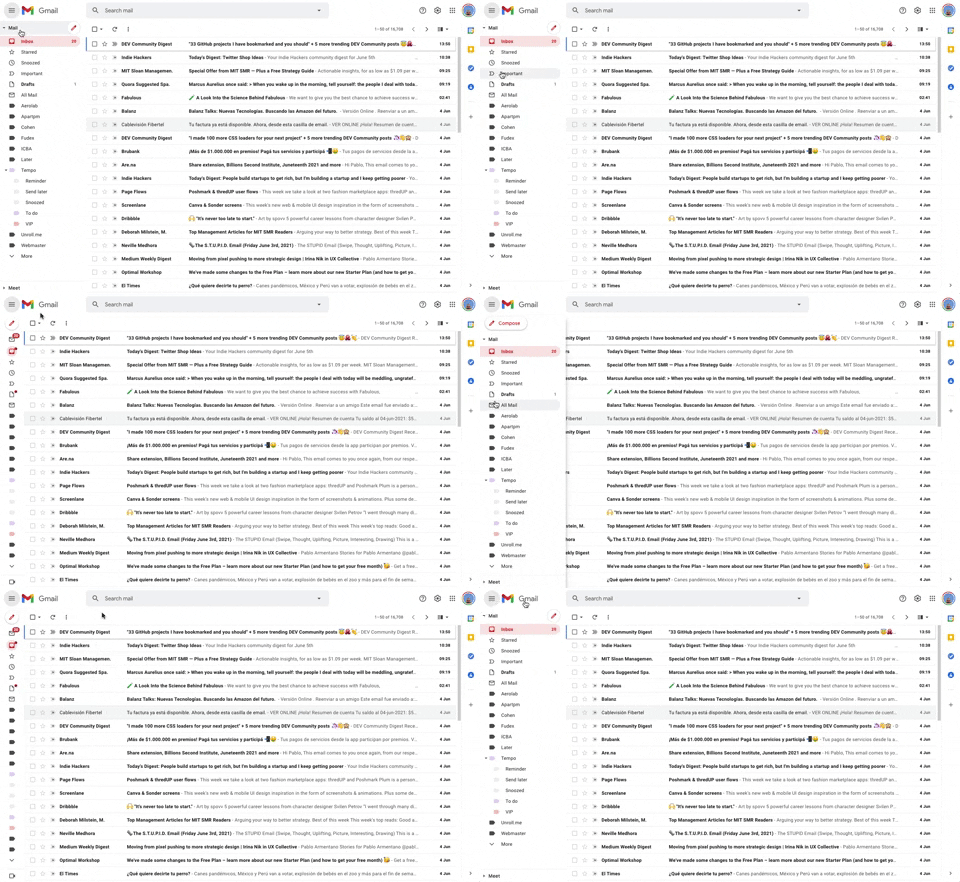
293. Collapsable Sidebar Menu
This collapsible sidebar menu allows users to expand or hide navigation options, optimizing screen real estate while maintaining easy access to key sections.
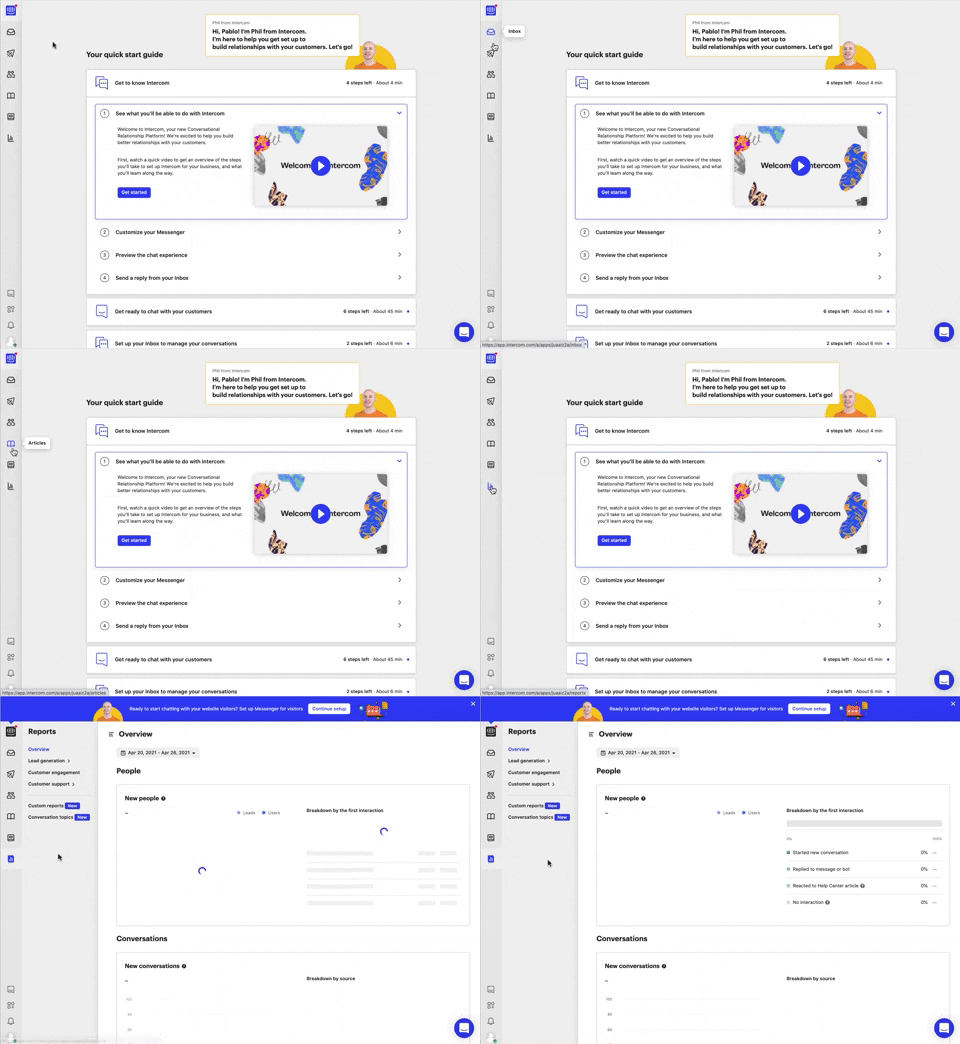
292. Vertical Icon Menu
This vertical icon menu provides quick access to key sections, revealing descriptive tooltips on hover to aid navigation and improve user pathfinding.
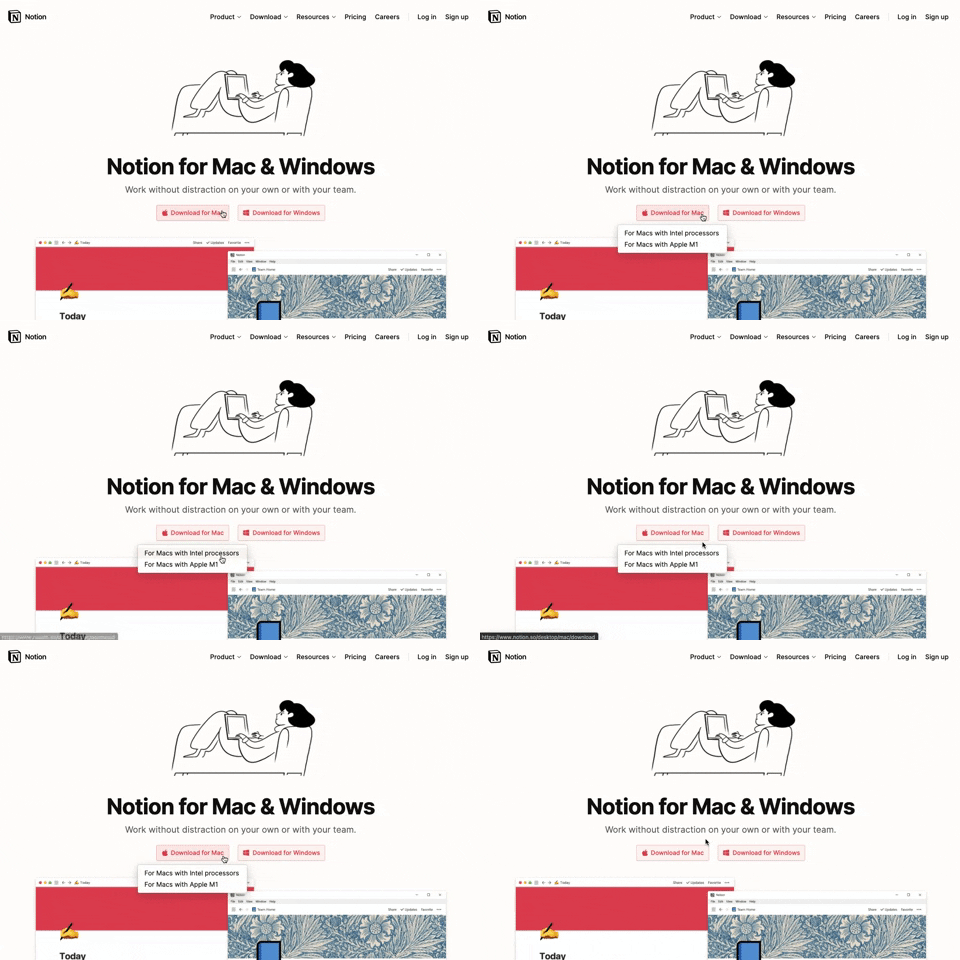
291. Action Menu from Button
Users can click a button to reveal a contextual menu of related actions, streamlining decision-making and guiding them to their desired outcome.

290. Floating Popover on Click
This pattern reveals a floating popover on click, providing immediate, context-specific information or actions without navigating away from the current view.
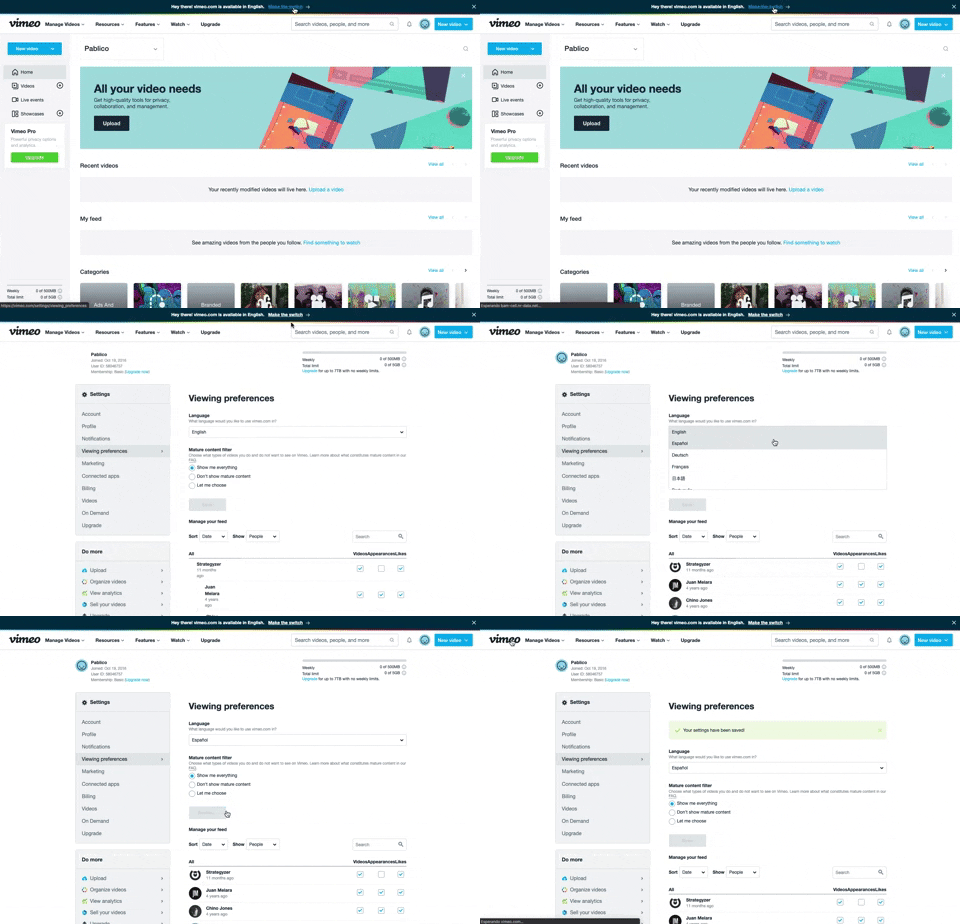
288. Vimeo - Topbar Language Switching
Users can quickly switch the site's display language via a prominent top bar link, enhancing accessibility and personalizing their experience.

286. Background Animation on Scroll
This pattern uses a fixed background image that animates and shifts as the user scrolls, creating a dynamic and engaging visual experience.
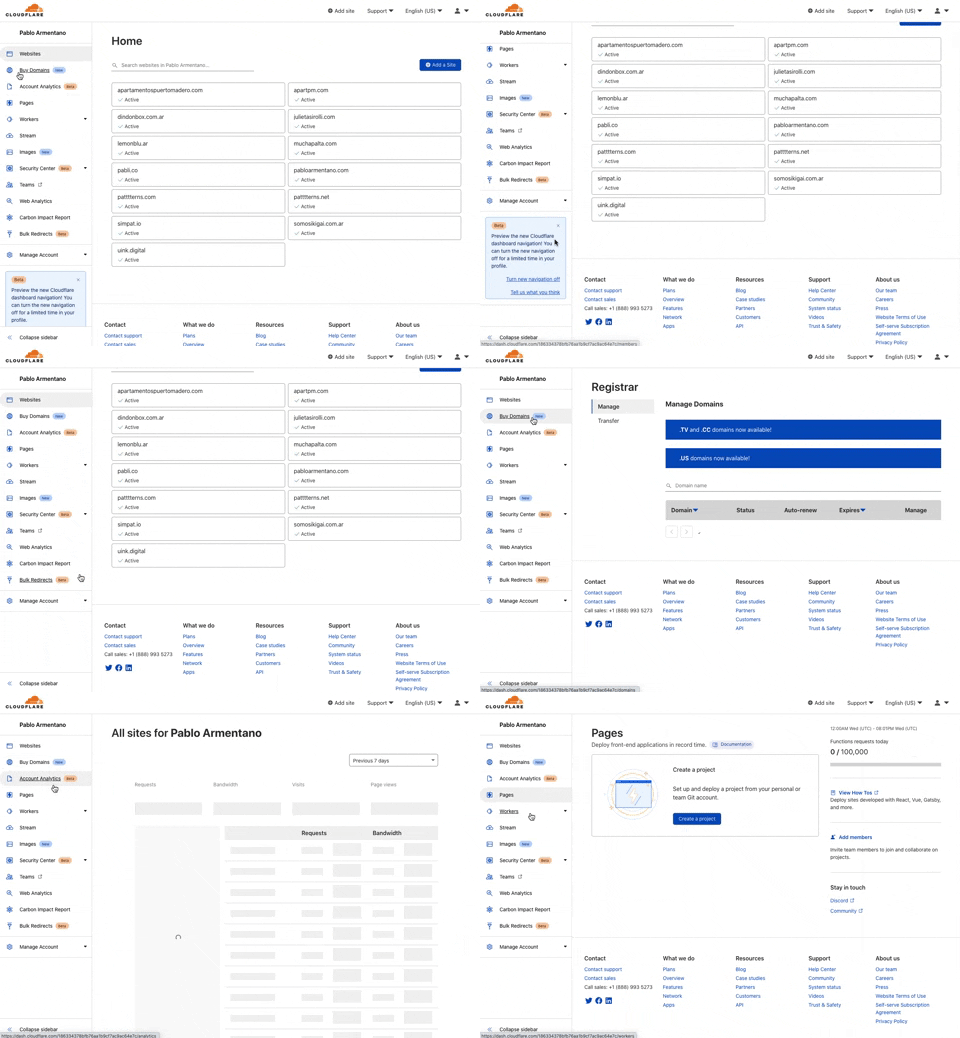
285. Cloudflare - Sidebar with Scroll
This pattern provides a persistent, scrollable sidebar for navigation, ensuring users can always access key sections and maintain context within complex applications.
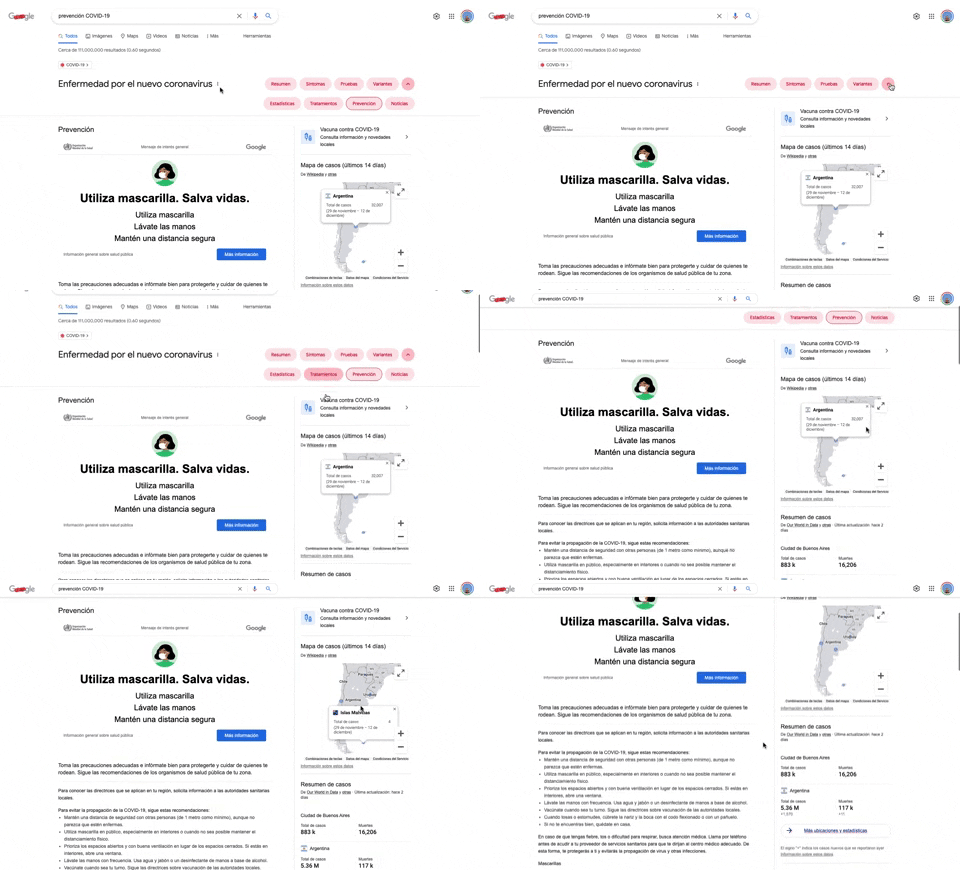
284. Emergency Information Map
This pattern provides users with critical, localized emergency information and actionable advice through an interactive map, enhancing awareness and guiding safe behavior.
284. Top Tooltip on Link Hover
Displays a tooltip above a link when the user hovers over it, providing additional context or information without navigating away from the current page.
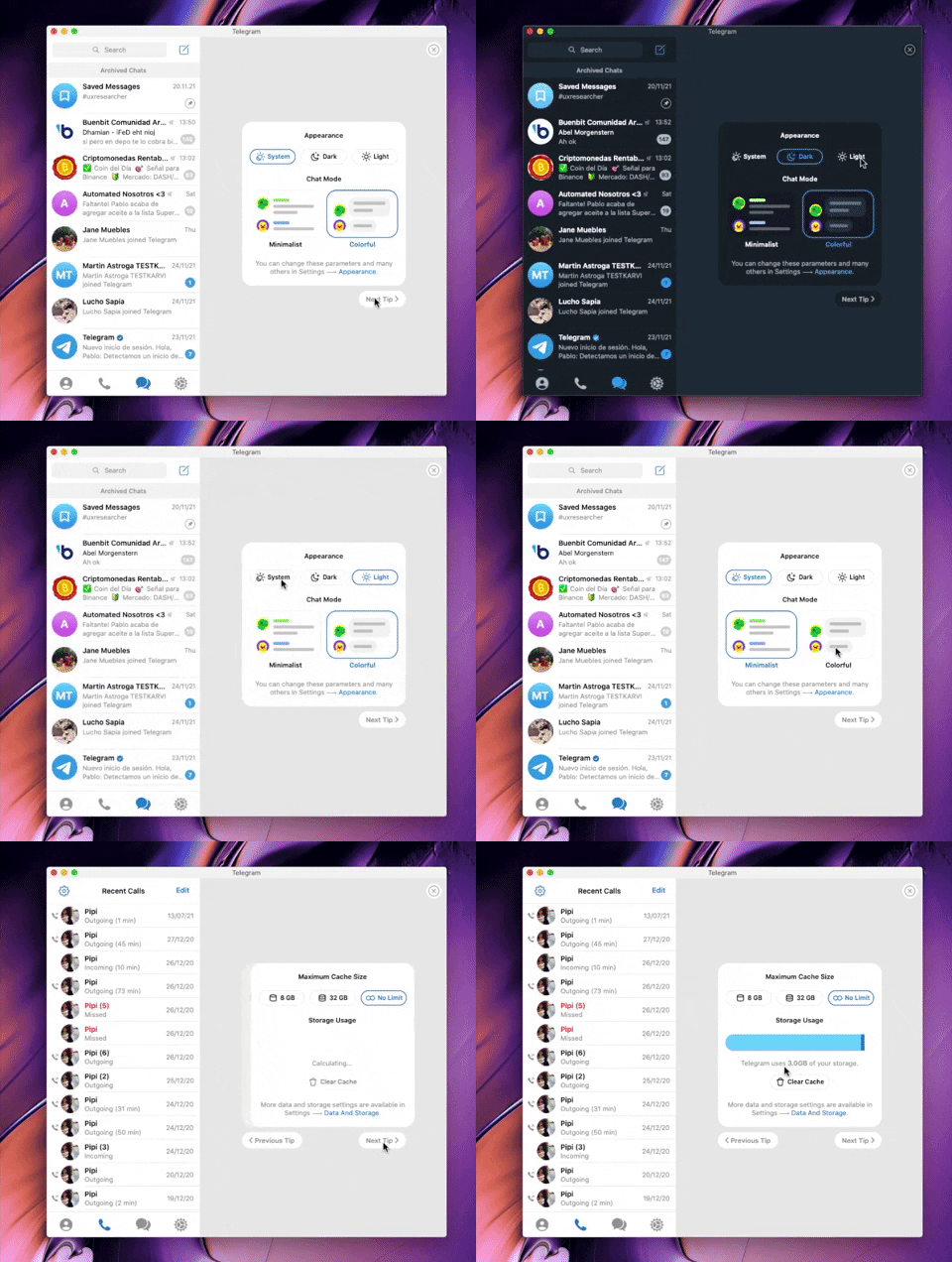
282. Telegram - Chat Setup Wizard
This wizard guides users through initial setup choices like appearance and chat mode, ensuring a personalized experience from the start.
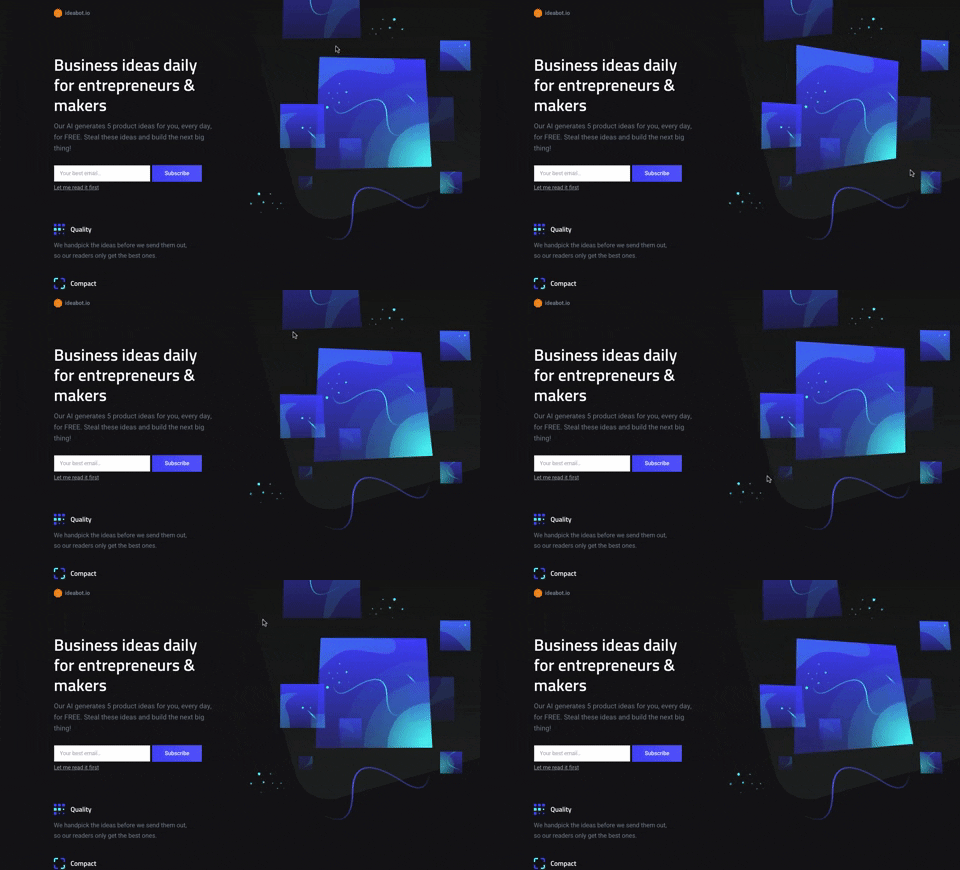
281. Background Animation (on Mouse Move)
This pattern uses subtle background animations that react to mouse movement, creating an engaging and dynamic visual experience for users.

280. Slack - Workspace Creation Wizard
This wizard guides users through creating a new workspace, ensuring a smooth onboarding experience by collecting essential information step-by-step.

279. Collapsable Layout Sidebars
Users can collapse and expand layout sidebars to optimize screen space, enhancing focus on primary content while maintaining quick access to navigation.

278. Search Menu Dropdown from Input Text
This pattern allows users to quickly find and select desired options from a dynamic, filtered list that appears as they type into an input field.
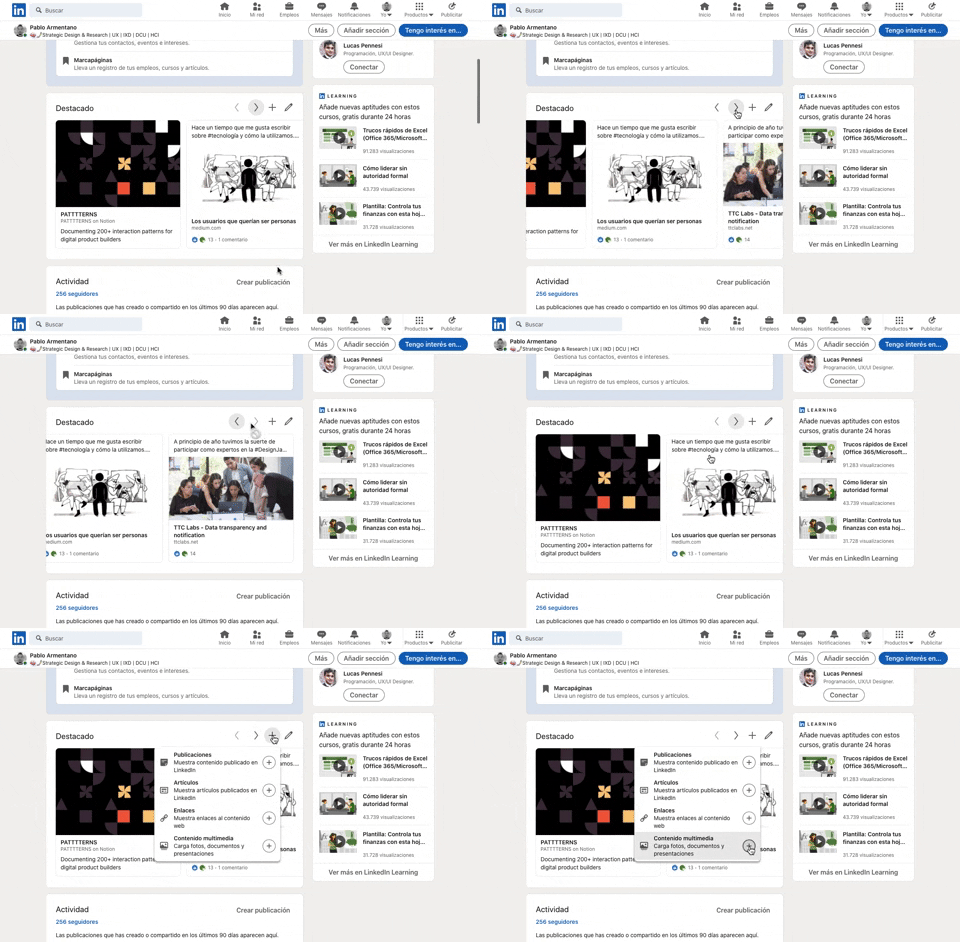
277. Horizontal Card Slider with Actions
This pattern allows users to efficiently browse a curated collection of content cards, with clear navigation and editing options for personalized interaction.

268. Drag & Drop to Upload File
Users can effortlessly upload files by dragging them from their desktop directly into a designated drop zone within the application.
_07.10.33_p._m..png?table=block&id=1b4e4bae-3d76-8055-baf9-d28c23cd351f&cache=v2&width=760&quality=80)
275. Popover on Hover
A popover on hover reveals contextual information or actions in a temporary overlay, enhancing user awareness without disrupting the main workflow.

274. Interactive Background Animation
This pattern uses an interactive background animation to engage users and provide visual feedback as they navigate or interact with elements on the page.
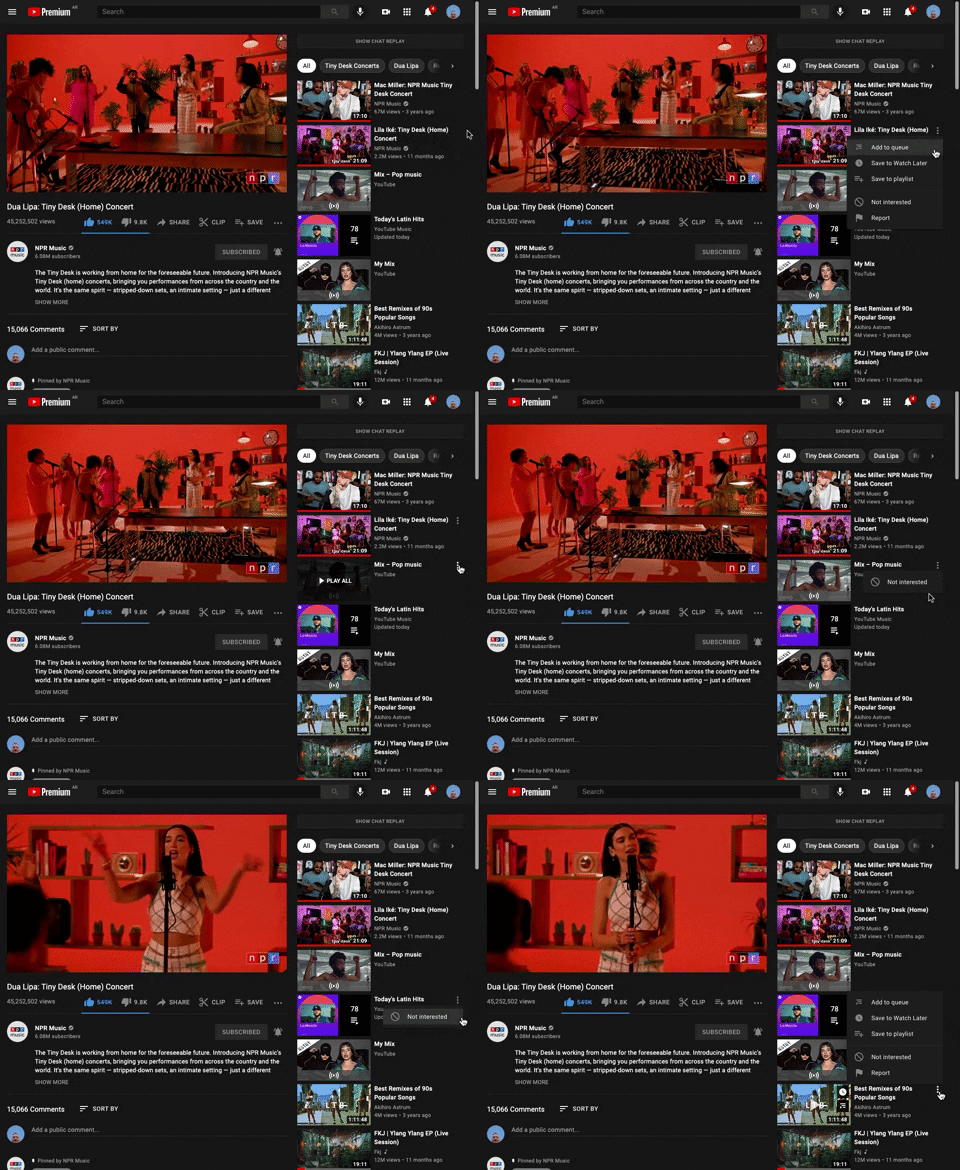
265. Youtube - Hidden Options Menu (Dots)
A common UI pattern where additional options or actions related to a specific item are initially hidden to conserve space. These options are revealed upon user interaction, typically by clicking or tapping a 'dots' (ellipsis) icon, presenting a contextual menu or dropdown.
264. Interactive Background Animation
Desktop, Pathfinding, Apple OS, English, Animation, Click Event, Image / Illustration, Vectors, Figma
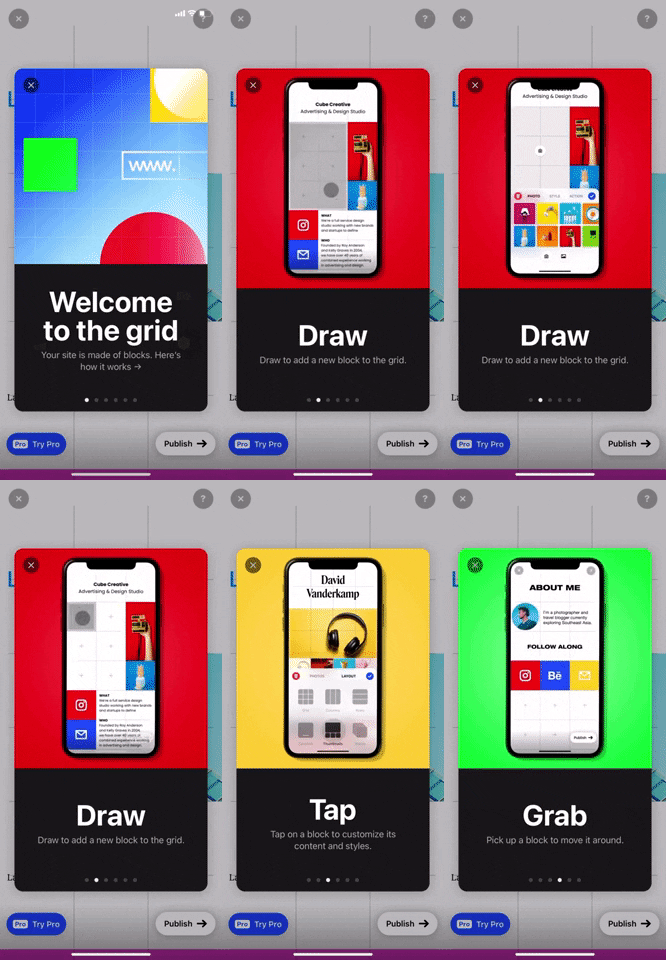
268. Modal Blackout w/ Swiper
This pattern guides users through an onboarding flow with a fullscreen modal and swipable content, ensuring focused attention on key information.
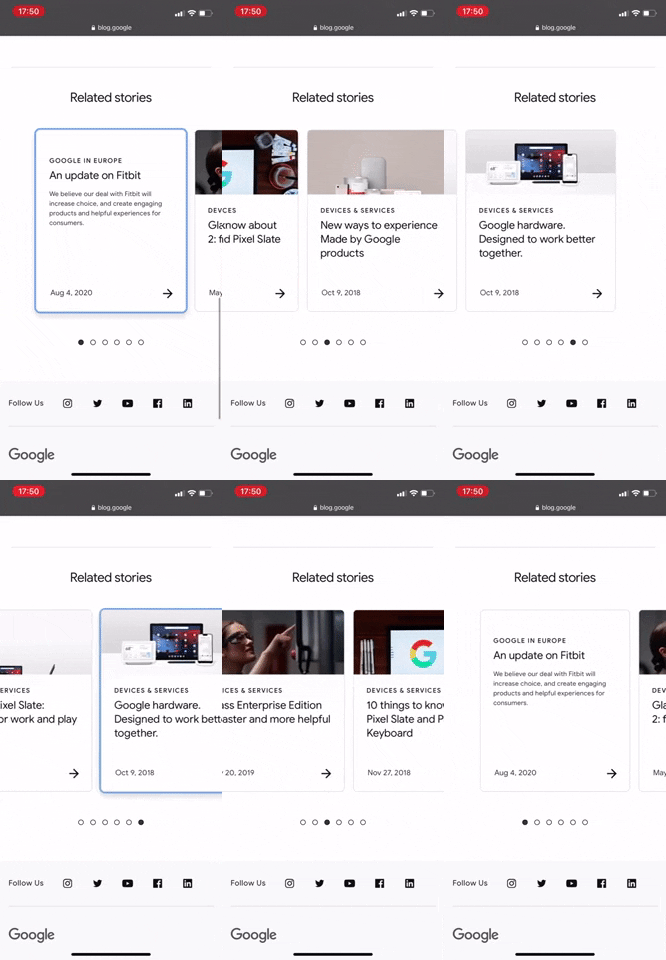
267. Google - Horizontal Card Slider
Users can swipe through a horizontal carousel of related content cards, efficiently discovering more options without leaving the current view.

266. Mailchimp - Hold Button for Confirmation
Users confirm a critical action by holding a button, preventing accidental taps and ensuring deliberate engagement with the system.
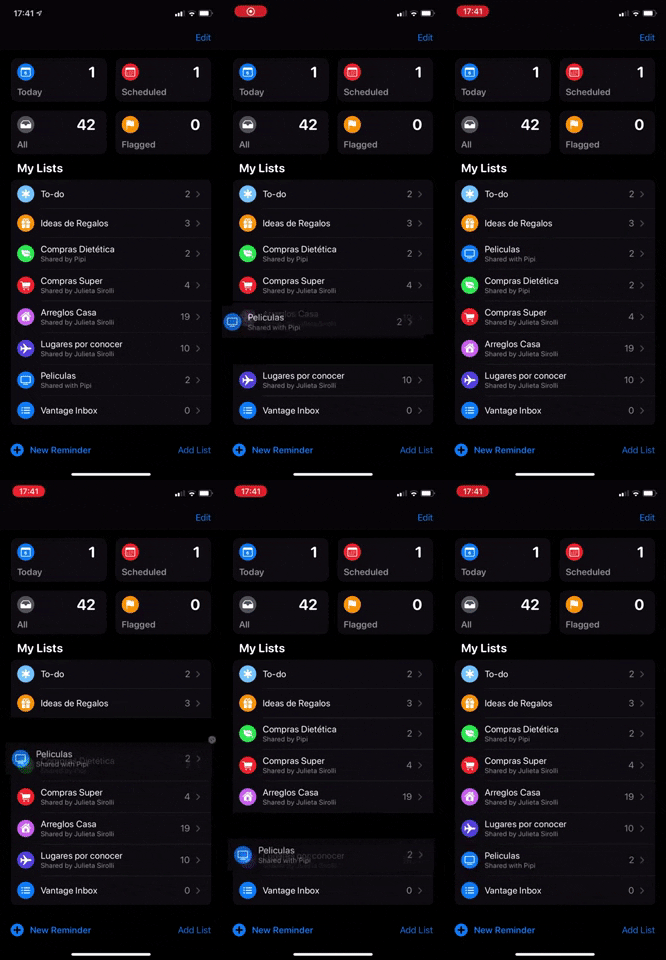
263. Drag & Drop to Reorder List Items (Touch)
Users can intuitively reorder list items on touch devices by dragging and dropping them, providing flexible organization and personalized views.
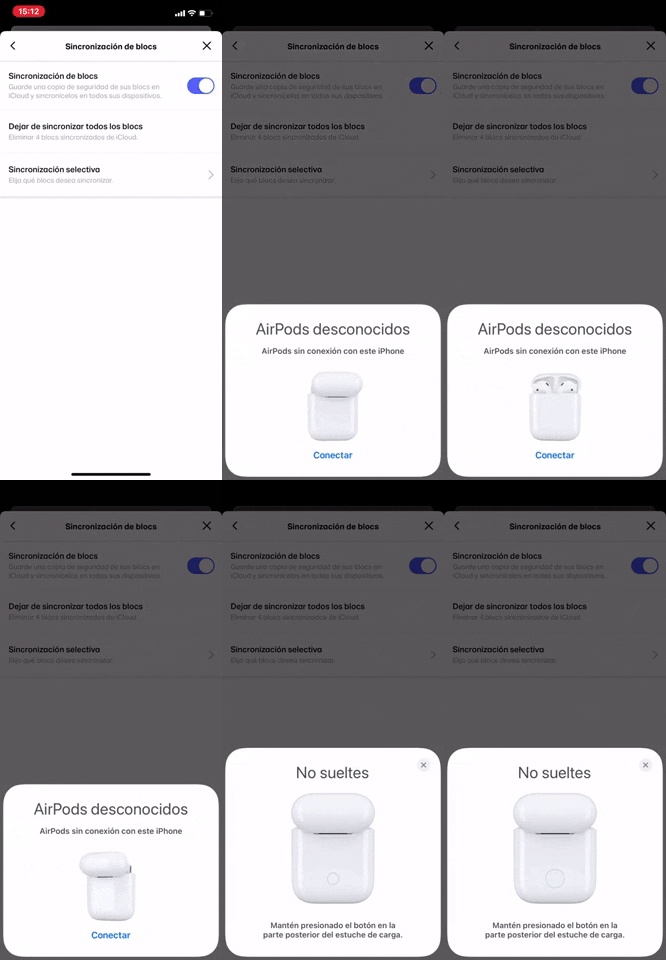
262. Bottom Fixed Modal Blackout
This pattern presents critical information or actions in a bottom-fixed modal, ensuring user focus by dimming the background content.
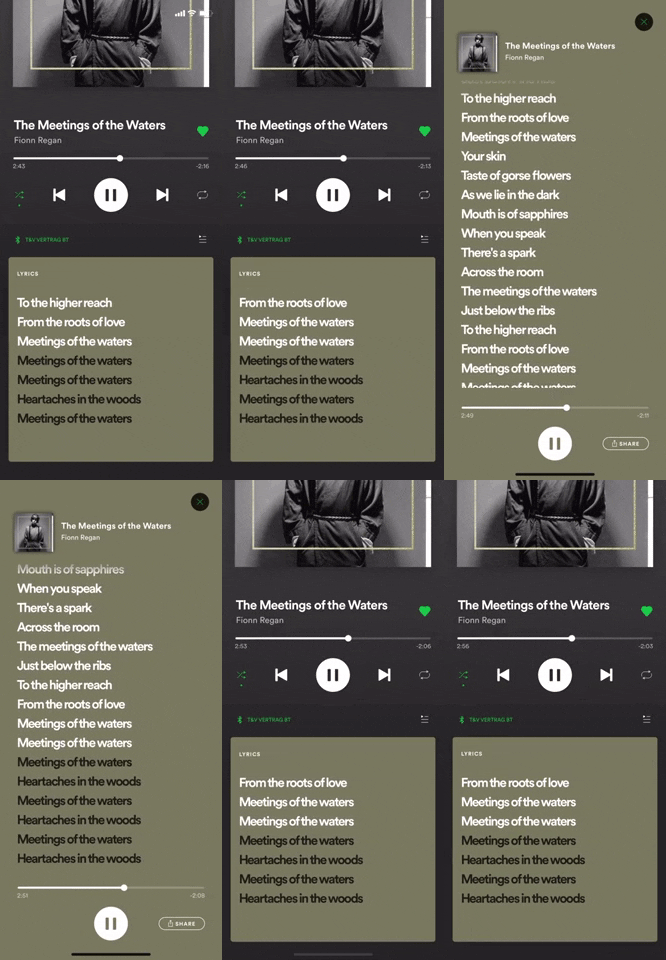
257. Transition: Zoom-In to Full Screen (on Click)
Tapping the album art smoothly zooms it to full screen, providing an immersive view of the artwork and enhancing the visual experience.
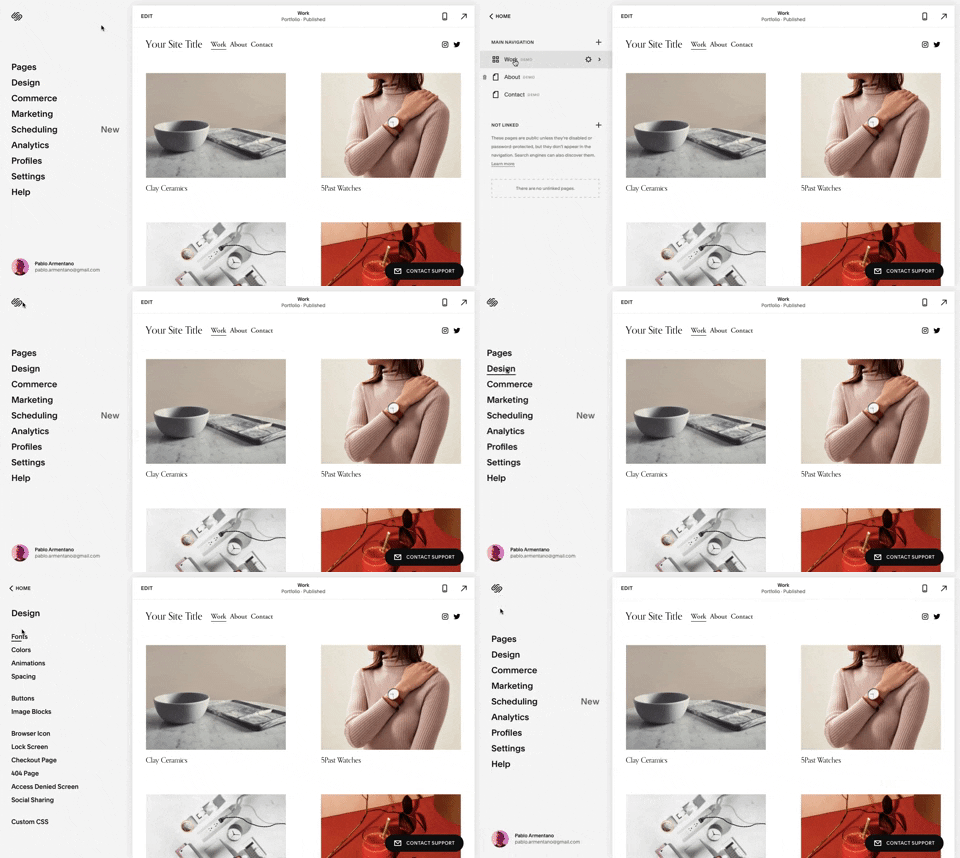
259. Multi-depth Sidebar Navigation
This multi-depth sidebar navigation allows users to quickly traverse complex information hierarchies, improving discoverability and reducing cognitive load.
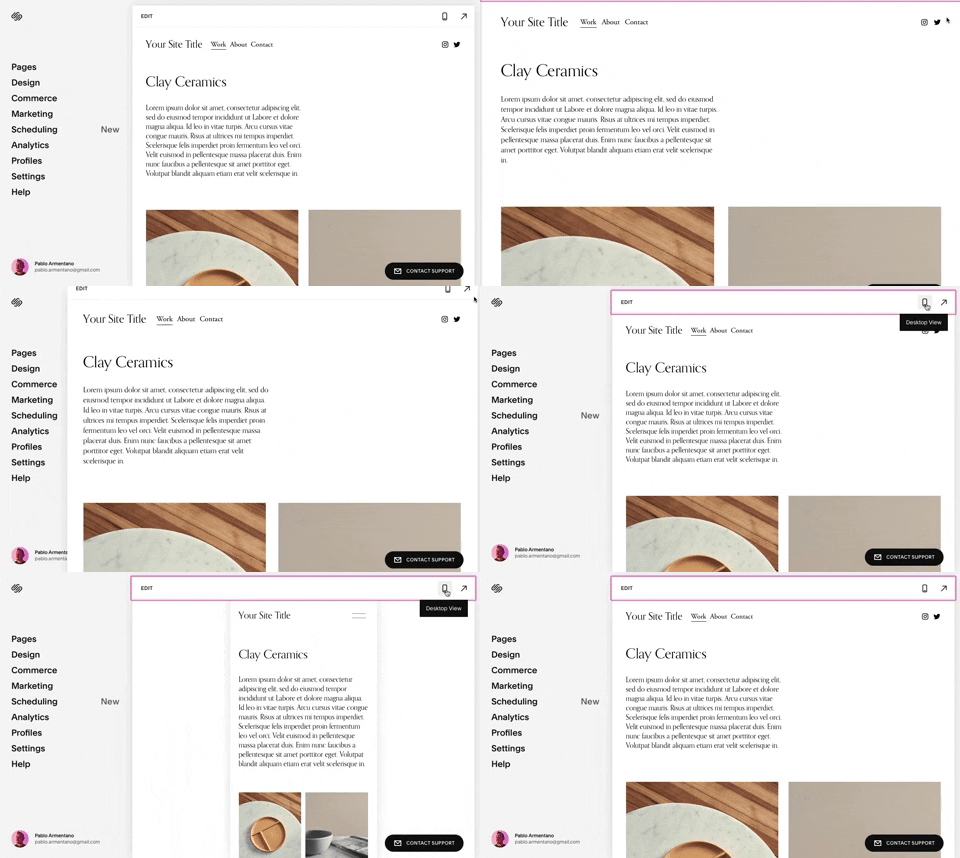
258. Squarespace - Adaptable Viewport Size
Users can dynamically adjust the content preview area, allowing them to visualize their website across various screen sizes for optimal responsiveness and design fidelity.
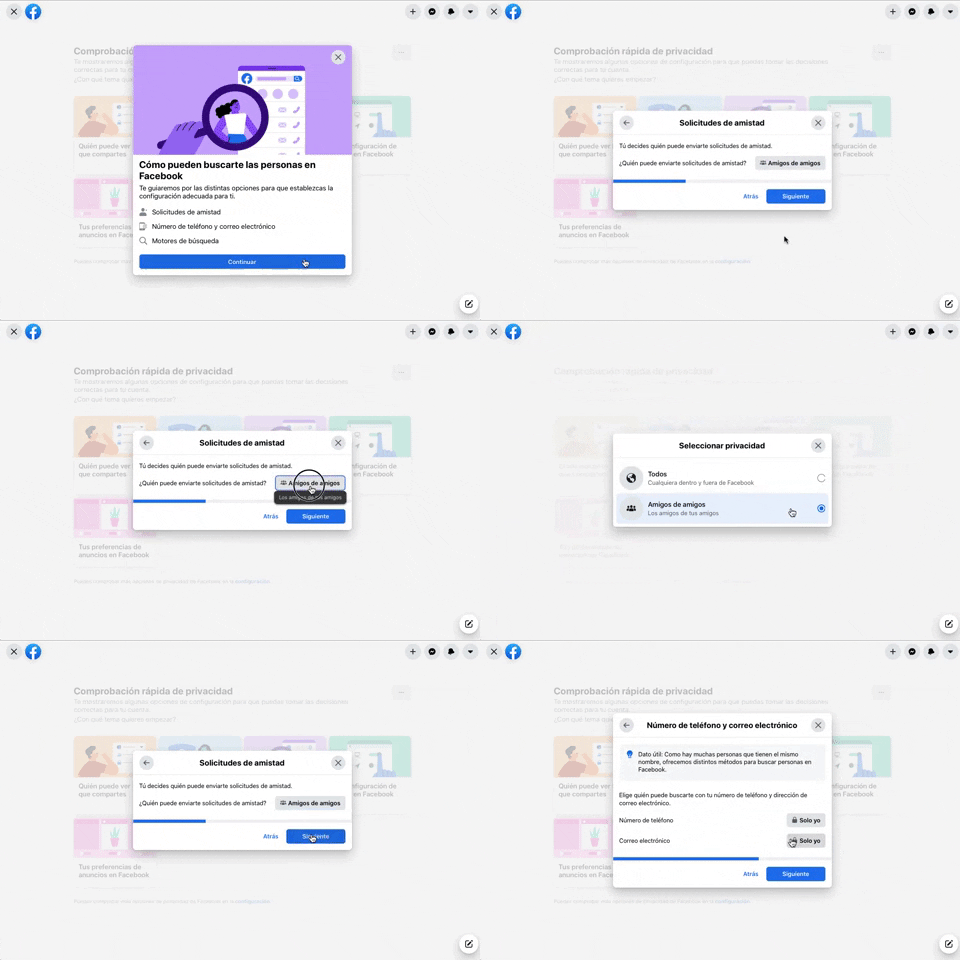
256. Modal Blackout w/ Forms & Steps
This modal blackout pattern guides users through multi-step forms, ensuring focused input and clear progression for critical decisions.
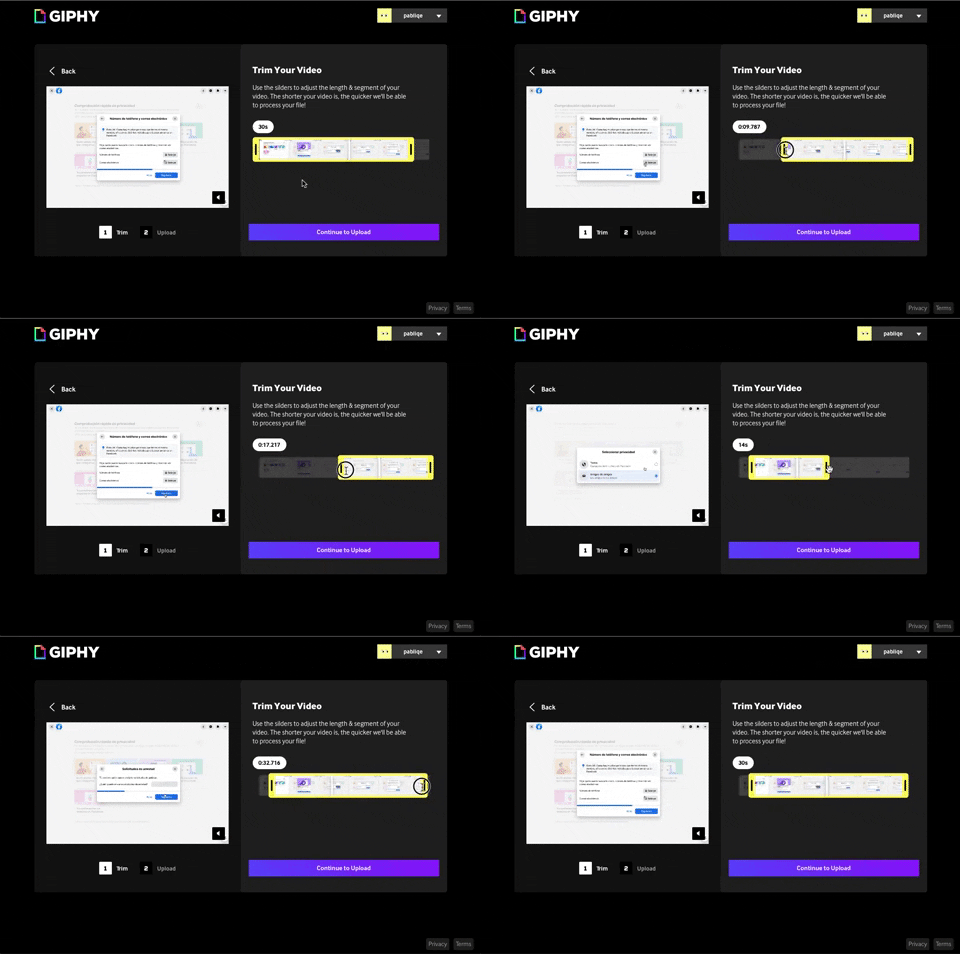
243. Trim Video Slicer
Users can precisely trim video segments using a draggable timeline with visual thumbnails, enabling efficient content selection and faster processing.

254. Toggle/Hide Sidebar Menu (Mouse)
Users can toggle the sidebar menu to hide or reveal navigation, optimizing screen space for content focus or quick pathfinding.
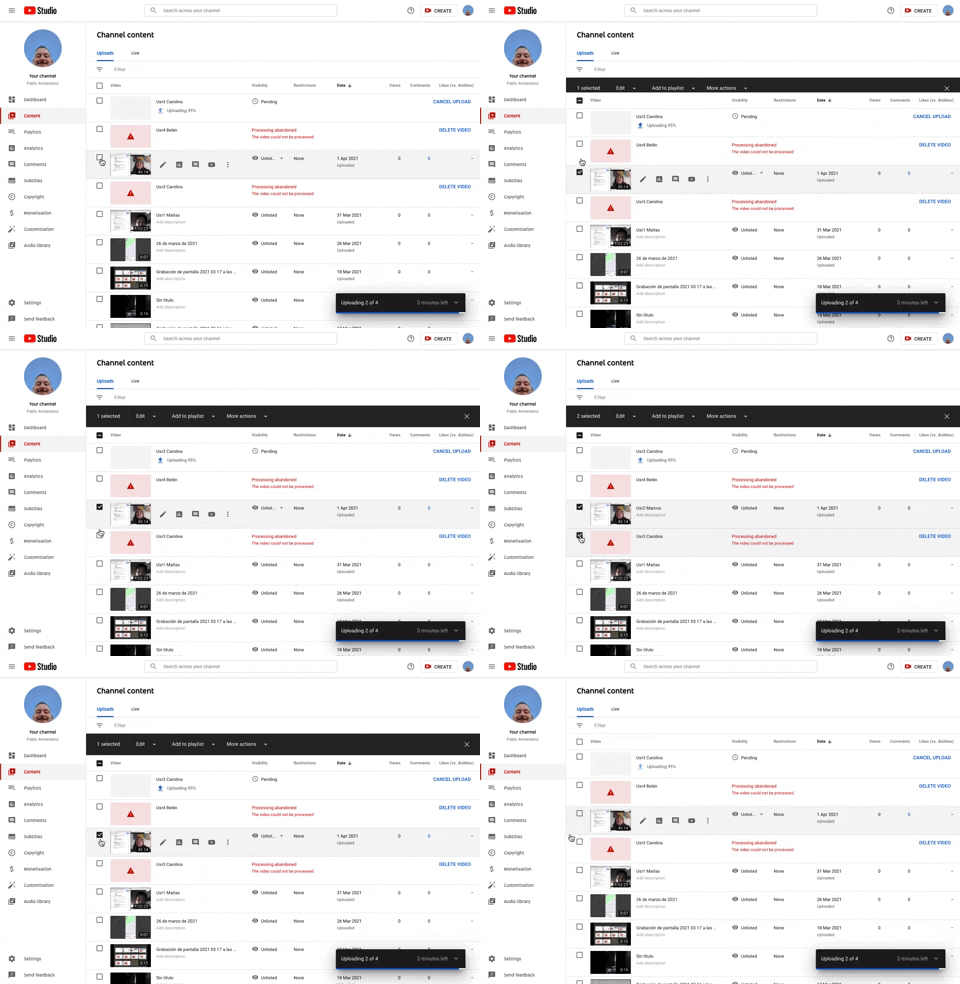
253. Youtube - Table Row Selector
Users can efficiently select multiple table rows by clicking checkboxes, enabling bulk actions and streamlining content management workflows.
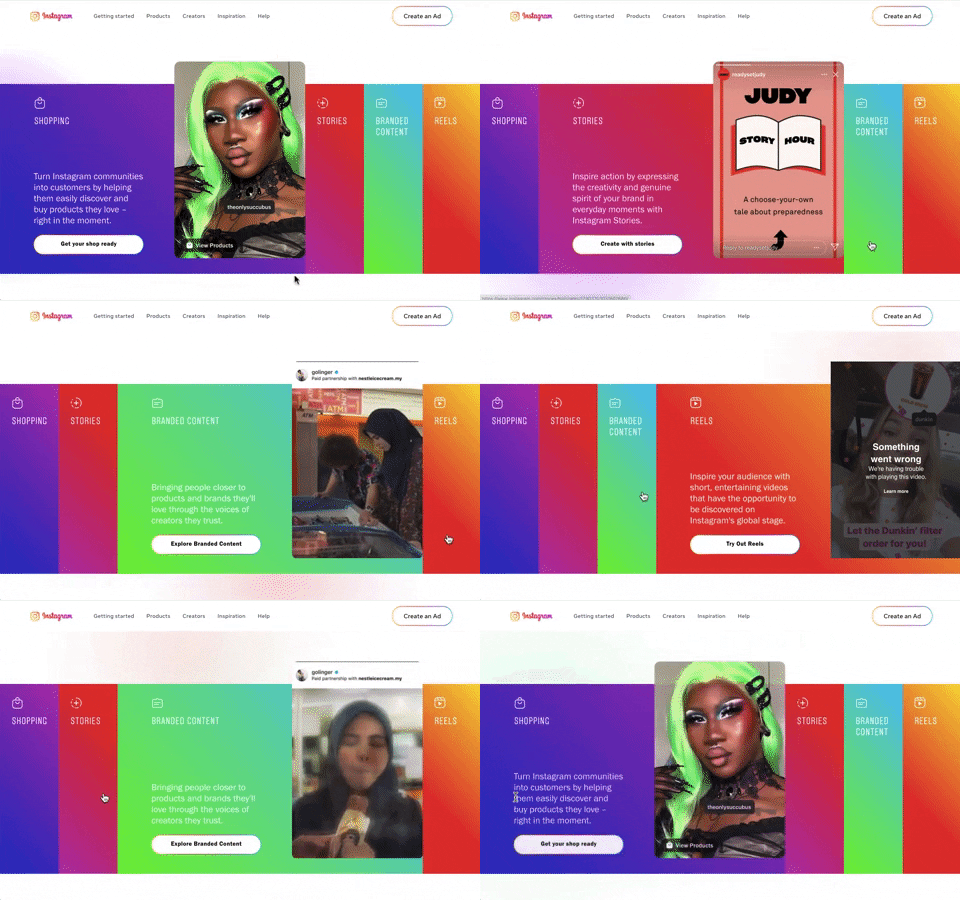
240. Instagram - Horizontal Accordion
This horizontal accordion allows users to explore distinct content categories by expanding a selected panel, revealing detailed information and relevant calls to action.
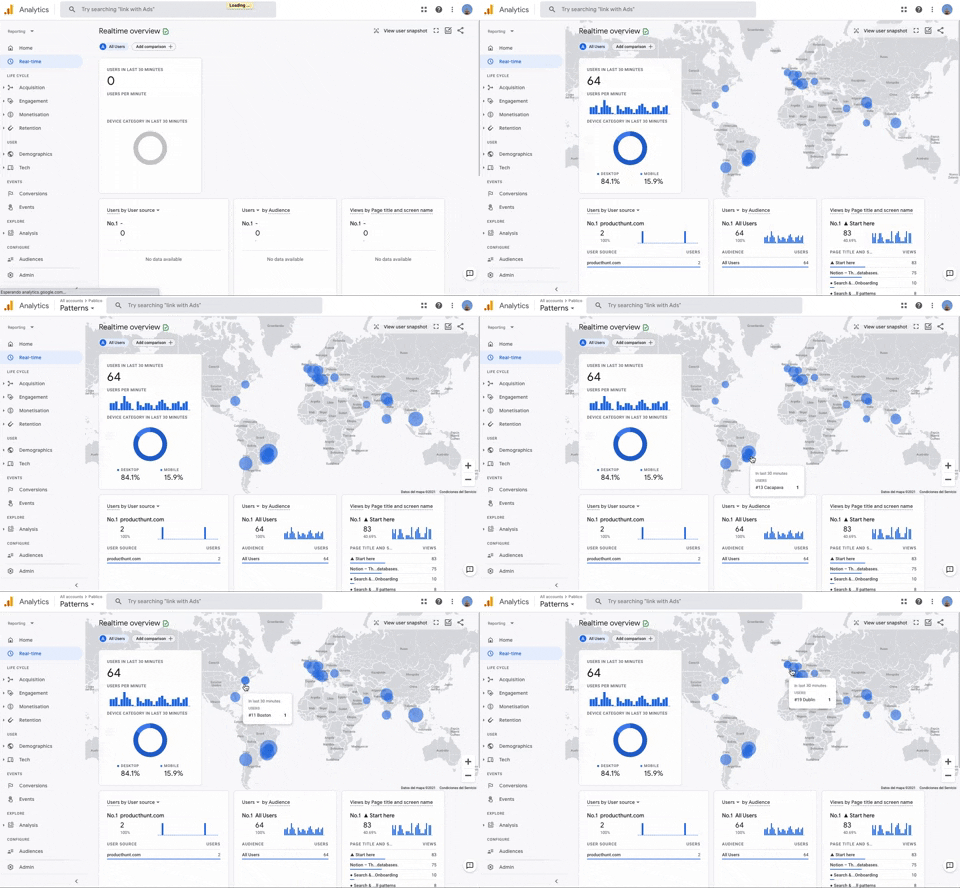
251. Progressive Layout Loader
This pattern provides immediate visual feedback during page loads, progressively revealing content to reassure users that the system is actively processing their request.
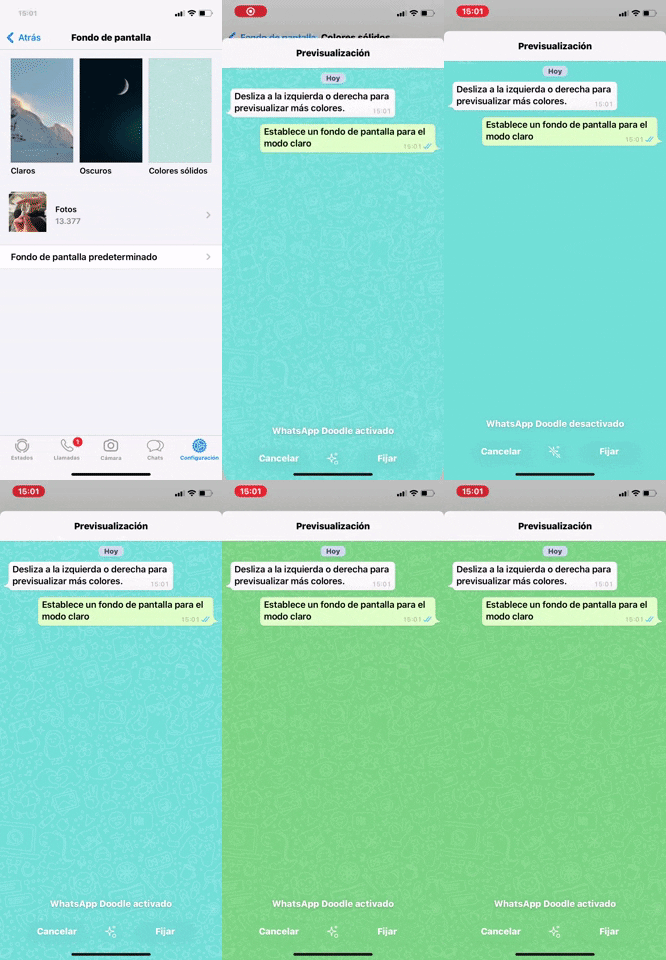
238. WhatsApp - Color Switcher Preview
Users can quickly preview and select new chat background colors from a categorized list, enhancing personalization and visual comfort.
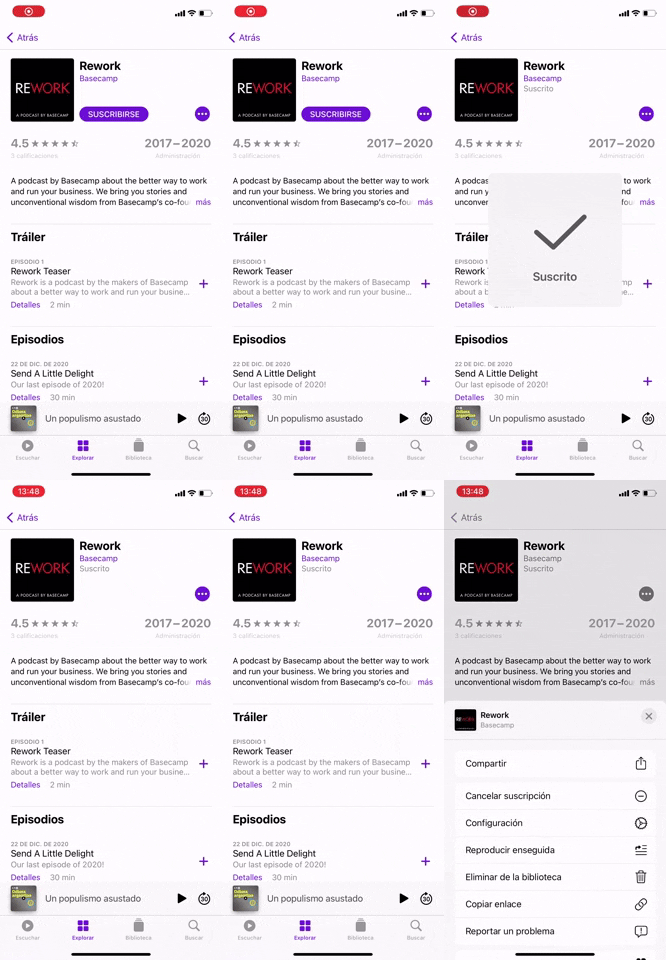
237. Apple - Snackbar Popup Animation
This pattern provides immediate, non-intrusive feedback to users, confirming successful actions like subscriptions with a brief, dismissible popup.
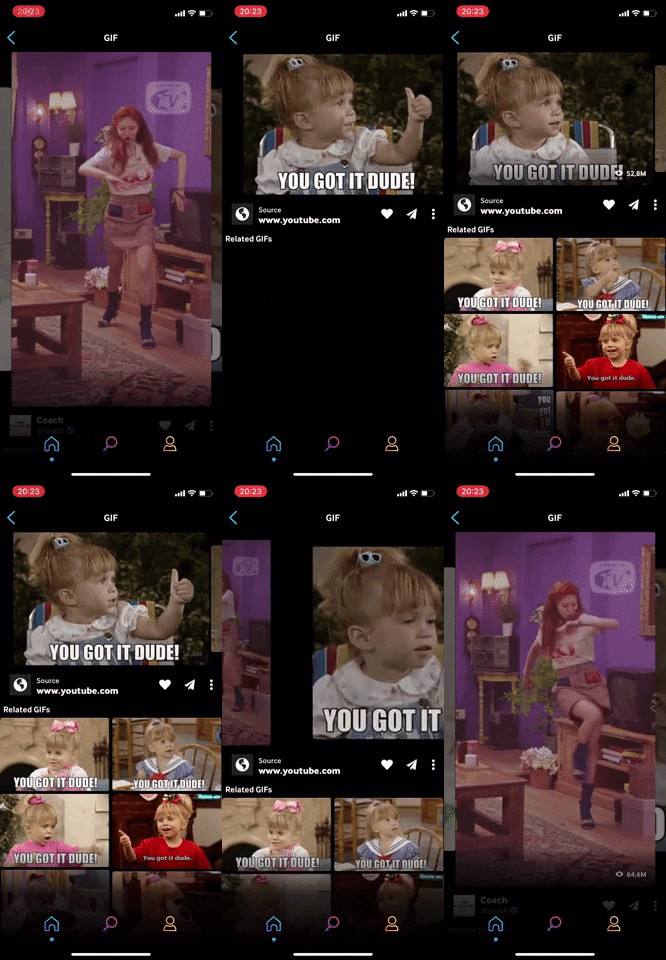
236. Horizontal Swiper Navigation
Users can effortlessly swipe horizontally through a carousel of content, providing an intuitive way to explore related items or navigate a media gallery.
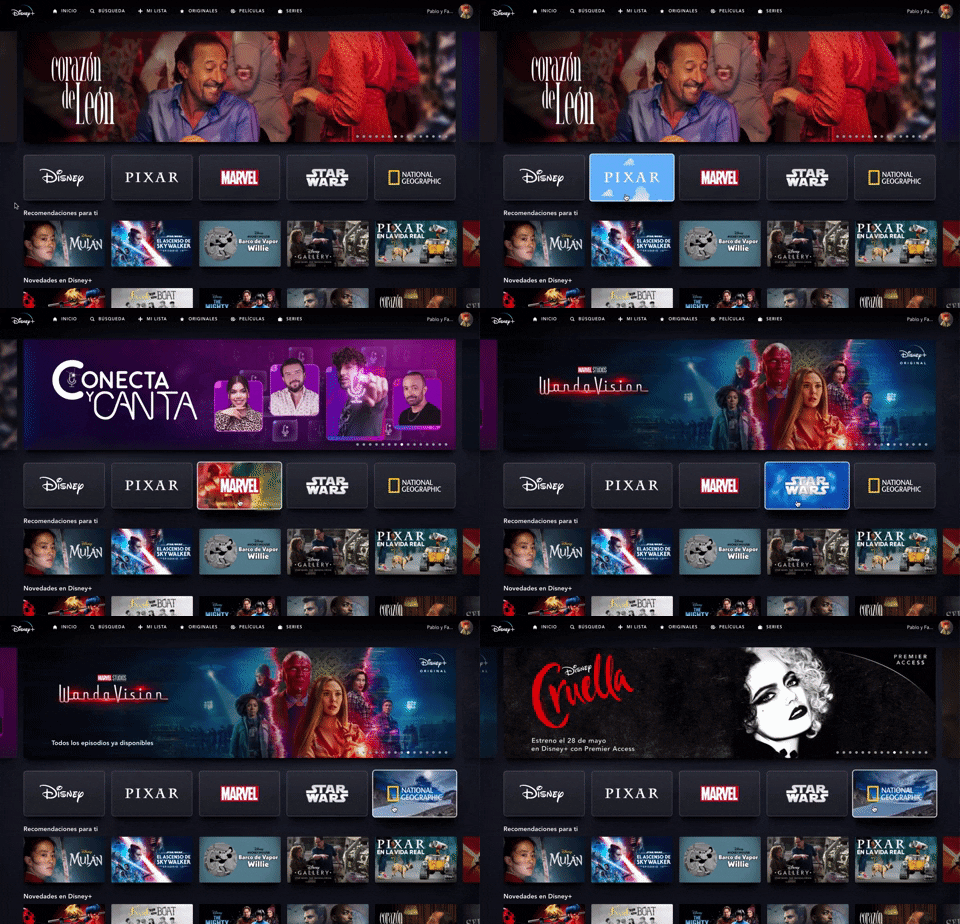
235. Background Animation (on Mouse Hover)
This pattern uses a subtle background animation on hover to provide visual feedback, guiding users to interactive elements and enhancing discoverability.
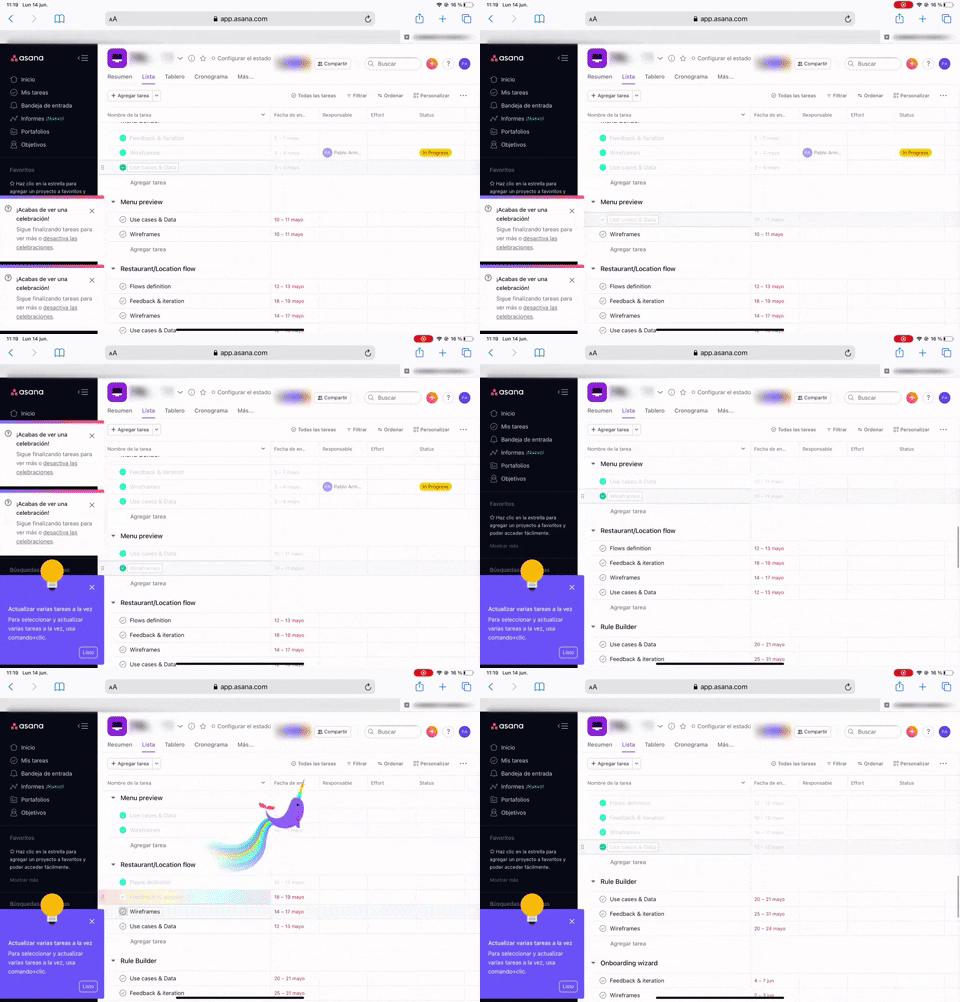
233. Floating Animation
This pattern uses a celebratory animation to provide immediate, delightful feedback to users upon completing a task, enhancing engagement and motivation.
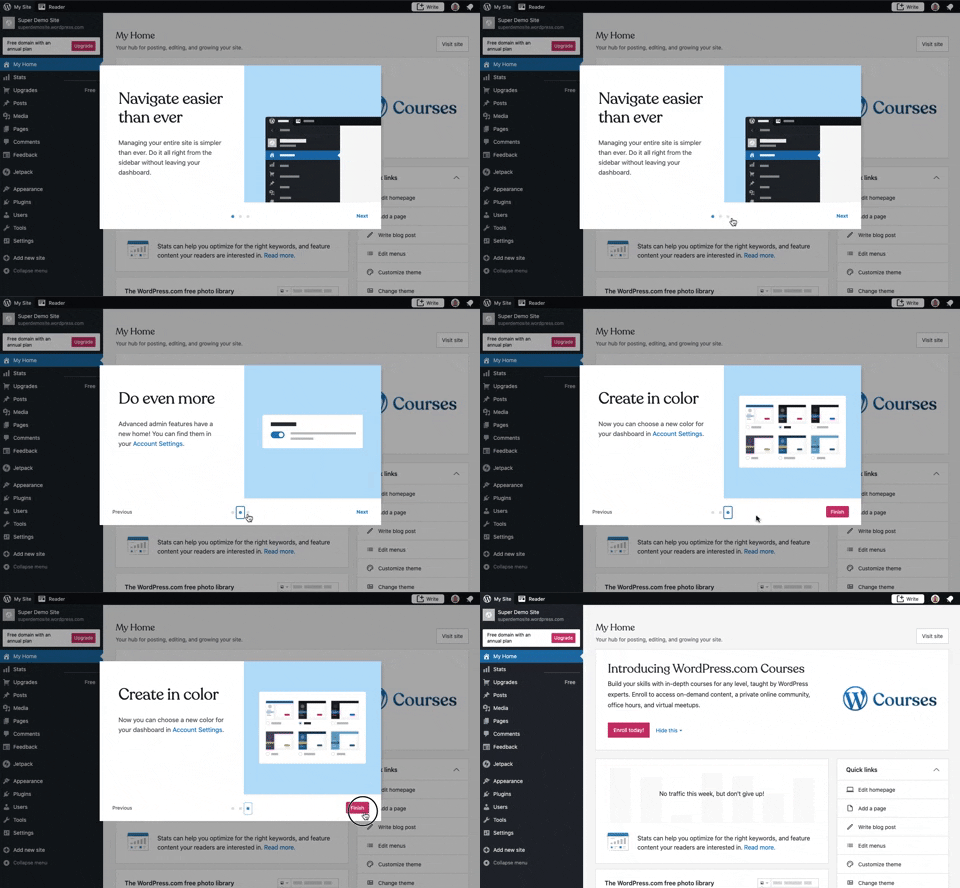
241. Modal Blackout w/ Steps
This multi-step modal guides users through key features with clear explanations and visual cues, ensuring a smooth onboarding experience.
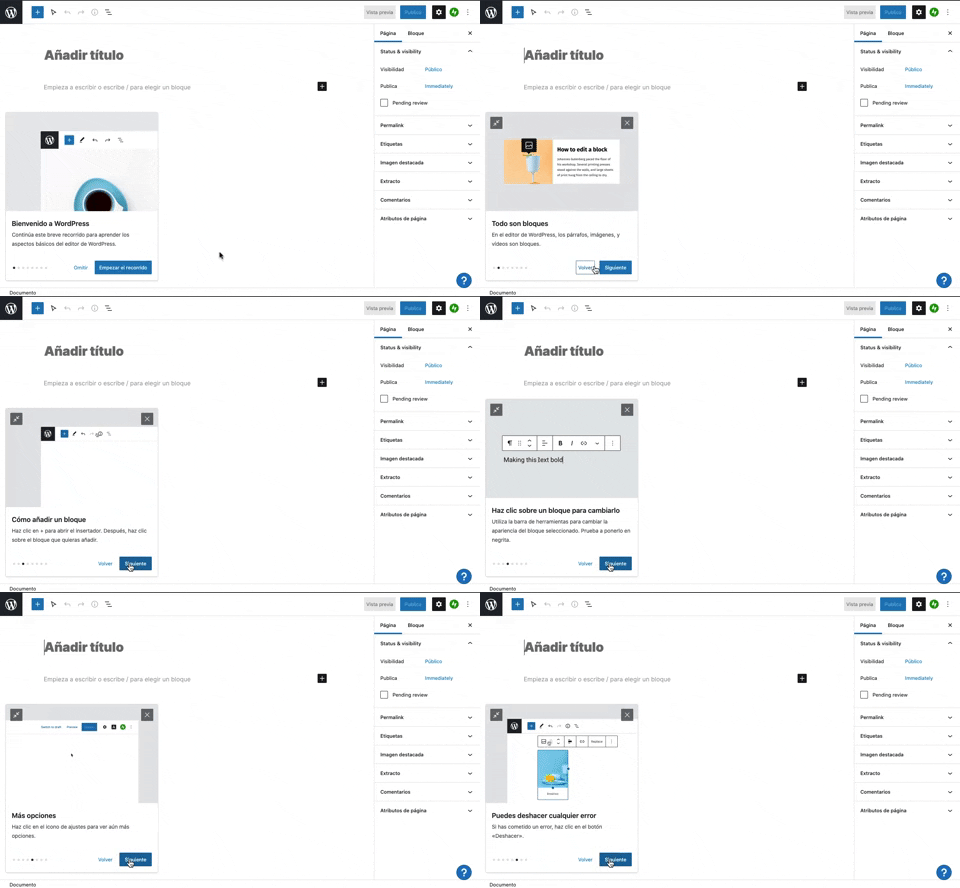
231. Floating Dialog Popover w/ Steps
This pattern guides users through a multi-step onboarding or feature tour with a dismissible, paginated floating dialog, enhancing discoverability and adoption.
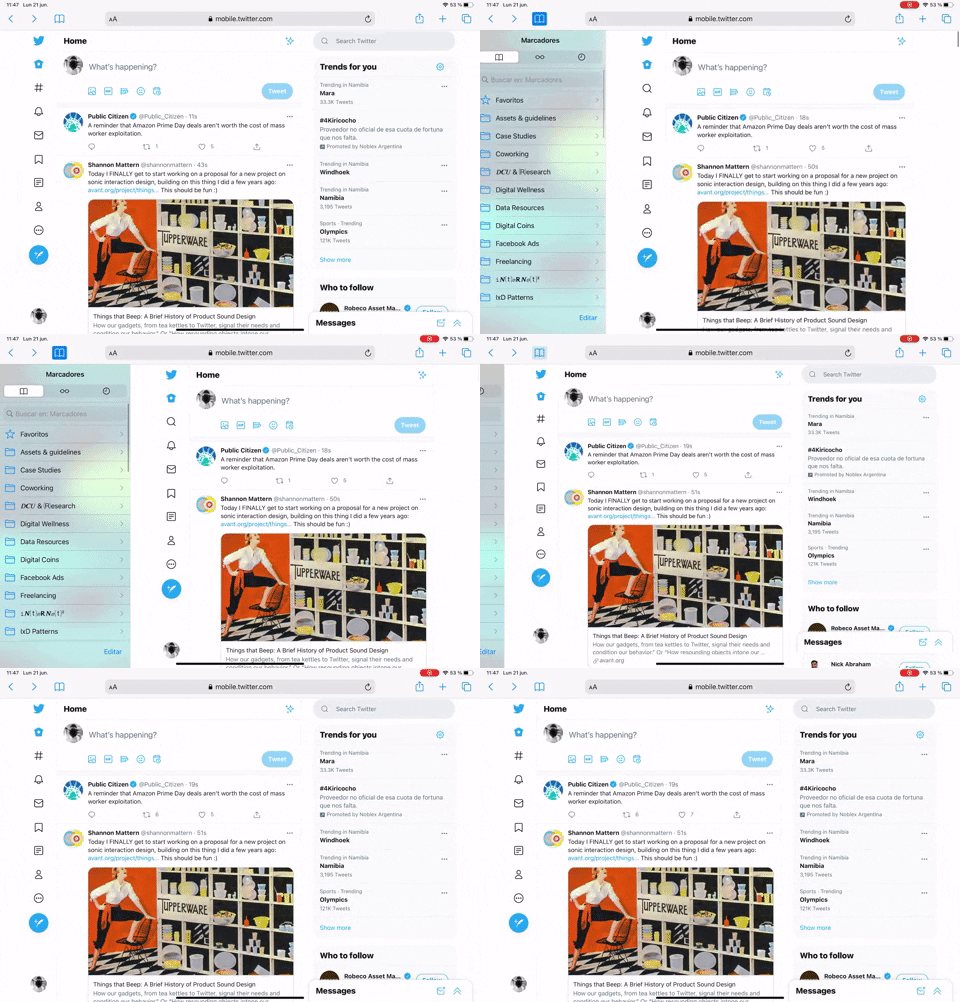
239. Secondary Sidebar Toggle (Touch)
Users can tap a persistent icon to reveal or hide a secondary sidebar, optimizing screen real estate while maintaining quick access to additional content.

229. Top Banner for Design Changes
A top banner informs users about new design changes, offering a clear link to "Obtener más información" for those seeking further details.
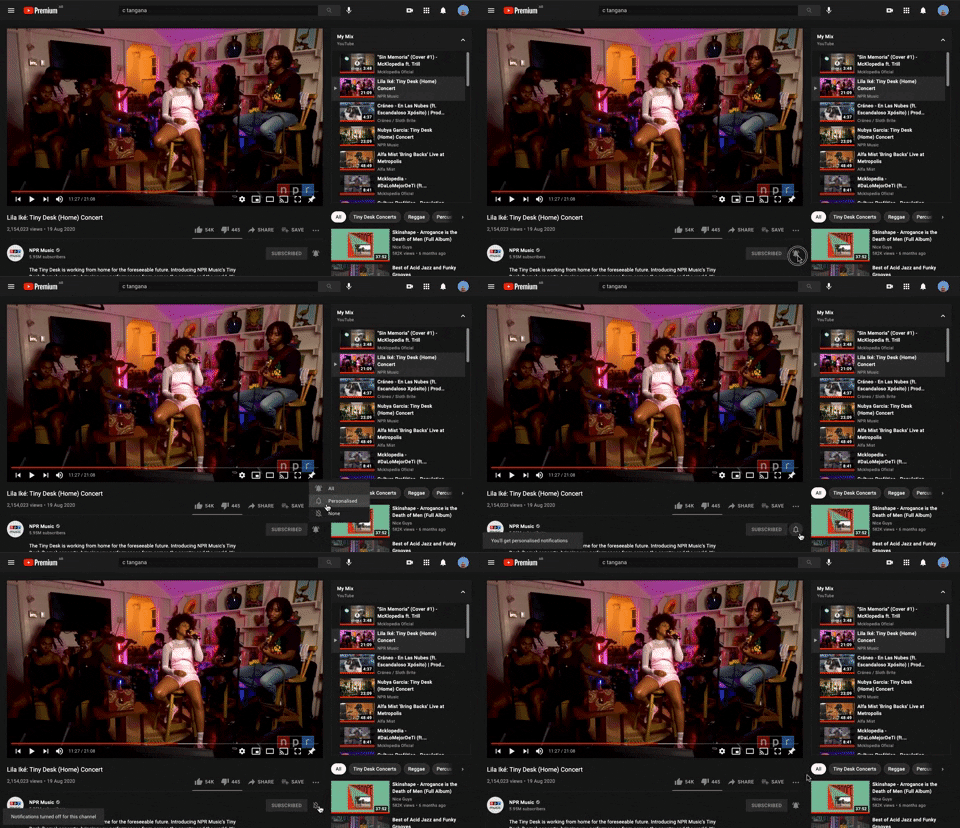
228. Notification Bell Status
Users can quickly check and manage their notifications by clicking the bell icon, revealing a dropdown with recent alerts and an option to clear them.
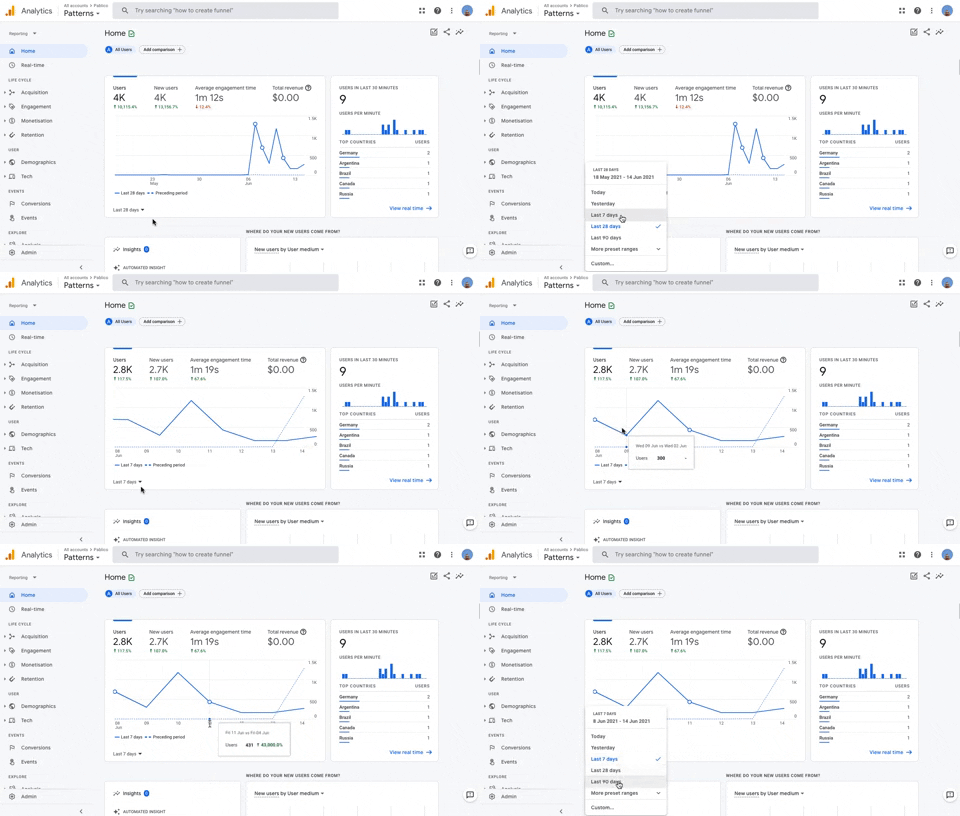
236. Horizontal Graph with Time Ranges
Users can easily compare data trends over customizable time ranges within a horizontal graph, enabling quick insights into performance changes.
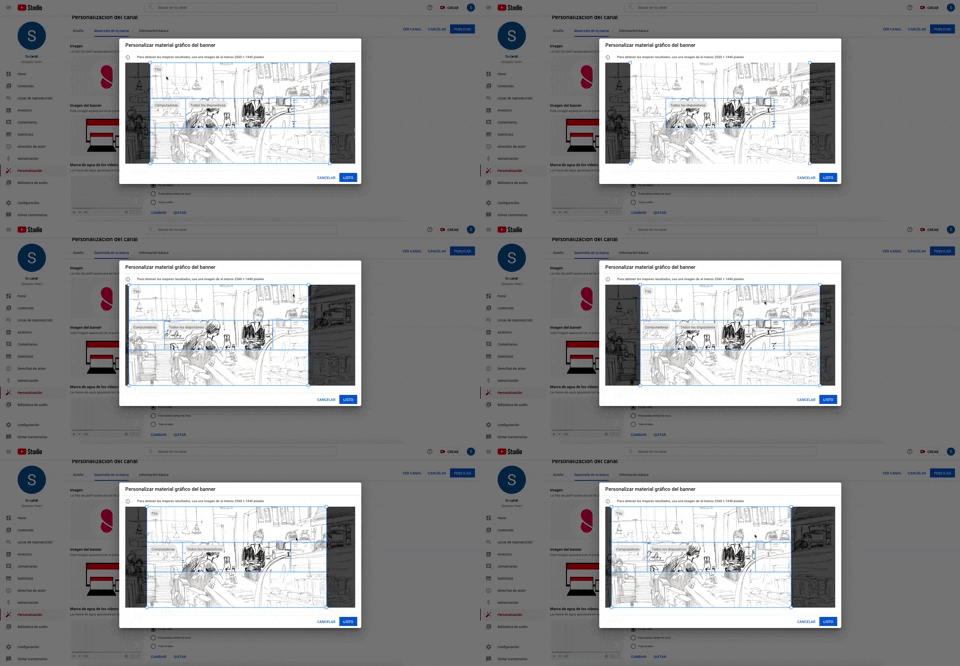
226. Youtube Studio - Image Multi-zone Crop
Users can precisely crop an image for various device viewports within a single interface, ensuring optimal visual presentation across all screens.
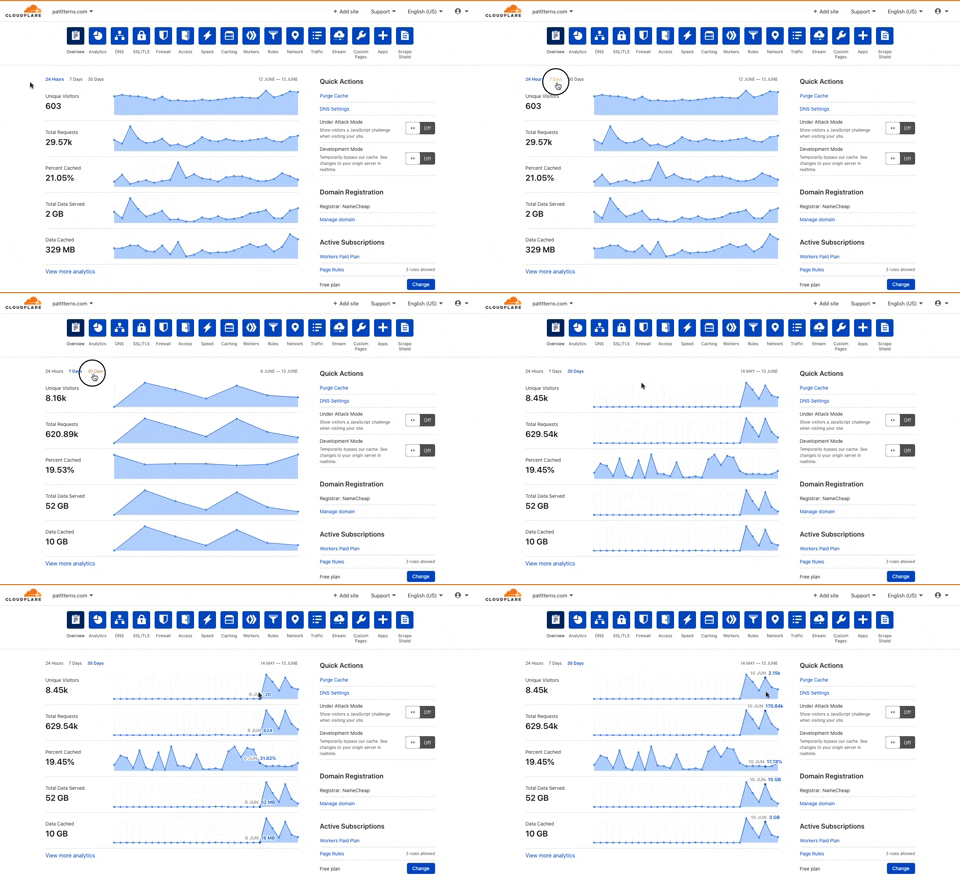
225. Cloudflare - Multiple Graphs by Time Ranges
This pattern allows users to quickly switch between predefined time ranges to view multiple related data graphs, enabling efficient analysis of performance trends.
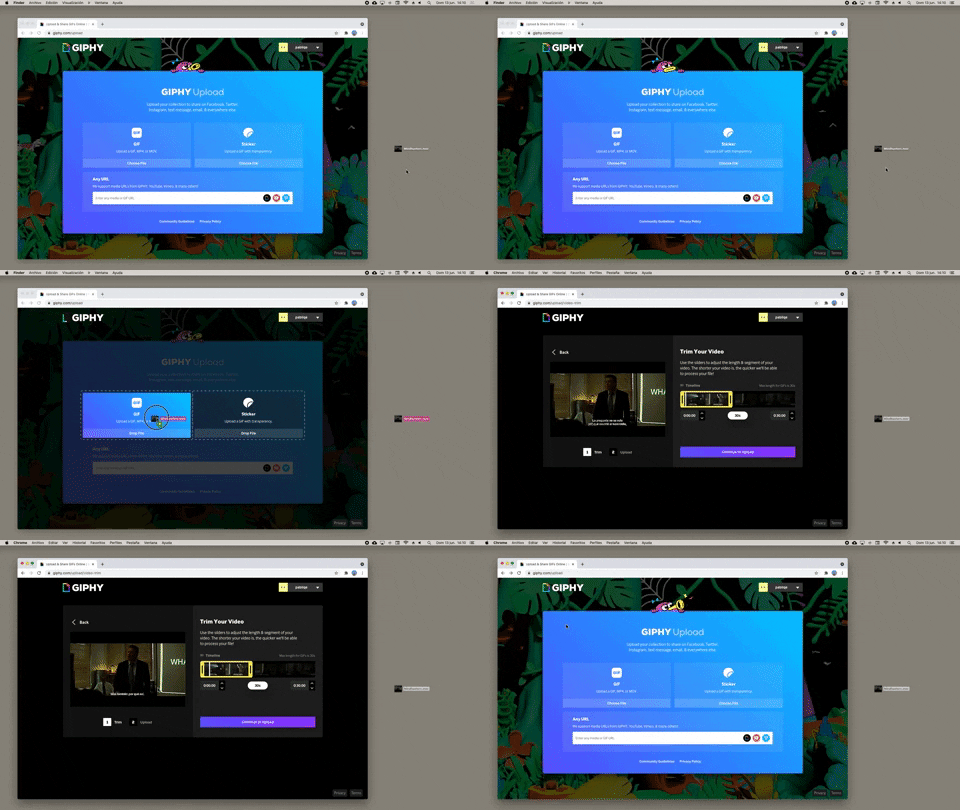
232. Drag & Drop to Browser
Users can effortlessly upload files by dragging them from their desktop directly into a browser window, streamlining the content submission process.
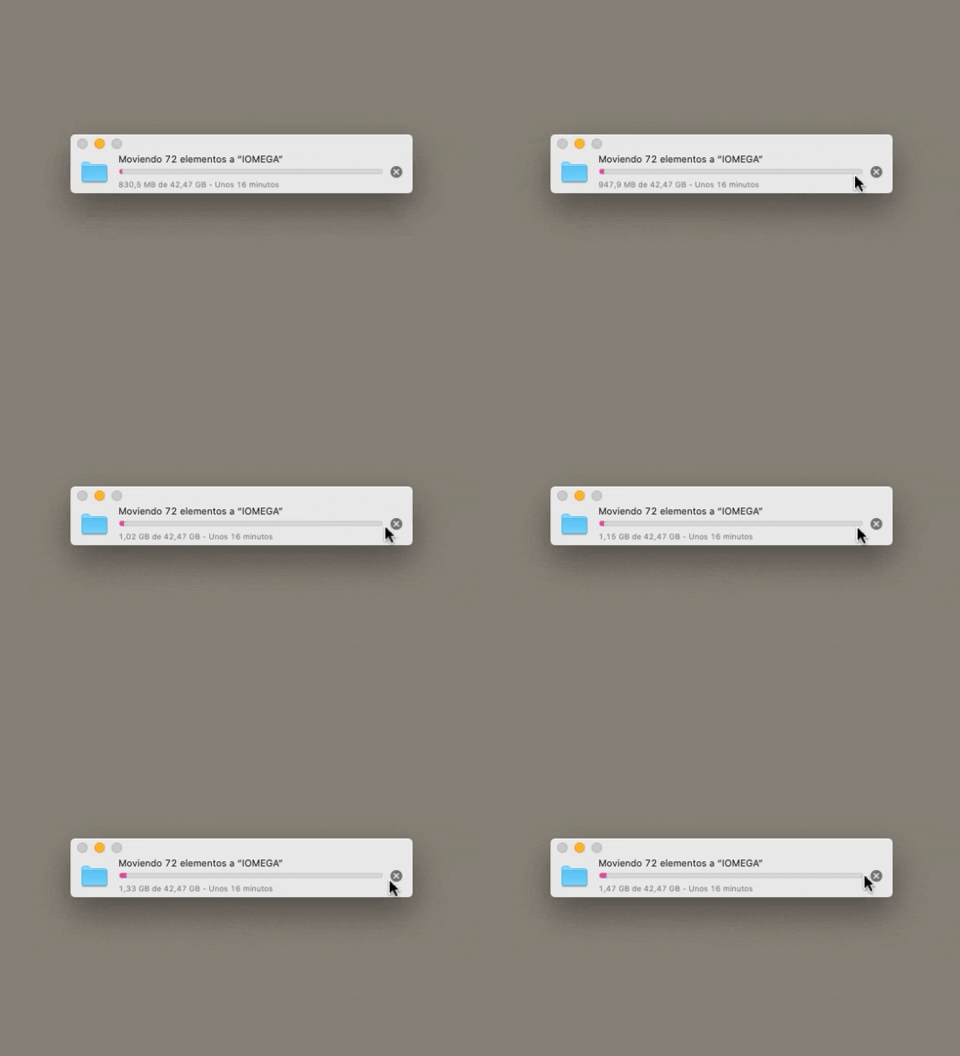
223. Stop Operation Progress
This pattern allows users to cancel an ongoing operation, like a file transfer, by clicking a clear "X" icon, providing immediate control over system processes.
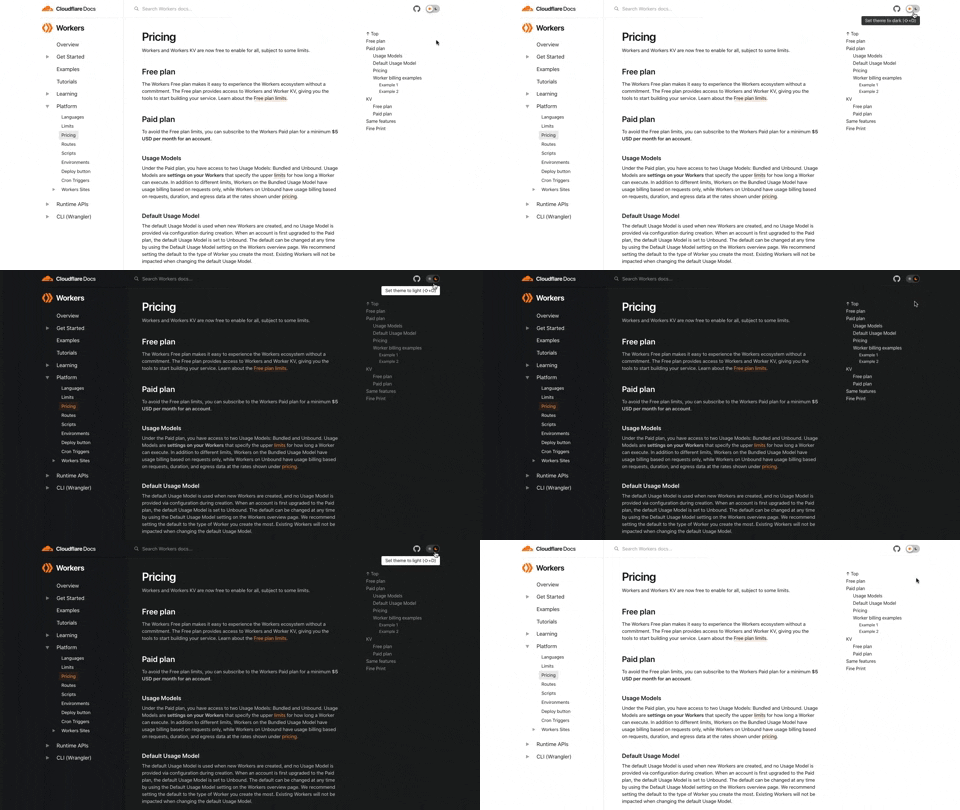
222. Cloudflare - Toggle Light/Dark Theme
Users can instantly switch between light and dark themes with a single toggle, enhancing readability and reducing eye strain for personalized viewing comfort.
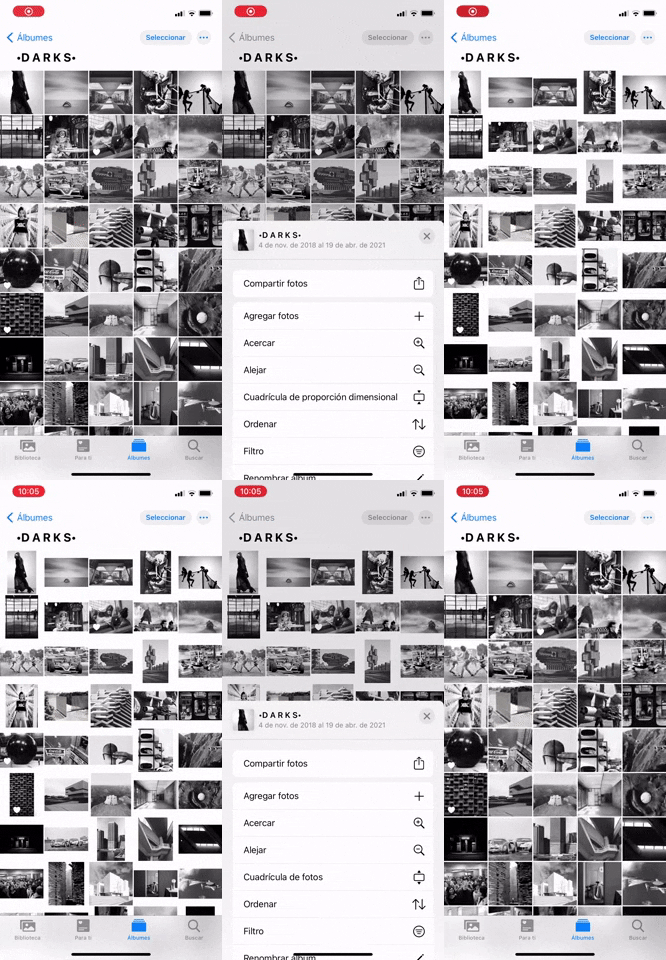
221. Apple - Image Grid Spacing
Users can adjust image grid spacing with a pinch gesture, enhancing visual clarity and enabling precise content selection for improved accessibility.
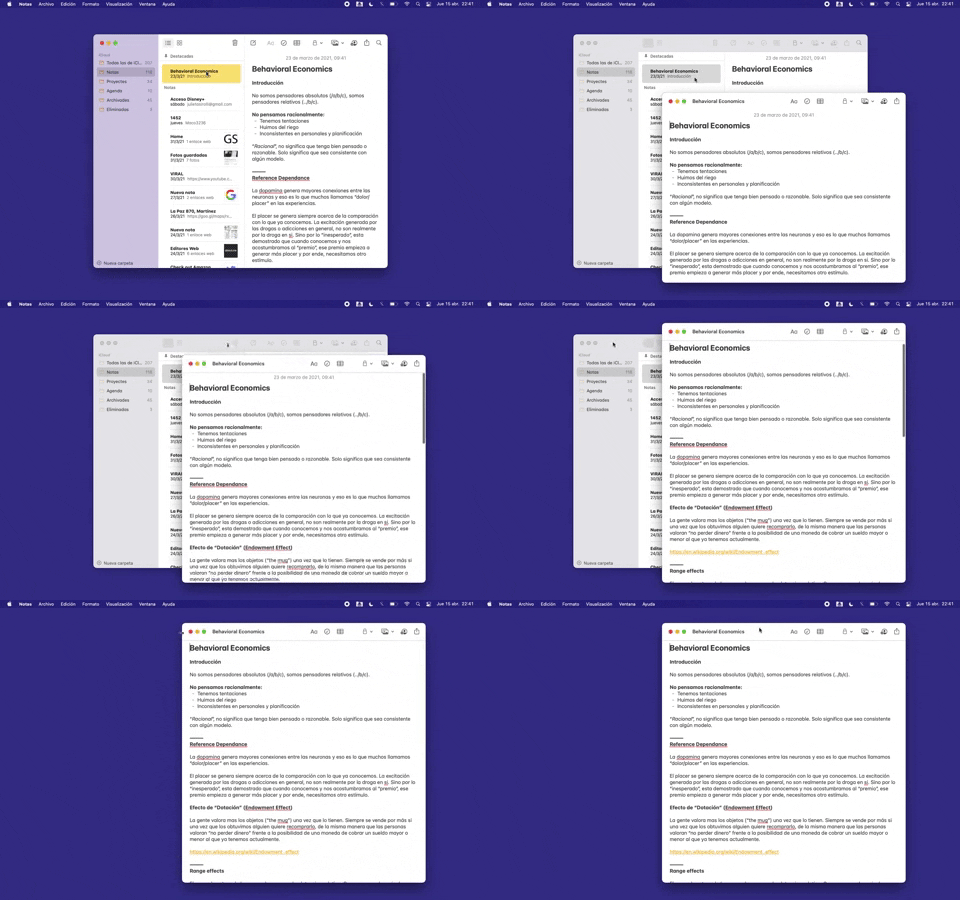
228. Open in New Window (Doble Click)
Users can double-click an item to open its content in a new, independent window, enabling parallel viewing and enhanced multitasking.
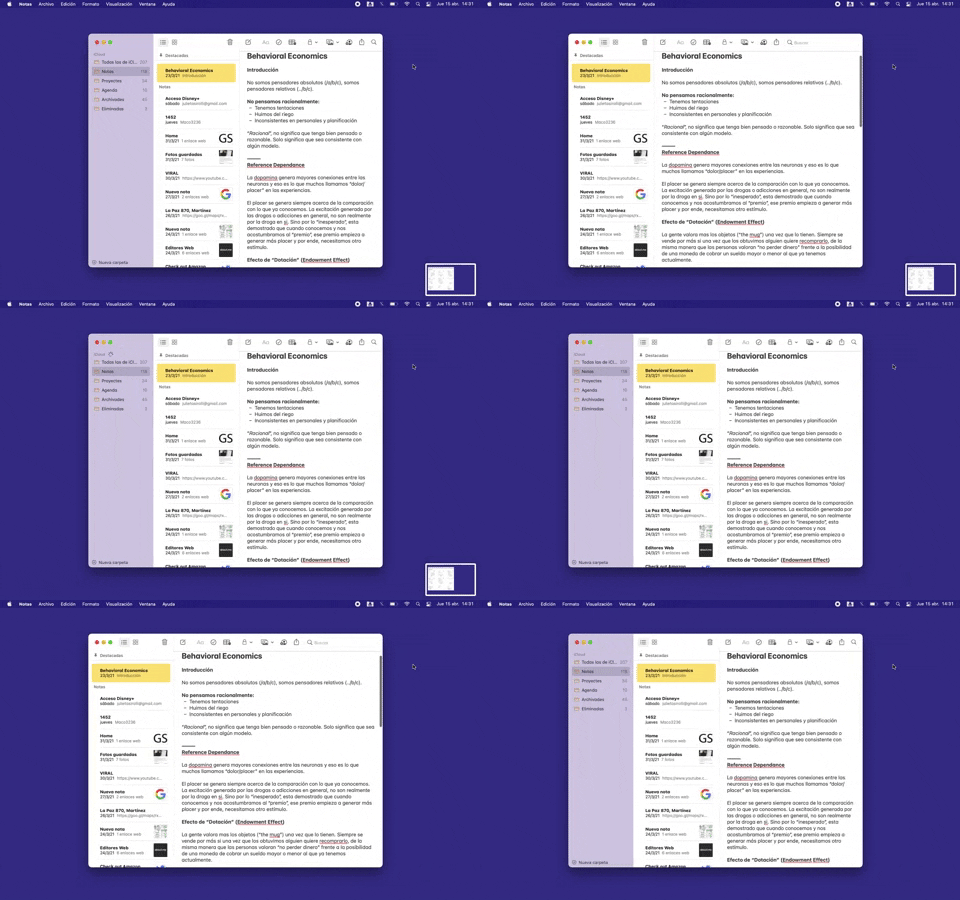
227. Secondary Sidebar Toggle (Mouse)
Users can toggle a secondary sidebar to reveal or hide contextual information, optimizing screen real estate and focus on primary content.
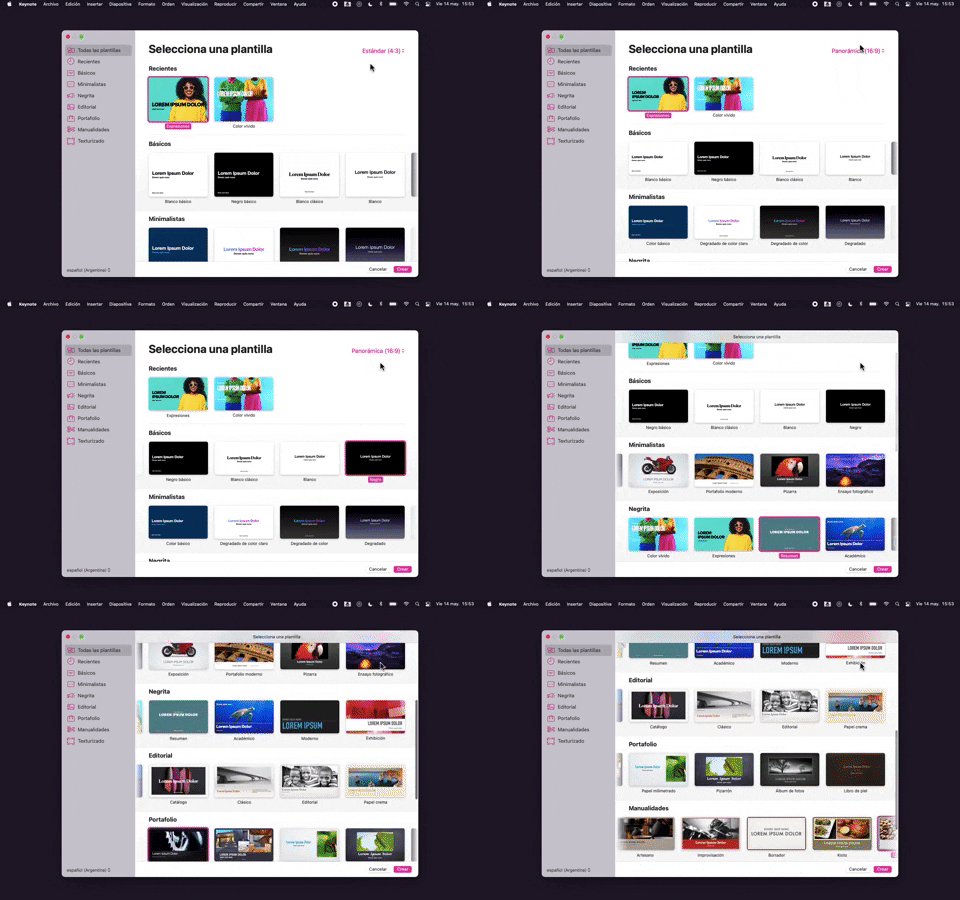
218. Apple Keynote - Template Format Selection
Users efficiently select a presentation template and aspect ratio from categorized options, streamlining the creation of new projects.
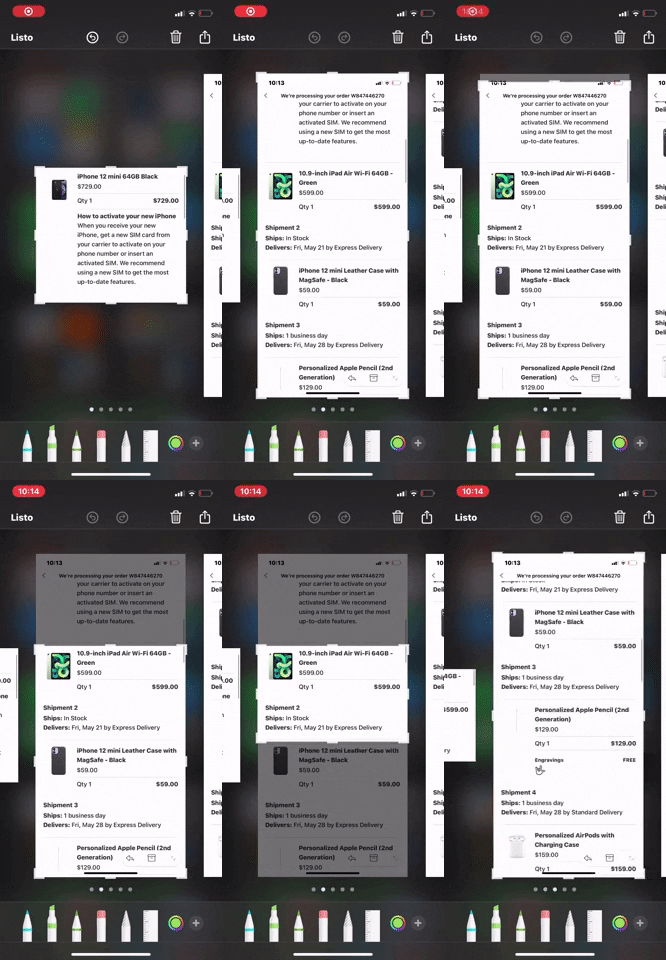
217. Apple - Cropping multiple screens
Users can precisely crop multiple screenshots sequentially, enabling focused content extraction and streamlined sharing of specific information.

222. Floating Banner on User Input
This pattern displays a floating banner over existing content, allowing users to compose new input without losing context of the underlying page.
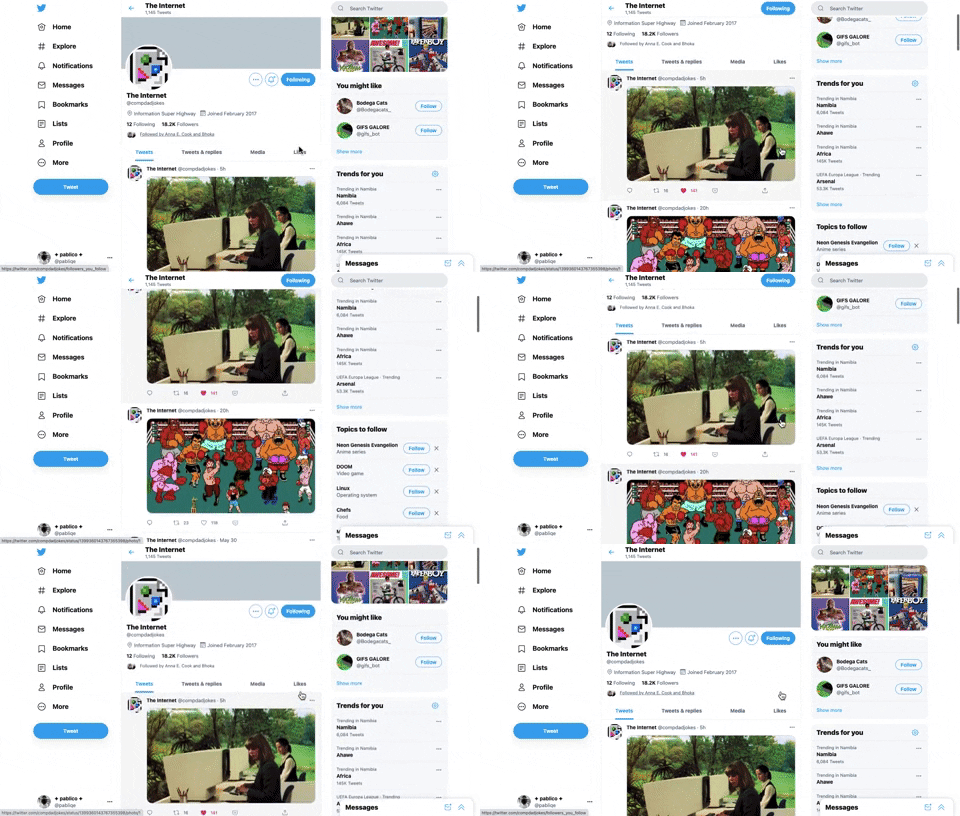
221. Stacked Action Button
This pattern keeps primary actions readily accessible by stacking them vertically, ensuring users can quickly initiate key tasks without scrolling.
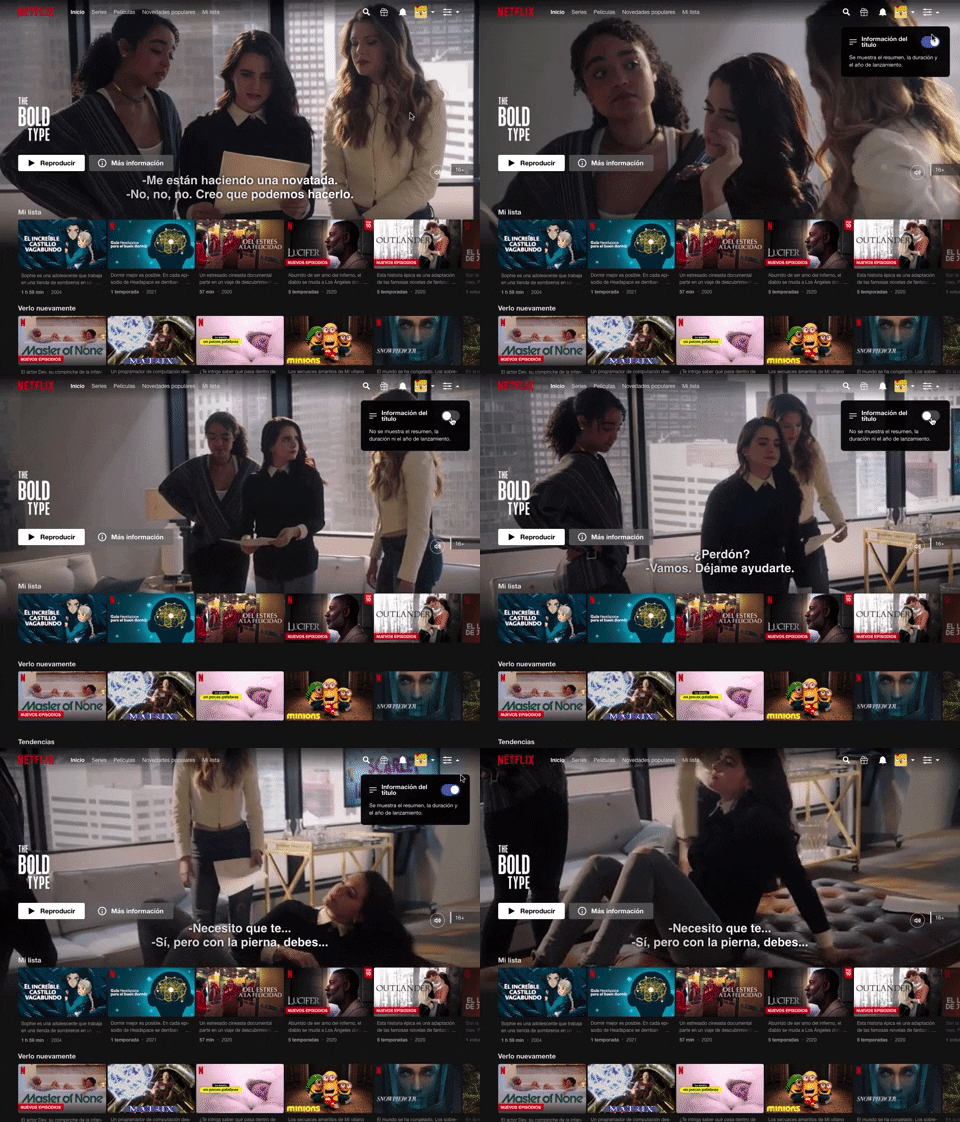
214. Netflix - Information Toggle
A UI pattern, exemplified by Netflix, that allows users to toggle the visibility of additional information, often within a navigation or content browsing context, such as revealing details about a video thumbnail via a dropdown or button interaction. Notable behavior: Click; Toggle; Expanded.
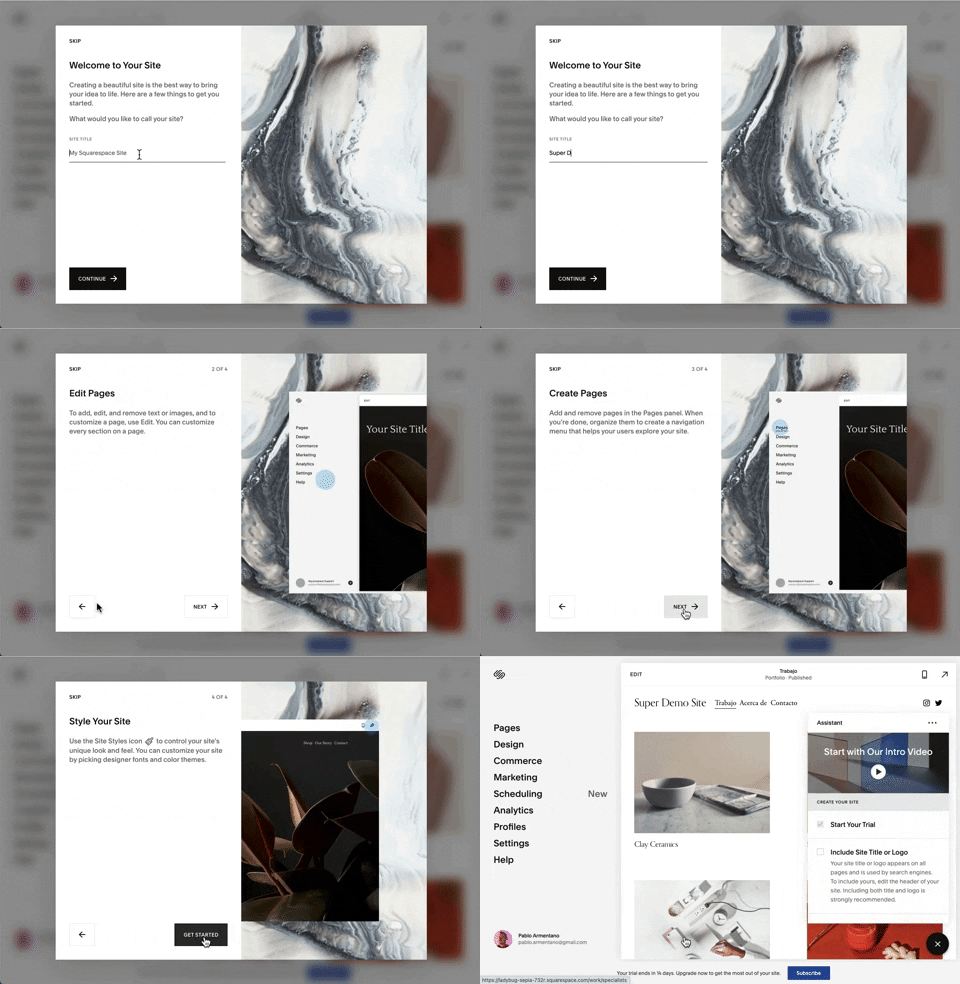
218. Modal Blackout w/ Steps, Forms and Animations
This multi-step modal guides users through an onboarding process with clear form inputs and animated transitions, ensuring focused completion of initial setup tasks.
217. Vertical Icon Menu (duplicated)
Desktop, Pathfinding, Web, English, Side Panel, Transition, Image / Illustration, Tooltip, Hover Event, Intercom
212. Automatic Background Animation (on Load)
Desktop, Decision Making, Awareness, Web, English, Animation, Loader, Hypertext Links

45. Webapp Video Loader
This loader provides visual feedback to users that content is loading, maintaining engagement and reducing perceived wait times by showing the layout structure.

203. Two-step Download Flow
This pattern offers users a clear, two-step download process, first presenting a prominent "Download" button and then a secondary, fixed-on-scroll button for consistent access.

59. Ecommerce App Homepage (5)
This pattern provides a clear entry point for searching, quick access to key features, and personalized content, enhancing user navigation and product discovery.
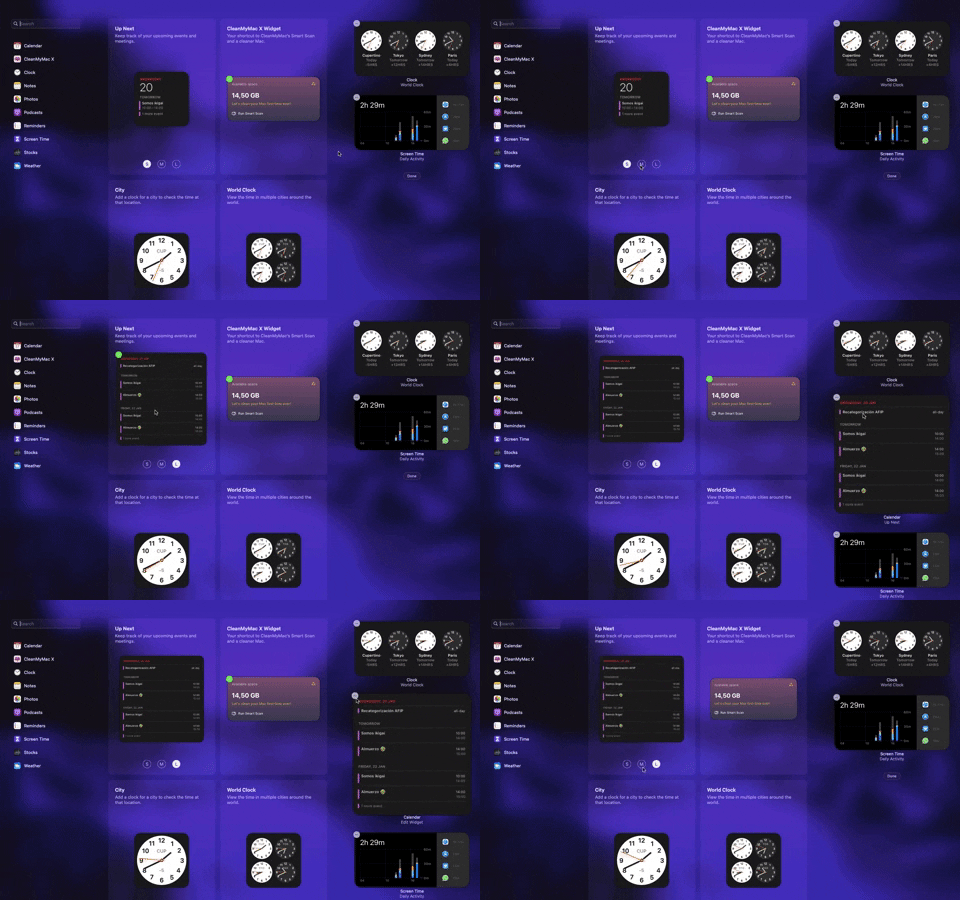
205. Full Screen Widget Customization
Users can easily personalize their full-screen widget layout by dragging and dropping elements, enhancing their dashboard's utility and visual organization.

162. Login Value Compare
This pattern helps users decide whether to proceed with registration by clearly comparing the benefits of stopping versus continuing the process.

207. Downloading Desktop App
This pattern informs users that a desktop application is downloading, providing clear instructions and a progress indicator to manage expectations and guide the next steps.

169. Youtube Studio - Delete Content Forever
Users can manage their uploaded video content, including visibility, restrictions, and upload dates, to maintain an organized channel.
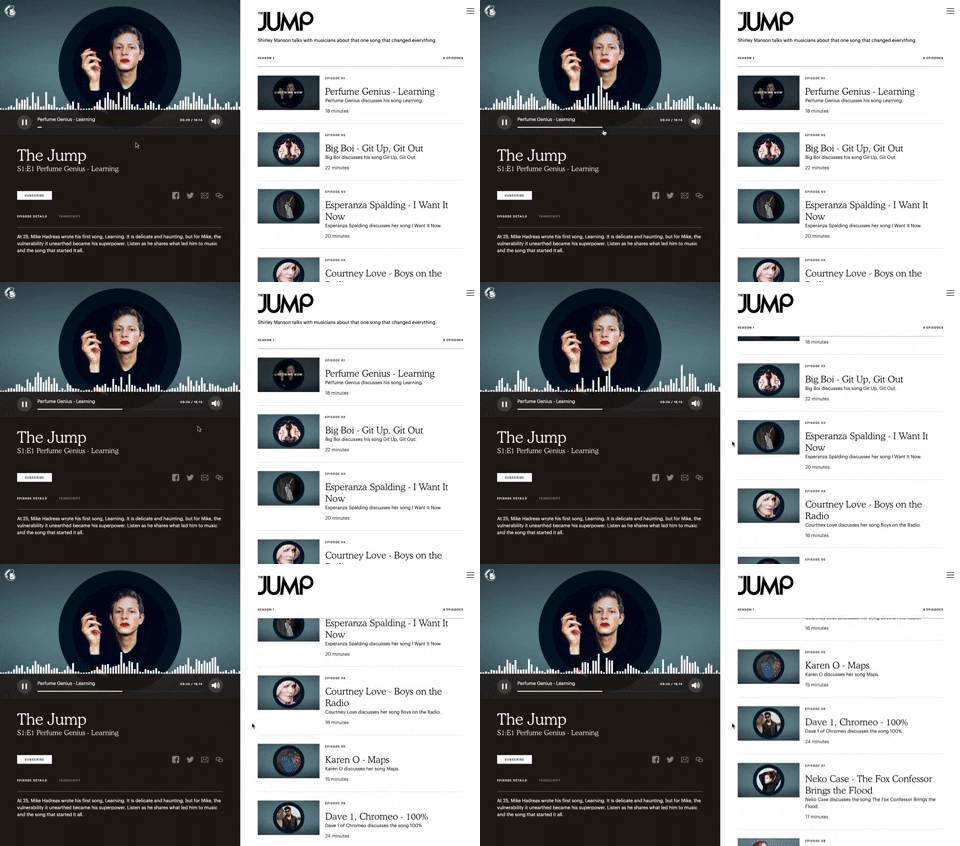
121. 2-pane Audio Navigation
This pattern allows users to browse a list of audio episodes while simultaneously playing and controlling a selected episode.

172. PedidosYa - Search Results Recommendation
This pattern uses a tooltip to highlight "Top Recommended Restaurants," informing users that the displayed selection is personalized based on proximity, order history, and ratings.

52. Uber EATS - Making a Food Order
This pattern allows users to customize food orders with dietary preferences and special instructions, ensuring a personalized and accessible ordering experience.

31. Page Blocker Edition Warning
This pattern warns users about potential data loss when editing an active test, offering options to proceed cautiously or duplicate the test to preserve existing responses.

5. Website Promotional Top Banners
A prominent top banner informs users about new features or promotions, encouraging engagement with a clear call to action.

53. Apple Safari - Editing Bookmarks
Users can efficiently search and manage their bookmarks within Safari, leveraging a clear interface with a search bar and categorized folders for quick navigation.

189. Feature Preview on Menu
This pattern highlights new or experimental features within a dropdown menu, allowing users to discover and opt-in to upcoming functionalities.
190. Delete Confirmation w/ Name (moved)
A modal dialog pattern requiring the user to explicitly type the name of an item to confirm its deletion, enhancing user awareness and preventing accidental data loss. Notable behavior: Text input; Button click (confirm/cancel); Modal open.
175. Tab Preview on Hover State
Displays a preview of a tab's content when the user hovers over the tab, enabling quick content assessment without requiring a full click or navigation.

161. Apple - Two-Factor Validation (2FA)
This pattern allows users to securely log in to their iCloud account by entering their Apple ID, with an option to stay signed in for convenience.

91. Settings for Account Privacy
Users can manage their account's discoverability and contact settings, controlling who can find them via email or phone number for enhanced privacy.

138. Read Modes
Users can adjust text size and font for optimal readability, enhancing accessibility and personalizing their content consumption experience.

148. Search Bar Fade-out
This pattern allows users to quickly search their content with a prominent search bar that reveals recent searches and relevant suggestions upon interaction.

134. Save for Reading Later
Users can save articles for later reading by clicking a bookmark icon, ensuring they don't lose interesting content when time is short.

43. File Upload Status
This pattern provides real-time feedback on file upload progress and status, allowing users to monitor, manage, and resolve potential issues efficiently.

199. Sidebar Emptystate
This sidebar empty state introduces new features with a clear illustration and call to action, guiding users to discover and adopt new functionalities.

54. Apple Safari - Browser Reader Mode
Users can activate Reader Mode to strip away distracting elements like ads and navigation, focusing solely on the article's content for improved readability.

201. Modal Blackout w/ Actions
This modal blackout pattern informs users about enhanced ad privacy, offering clear choices to manage settings or accept changes with distinct action buttons.

189. Illustration (Meme) on Empty State
This empty state uses a humorous meme and a guiding text to playfully direct users toward the primary action button, encouraging engagement.
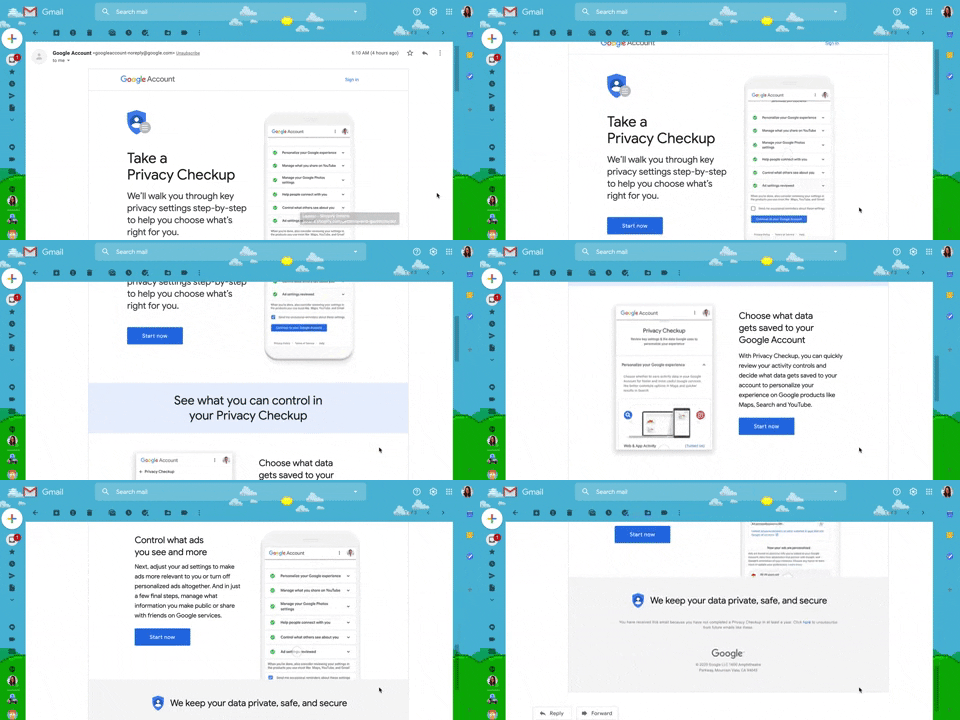
130. Animated Email Page
This pattern uses subtle animations within an email to guide users through a privacy checkup, enhancing engagement and clarity for important account actions.

114. News Swiper
This pattern allows users to effortlessly browse a carousel of news or definition cards, providing quick access to multiple content pieces with clear navigation.

151. Menu Drop-down
A menu drop-down provides users with a clear, compact way to access navigation options, enhancing discoverability and site exploration.

144. Meeting Guest Warning
This pattern provides a host with immediate control over who joins a meeting, enhancing security and ensuring only authorized participants can enter.

93. Top Secondary Banner
This banner provides timely, relevant information and a clear call to action, ensuring users are aware of important updates or opportunities.
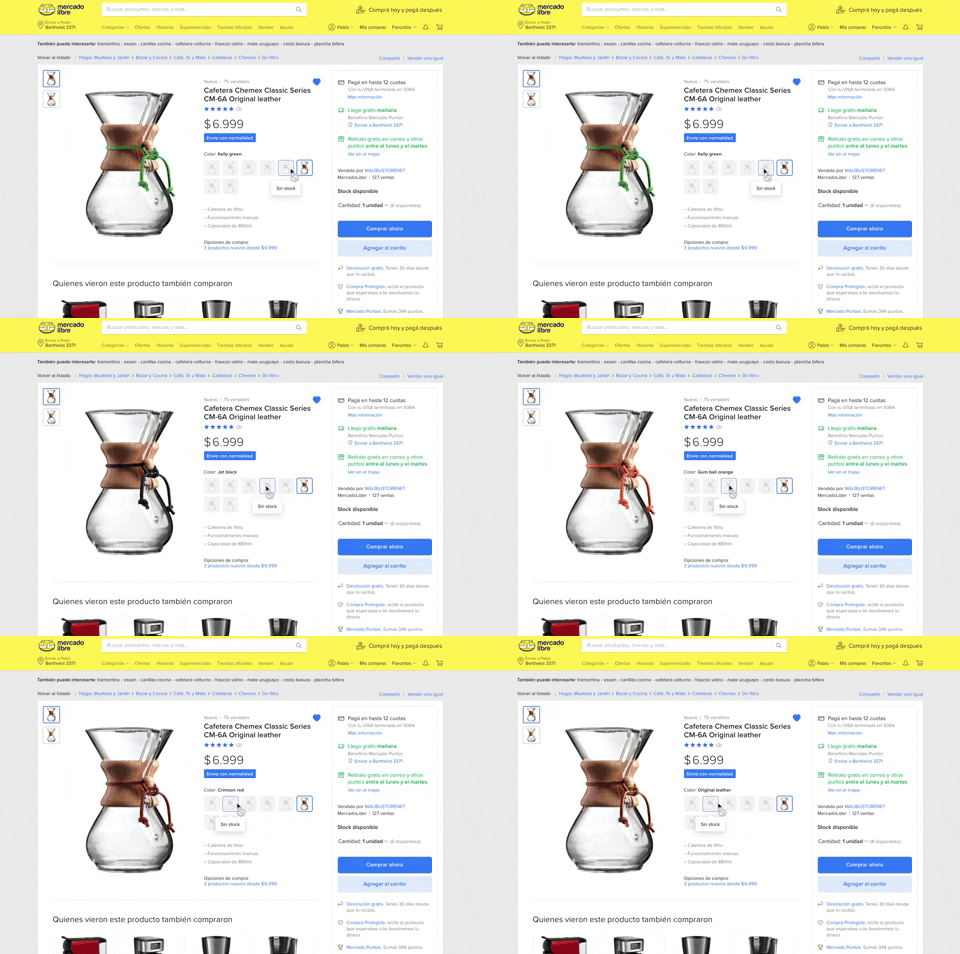
137. Product Color Selector
Users can effortlessly browse and select product variations by color, with immediate visual feedback and clear stock availability, streamlining their purchasing decision.
132. Amazon - Store Tooltip Reminders
This pattern uses tooltips to provide reminders or onboarding information within a store context, often including hypertext links for further action or navigation. It is primarily designed for desktop web environments to enhance user awareness.

181. Plan Upgrade Flow
This pattern guides users through a personalized plan upgrade flow by asking about their intent, offering tailored recommendations, and allowing them to view all options.

106. In-App Promotional Banner
This banner promotes relevant content or offers within the app's main feed, encouraging user engagement and discovery without disrupting the primary navigation.

111. Magazine Subscription
This pattern allows users to compare subscription tiers and their benefits side-by-side, enabling an informed decision before committing to a purchase.

7. sitepoint - Accessibility Adjustments
The accessibility icon provides users with quick access to adjust display settings, enhancing readability and overall site usability.

163. Open App from Web
This pattern allows users to seamlessly transition from a web page to a native mobile application, enhancing engagement and providing a richer experience.
164. Static Tooltip on Menu
A static tooltip on a menu provides immediate, contextual information for menu items. It typically appears on hover or focus, enhancing user understanding of an item's function or details without requiring an explicit click.

191. Viedo Rewind & Forward
Users can quickly navigate video content by tapping the left or right side of the screen to rewind or fast-forward in precise increments.

42. Browser Status Banner for Pages
This banner informs users about a page reload due to an error, ensuring they understand the unexpected behavior and can proceed with confidence.
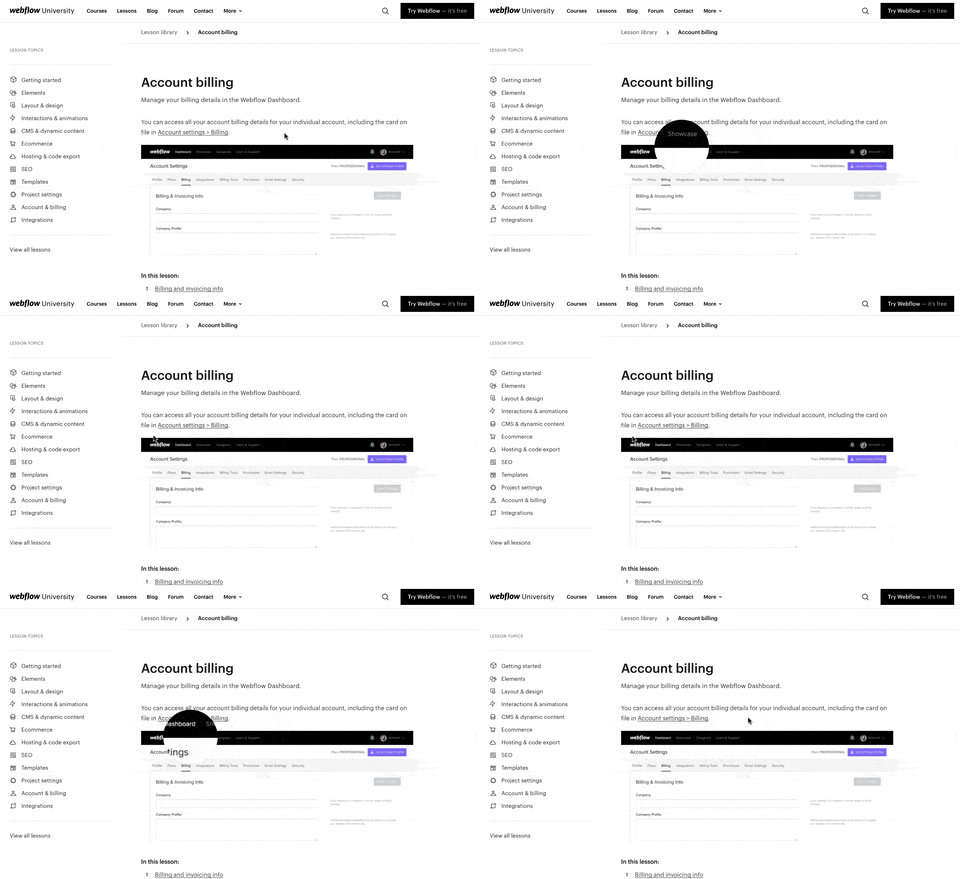
157. Webflow - Magnifying Glass on Images
Users can magnify embedded images by hovering over them, revealing crucial details and improving comprehension without navigating away.

65. PedidosYa - Location Confirmation
Users confirm their delivery location on a map with a prominent pin and a clear call to action, ensuring accurate service.

169. Download & Confirmation Buttons
This pattern guides users through a secure download or purchase confirmation process, requiring a physical side button press to prevent accidental transactions.

198. Take action on Music Claims
This pattern allows users to review copyright claims on their videos, understand the impact, and select appropriate actions to resolve issues.

89. Bottom Page Fake-News Warning
This pattern provides a dedicated section at the bottom of a page to combat misinformation by directing users to reliable, expert-backed content.

61. Section Dropdown
Users can select a specific version of a product or guide from a dropdown menu, ensuring they access relevant, up-to-date information.

150. Split OS Screens
Users can efficiently manage multiple tasks by splitting their operating system screen into distinct, resizable windows, enhancing productivity and multitasking capabilities.

90. In-product Top Primary Banner
This banner provides critical, timely information to users at the top of the page, ensuring high visibility for important updates or alerts.

70. Trip Starting Point
This pattern allows users to quickly confirm or change their trip's starting point, ensuring accurate pickup and a smooth journey.

62. Google Maps - Weekly Schedule
This pattern allows users to quickly select specific days of the week and set corresponding commute times, streamlining schedule management for personalized route planning.

127. Google Maps - Notifications Disabled Warning
This pattern allows users to granularly control various notification types within the app, ensuring they receive only relevant alerts and maintain privacy.

179. Stylized Feature Highlighting
This pattern uses an overlay with a stylized, partially transparent shape to draw attention to a new feature, offering options to engage or dismiss.

203. Password Expiration on Login
This pattern prompts users to re-enter their password when a session expires, ensuring security while allowing them to quickly resume their work.
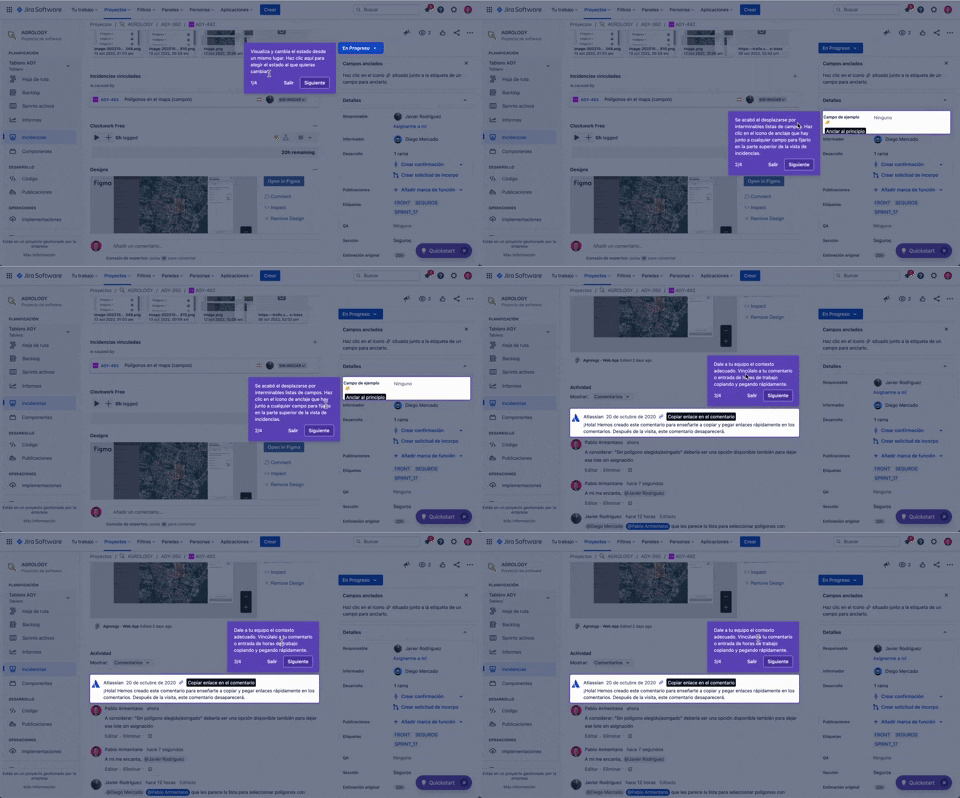
56. Floating Tooltip with Steps and Blackout
This pattern guides users through multi-step onboarding or feature discovery with a focused, sequential tooltip and a dimmed background.
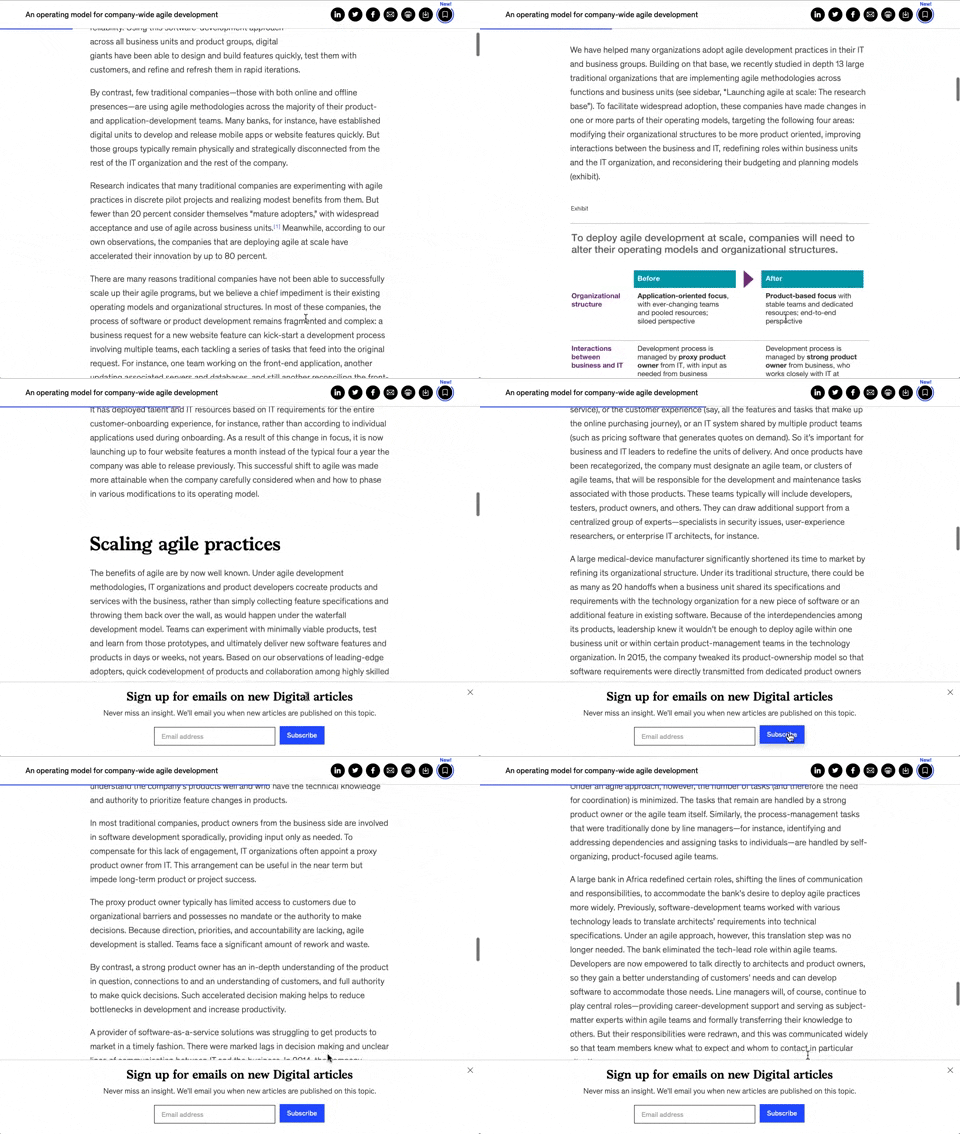
158. Bar Reading Status
A UI element, typically a bar, that visually indicates the user's reading progress or status within a document or page. Often integrated into a fixed navigation bar, it enhances awareness and helps users track their position. Notable behavior: Progress State; Fixed on Scroll.

115. Buffer - Hover Instructions
This pattern uses a placeholder text field to prompt users to share content, enhancing discoverability and guiding their initial interaction.

81. MercadoLibre - Saving Favourites as Guest
Users can easily save items to a favorites list by clicking a heart icon, even as a guest, promoting future engagement and purchases.

51. Download App Reminder
This pattern prompts users browsing a mobile website to switch to the native app, offering a better experience with enhanced features.
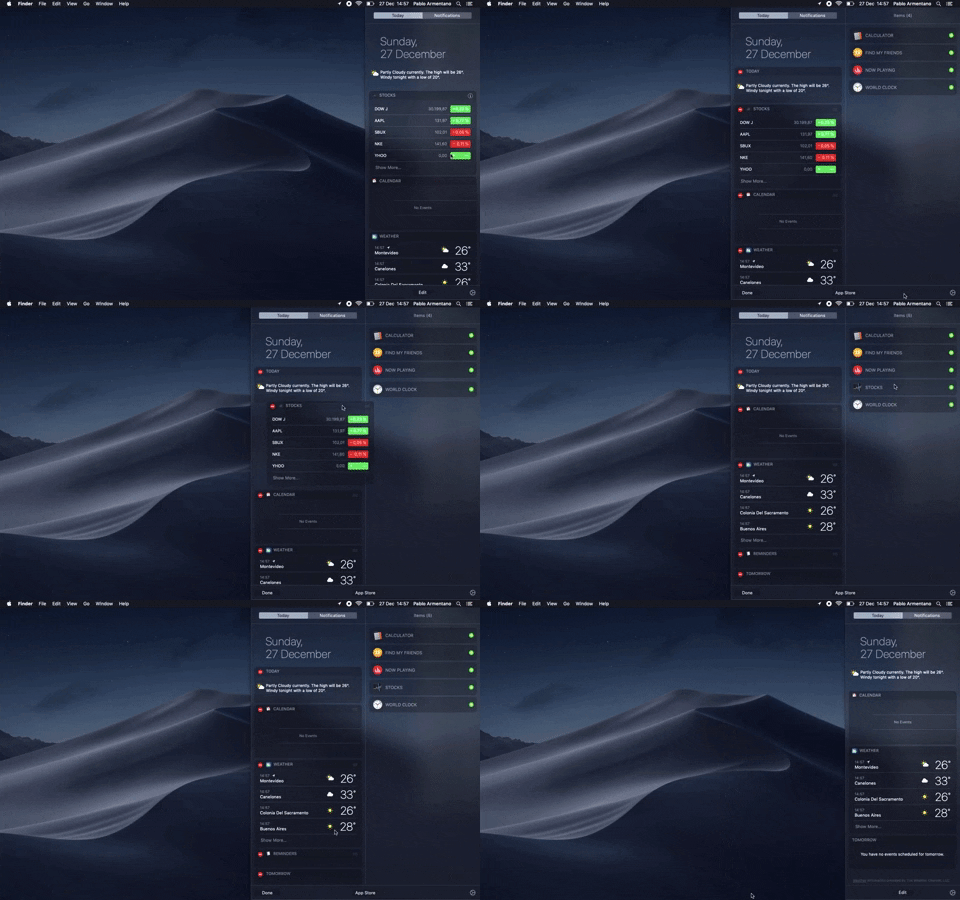
138. Widget Customization Sidebar (2-pane)
Users can quickly access and customize widgets in a two-pane sidebar, enhancing productivity by providing relevant information at a glance.
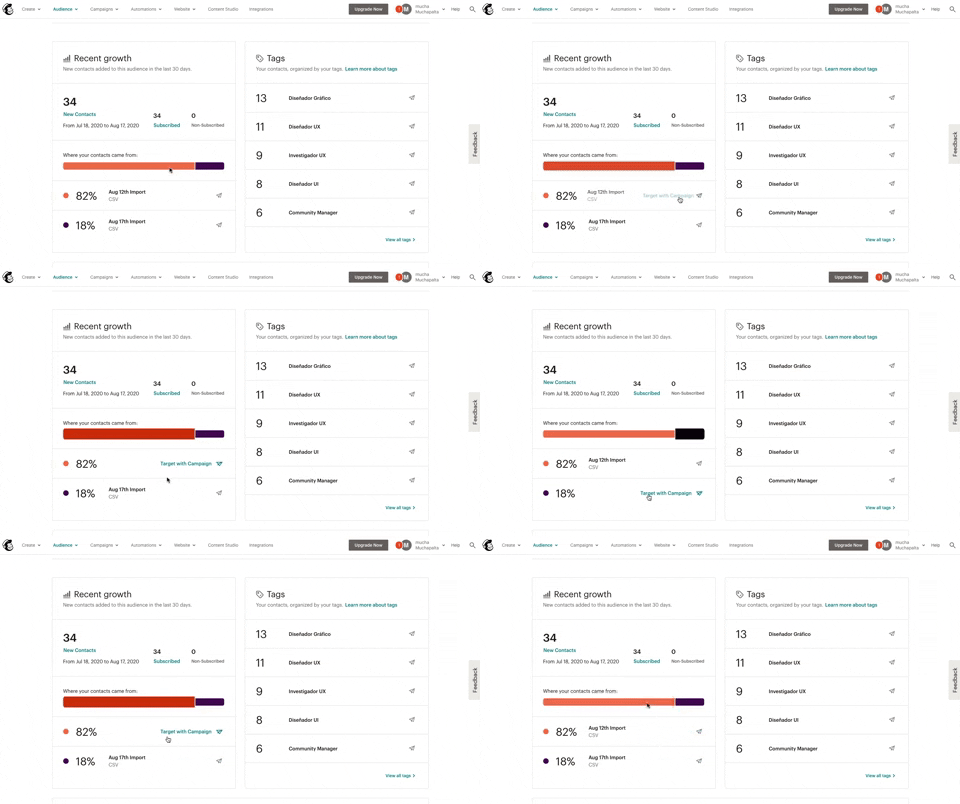
139. Synced Hover Animations
This pattern uses synchronized hover animations to highlight related data points across different UI elements, enhancing user awareness and decision-making.

193. Apple iOS - Contextual Feature Presentation
This pattern introduces new features contextually, like swipe typing, to help users discover and adopt useful functionalities at the right moment.

73. App Swiper
Users can quickly navigate between open applications by swiping horizontally, revealing a stack of app previews for efficient task switching.

152. File Icon Selector
This pattern allows users to easily browse and select files from a list, with clear visual cues for file type and modification date, enhancing navigation and organization.

149. Security Top-banner
This top-banner informs users about security risks and prompts them to take action, enhancing account safety and providing clear options to "Get Started" or "Dismiss".

145. Communication Preferences on Sign Up Flow
This pattern gathers essential user contact information, including first name, surname, and email address, to facilitate account creation and future communication.

146. Floating Banner for Pricing/Subscription (3-tier)
This floating banner offers a persistent, non-intrusive call to action for subscription, allowing users to easily access pricing details while browsing content.

147. Linked Settings for User Permissions
This pattern allows users to quickly understand and modify granular permissions for a selected user, ensuring precise control over access levels.

148. Half-page Illustration Slider
This pattern uses a prominent, half-page illustration with a slider to visually guide users through key features or benefits during onboarding.

29. About.me - Wizard Generation Profile
This wizard guides users through a series of choices, enabling them to quickly define the purpose and desired interactions for their personal profile page.

36. Contact Segmentation
Users select target audience segments from predefined categories, enabling personalized content delivery and streamlined lead qualification.

87. Warning on Product Homepage
A prominent banner on the product homepage informs users about a special offer, encouraging engagement by highlighting a free Team Plan for specific groups.

10. Background Ads
Background ads leverage the entire viewport to display engaging, full-screen advertisements, often featuring high-quality imagery or video, to capture user attention.

83. Banner on News Page
A prominent banner provides users with critical, timely information and direct links to trusted external resources, enhancing awareness and facilitating access to vital updates.

100. Floating Tooltip/Dialog
A floating tooltip or dialog provides contextual information or prompts user action without disrupting the main workflow, enhancing discoverability and engagement.

174. User Input for Image ALT Text
This pattern allows users to provide descriptive alternative text for images, enhancing accessibility for visually impaired users and improving content understanding.

182. Static Tooltip for Text Formatting
This pattern provides immediate, context-sensitive text formatting options via a static tooltip, enabling users to efficiently style selected content without navigating away.

124. Critical Changes Warning
This pattern provides clear warnings and explanations for critical actions, ensuring users understand the irreversible consequences of their choices before proceeding.

107. Updating Phone Number Flow
This pattern securely verifies user identity by requiring a password re-entry, ensuring authorized access before proceeding with sensitive account changes.

192. Modal w/ Actions
A modal with a title, descriptive text, and a single "OK" action button informs users about a new feature, ensuring they acknowledge the information before proceeding.

128. Navigation Preferences
This pattern allows users to customize their navigation experience, including transport modes, distance units, and voice search language, enhancing usability and personalization.

125. Product Highlights
This pattern uses interactive hotspots on a product image to reveal key features and benefits, allowing users to explore details without leaving the main page.

103. Subscription Reminder
This pattern prompts users to subscribe to a newsletter via a modal, appearing after they've consumed a certain amount of free content, encouraging continued engagement.

133. Card Slider with Call-to-Action
This pattern presents a horizontal carousel of content cards, each with a clear call-to-action, enabling users to explore related information and engage with offerings efficiently.

131. Free Audiobook Trial
Presents a promotional offer for a free trial of an audiobook service, designed to encourage user sign-up or subscription.

8. Adobe - In-App NPS Survey
This pattern describes an in-app Net Promoter Score (NPS) survey, designed to collect user feedback directly within a desktop application. It typically appears as a modal dialog, prompting users to rate their experience and optionally provide comments. Notable behavior: Rating Selection; Text Input; Initial State.

49. Notification for Order Review
This notification prompts users to review their recent food order, encouraging feedback that helps others make informed dining choices.
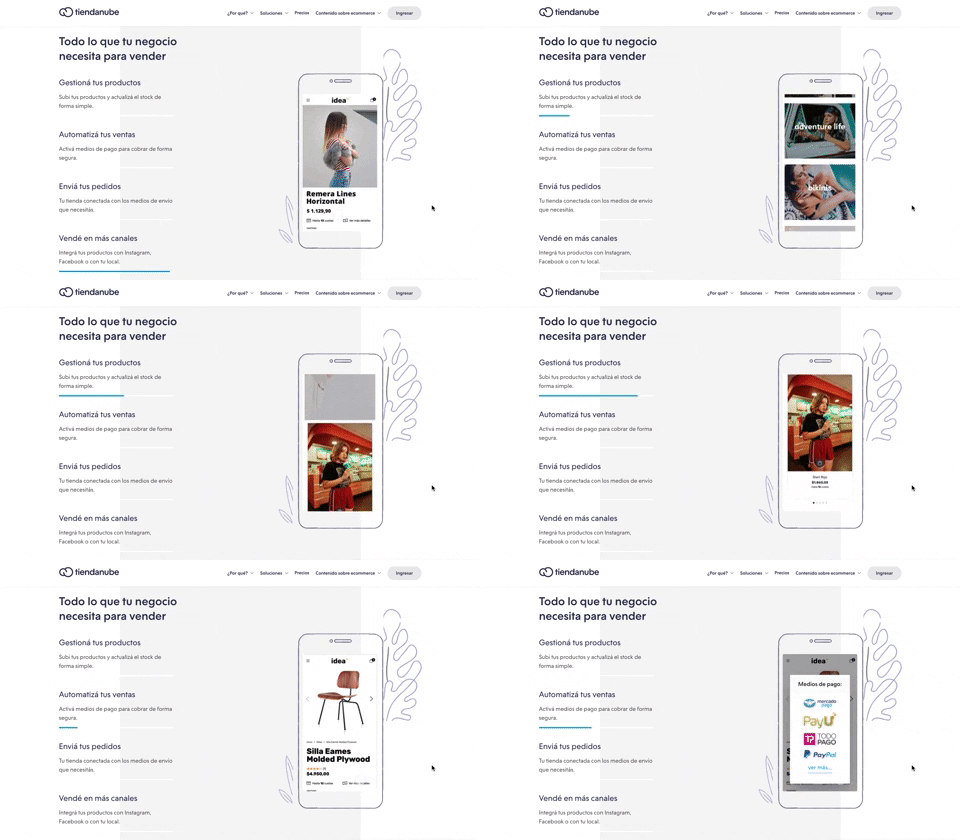
116. 2-pane Automatic Slider
This pattern automatically cycles through content in a two-pane layout, allowing users to passively discover key features or products without direct interaction.

28. Slack - Find your Workspace
Users enter their email to receive a confirmation link, enabling them to quickly find and join existing Slack workspaces or create new ones.

15. Notifications on Map Geolocation
This pattern displays a user's real-time location on a map with an interactive bottom sheet for quick access to contact, directions, and notification settings.

63. GitHub - Contextual Back Navigation Bar
This pattern provides a clear, persistent navigation bar at the top of the screen, allowing users to quickly return to previous views or access key sections.

14. App Bottom Popup
This pattern provides quick access to recent activity and featured items within a compact, dismissible overlay, enhancing user efficiency.
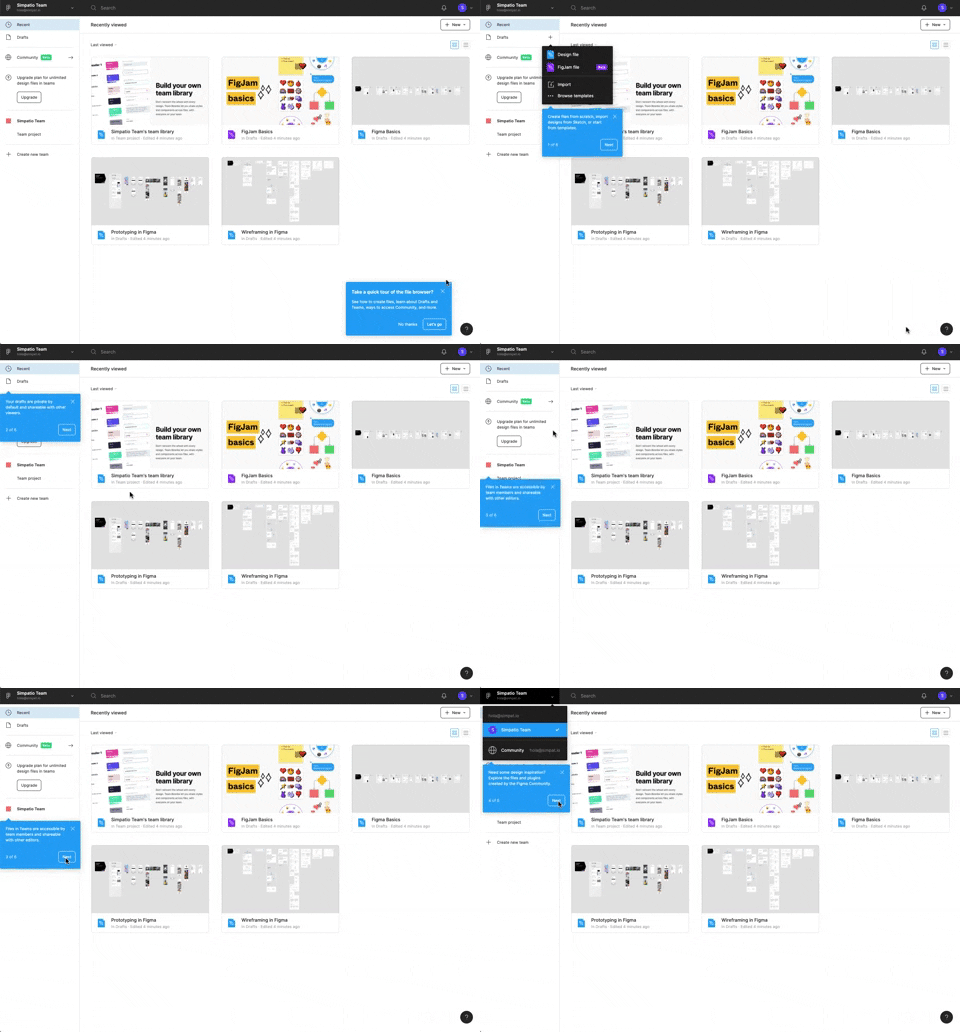
122. Automatic Popover with Steps
This pattern guides users through key features with a multi-step popover, ensuring a smooth onboarding experience and quick feature discovery.

32. Mailchimp - Makes me feel
This feedback form allows users to express their overall sentiment and provide detailed suggestions for improvement, fostering a direct channel for product enhancement.

40. App Image Loader Skeleton
This skeleton loader provides visual feedback during content retrieval, reducing perceived wait times and improving user experience by showing layout structure.

96. Encouraging Allowing Ads
This pattern respectfully requests users to disable their ad blocker, explaining that the service is free to use but relies on ads for operation.

171. Slack - Multi-browser Sign In
This pattern streamlines desktop app sign-in by redirecting users to a web browser for authentication, then seamlessly returning them to the application.

115. Browser Background Customization
Users can personalize their browser's start page by selecting a custom background image, enhancing visual appeal and personal connection.

116. User Feedback on Web Content
This pattern allows users to provide feedback on web content, enabling them to report issues or suggest improvements directly within the interface.

117. Side Status Notification
This pattern provides a persistent, non-intrusive notification in a sidebar, informing users of available updates and offering a direct call to action.

173. Share Invitation to Live Movie
Users can invite up to six friends to a synchronized viewing experience, fostering shared enjoyment and social interaction around media content.
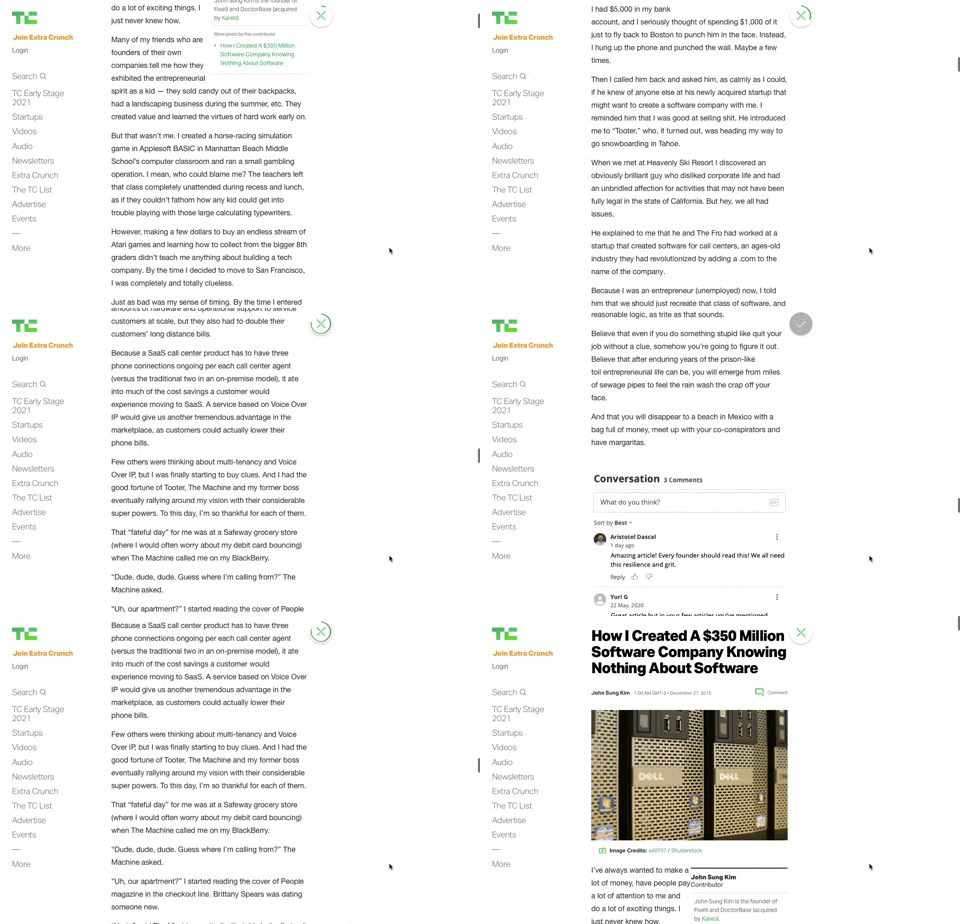
91. Bubble Status Reading
This pattern provides a fixed, animated bubble that indicates reading progress, helping users understand their position within long articles and enhancing content appreciation.

94. Top Primary Banner
A top primary banner provides crucial, timely information and calls to action, ensuring users are immediately aware of important updates or opportunities.

93. Welcome Screen with Background
This welcome screen uses a captivating background image to introduce new features, guiding users to engage with updated content immediately.

129. PDF Show & Download
This pattern allows users to preview a PDF document directly within the interface and offers a clear option to download it for offline access or detailed review.

190. Ask Email for Playing Video
This pattern allows users to watch a free video episode, encouraging engagement and potential subscription by offering a taste of premium content.
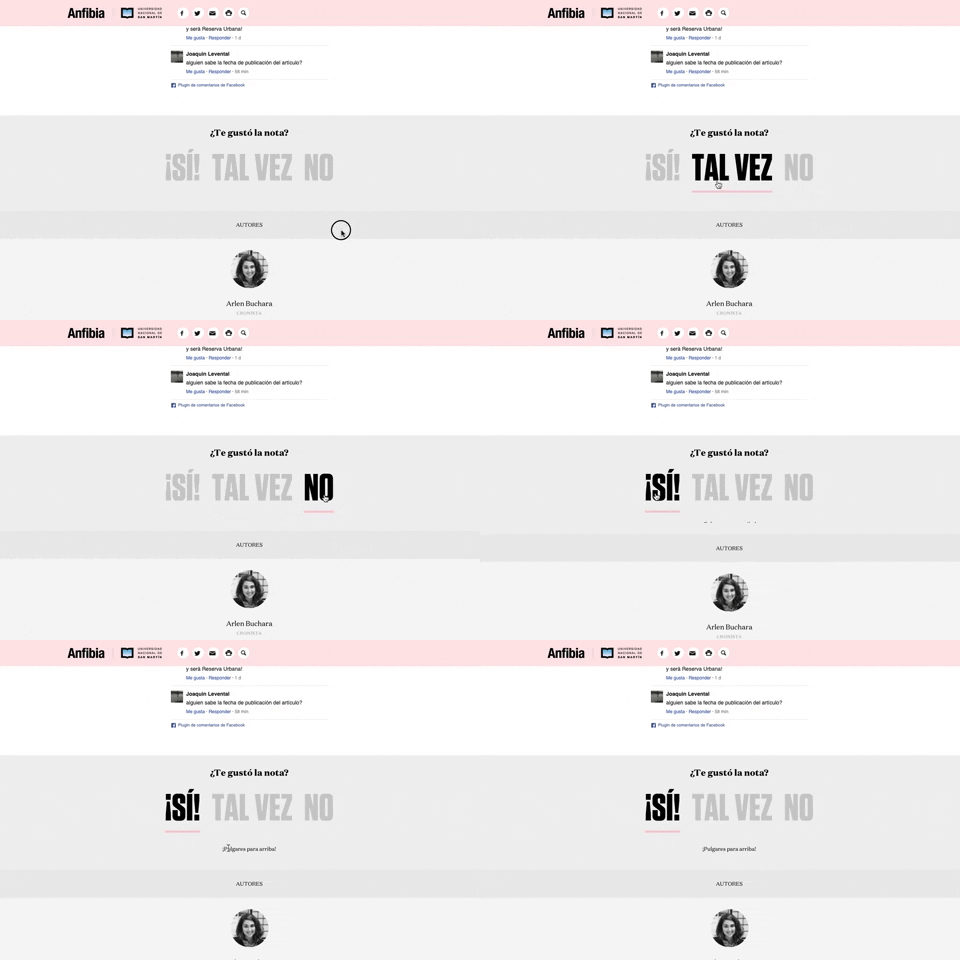
168. Anfibia - Natural Article Rating
This pattern allows users to quickly rate an article with a natural language choice, providing immediate feedback and enhancing content engagement.

79. Out of downloads
This pattern informs guest users they've reached their daily download limit, prompting them to register or log in to continue accessing resources.
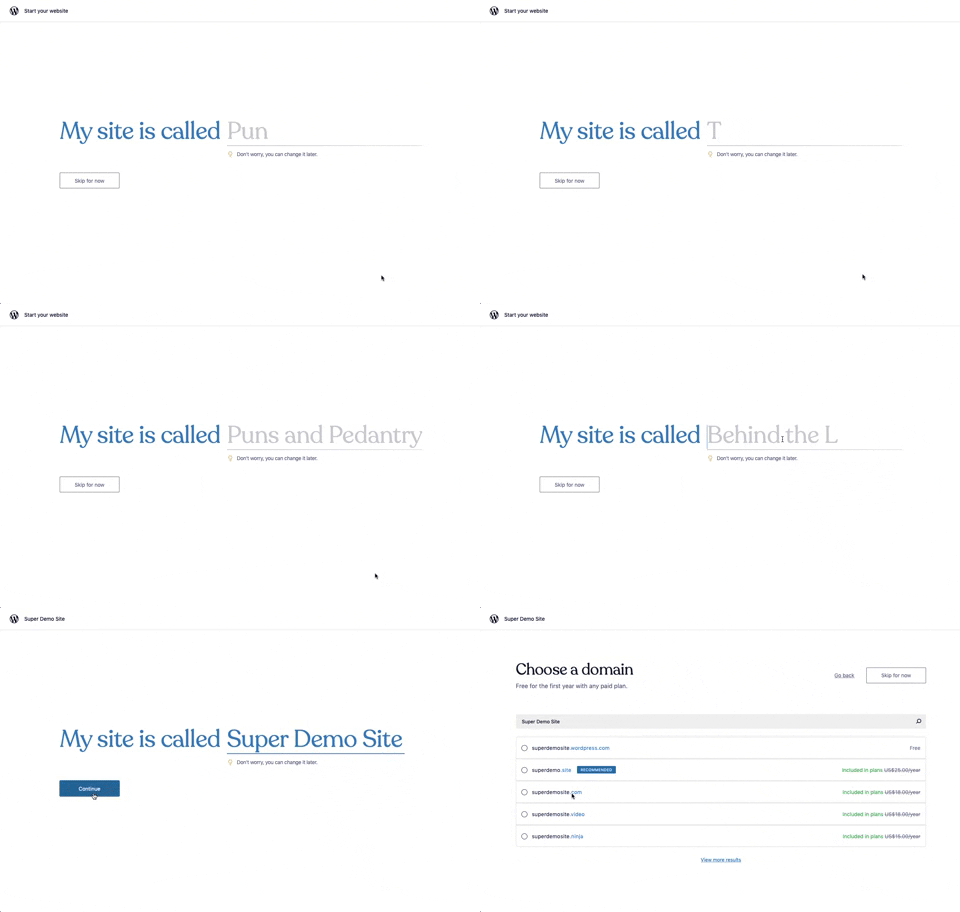
176. Wordpress.com - Natural Inputs with Suggestions
This pattern guides users to quickly name their site by offering real-time suggestions as they type, streamlining the initial setup process.

133. Website-Browser Notification Reminder
This pattern reminds users that they can enable desktop notifications by clicking the lock icon in the browser's address bar.

208. Checkbox for User Confirmation
A checkbox provides clear visual confirmation of a completed step, guiding users through onboarding or multi-stage processes with immediate feedback.

98. Features on Signing-up
This pattern showcases key product features and social proof alongside clear sign-up options, helping users quickly understand value and commit.

57. IDF - Encouraging Newsletter Sign-up
This pattern uses a modal dialog to offer a free ebook in exchange for an email address, encouraging newsletter sign-ups and lead generation.

173. Toggl - Onboarding Action Tooltip
This onboarding action tooltip guides users to sign in with Google, streamlining the login process and reducing friction for new or returning users.

9. App Integration Banner
This banner prompts users to open content in a native app, enhancing engagement and providing a richer, more integrated experience than a web browser.

76. List Widget Customization
Users can effortlessly organize and filter list items by category and status, enhancing task management and focus within a customizable interface.

77. Sign Up Flow with Pricing Step
This pattern guides users through a multi-step signup process, including a clear pricing selection, to onboard them efficiently and transparently.

3. Apple Safari - Search Options on Focus
Upon focusing the search bar, users are presented with a curated list of favorites, frequently visited sites, and Siri suggestions, streamlining navigation and discovery.

99. Letterboxd - Topbar Dropdown Menu
Users can quickly access account-specific options and site navigation through a persistent topbar dropdown menu, enhancing pathfinding and personalization.

109. Native Long-press Menu
A long-press gesture reveals a context-sensitive menu, offering quick access to relevant actions for the selected element.

55. Contextual Form Input Errors
This pattern provides immediate, contextual feedback for form input errors, guiding users to correct mistakes efficiently and complete their tasks without frustration.
170. Figma - Fixed Form with Steps
A multi-step form pattern designed to guide users through a sequential input process, where the form content maintains a fixed position on the screen.

83. Rewards Notification on Topbar
This pattern uses a notification badge on the top bar to alert users to new rewards, which can be viewed in a dropdown menu for easy access and appreciation.

185. Bottom Action Menu
A bottom action menu provides persistent, easily accessible navigation and primary actions, enhancing user efficiency and discoverability on mobile devices.

78. Apple iOS - Dark & Light Color Themes
Users can easily switch between light and dark color themes, enhancing readability and reducing eye strain in varying ambient light conditions.
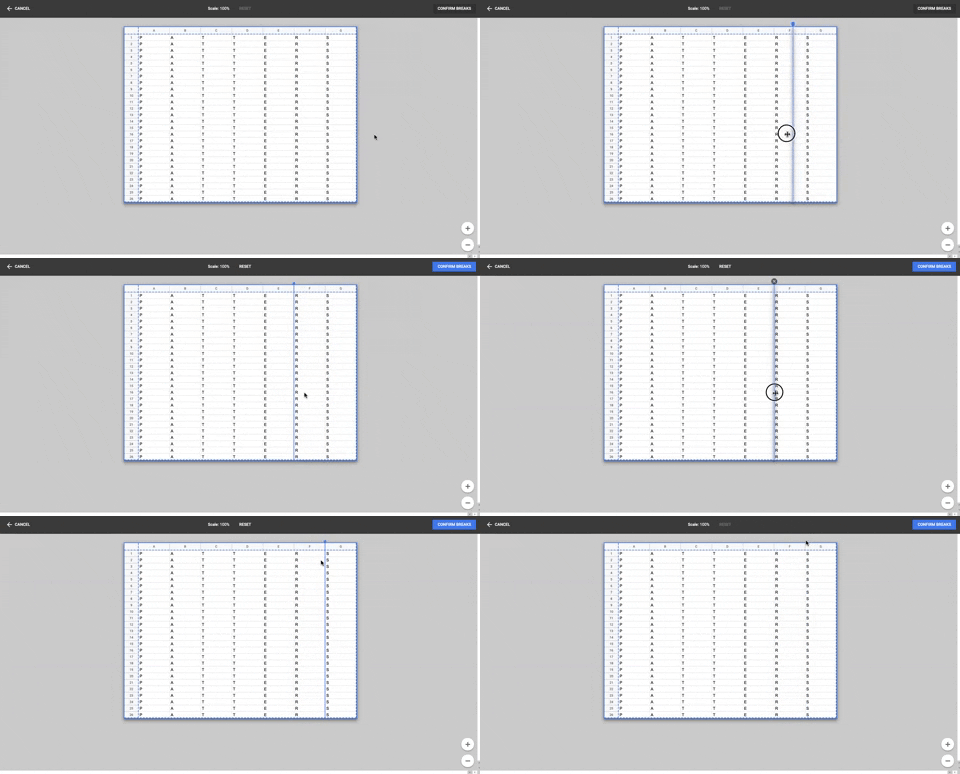
86. Table Column Slicer
Users can precisely define column breaks within a data table, enabling flexible data organization and improved readability for complex datasets.

25. Apple - Two-factor Auth
This pattern enables users to securely access their Apple ID by entering their email, with an option to remember the account for future convenience.

2. Youtube - Feed Filter Tabs
Users can quickly filter their video feed by topic using a horizontal row of clickable tabs, enhancing content discovery and personalization.

54. Modal for Language & Region Picker
This modal allows users to efficiently search for and select a preferred language from a comprehensive list, enhancing personalization and accessibility.

159. Wix - Natural Language Form
This pattern describes a form interface that allows users to input information using natural language, often seen in onboarding flows on web and desktop platforms. Notable behavior: Natural language input; Form submission; Input validation.

23. Suscription gimmicks
This pattern helps users choose a subscription plan by clearly comparing features and pricing, often leveraging social proof to build trust and encourage conversion.

110. Vertical Perspective Grid
This pattern guides users to scan their environment with a device, displaying a grid and visual cues to detect surfaces for augmented reality experiences.

69. Uber EATS - Tab Menu Navigation
This tab menu navigation allows users to quickly switch between different categories of items, enhancing discoverability and streamlining the browsing experience.

11. Intercom - Likert in chat
This pattern allows users to quickly rate a conversation using a Likert scale of emoji faces, providing immediate feedback within the chat interface.
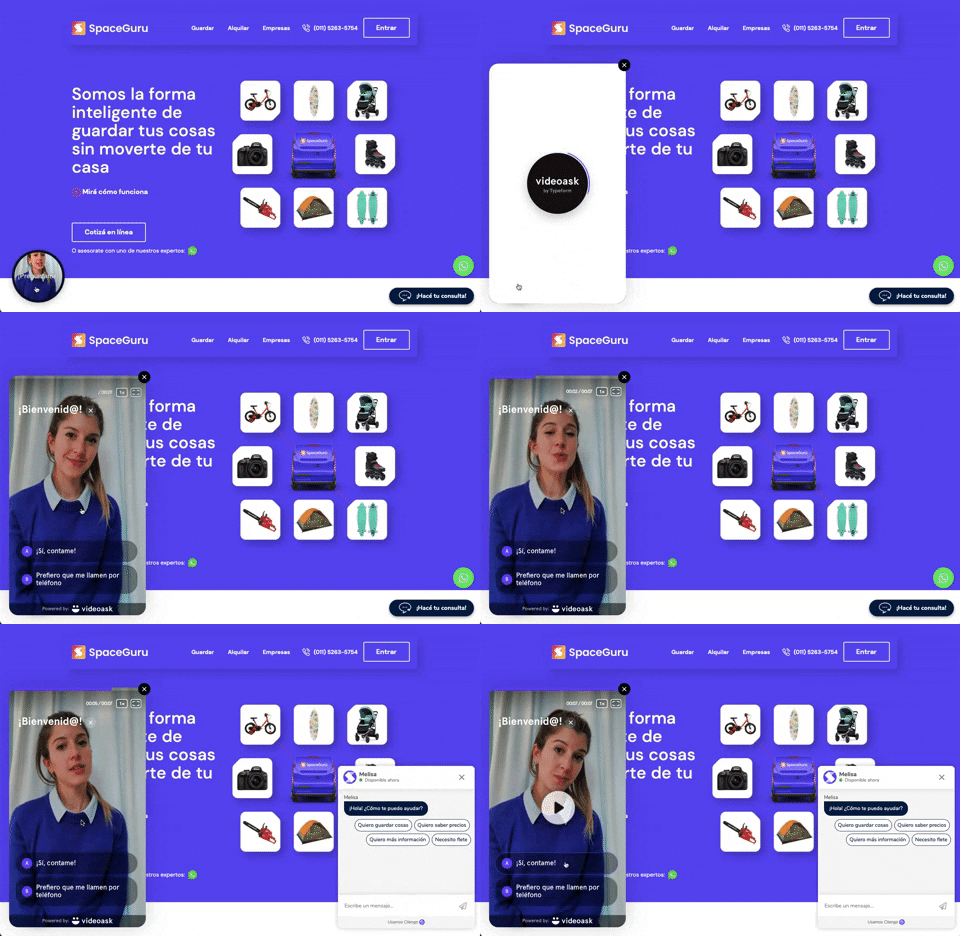
196. Video Story on Website
A floating video story provides users with a dynamic, engaging explanation of a product or service, enhancing understanding and encouraging further interaction.

119. PrestaShop - Site Cookie Management
This pattern presents a clear cookie consent pop-up, allowing users to accept or manage cookie preferences for a transparent and compliant browsing experience.

66. Products Discounts
This pattern highlights discounted products with clear visual cues, enabling users to quickly identify savings and make informed purchasing decisions.

63. Window Maximize Options (on Right Click)
Users can right-click the maximize button to access a dropdown menu, enabling quick window arrangement options like full screen or tiling to the left or right.

39. Youtube - Dismissed Bottom Popup
This dismissible bottom-anchored popup informs users about critical information, offering options to dismiss or learn more without disrupting primary content viewing.

126. WeTransfer - In-front Site Terms
This pattern presents a prominent, in-front modal to users, requiring explicit acceptance of terms and conditions before they can proceed with site interaction.

66. Actionable Empty State
This empty state provides a clear call to action, guiding users to initiate content creation and overcome initial blank canvas paralysis.

38. Youtube - Video Statusbar
The video status bar provides crucial playback controls and time information, enabling users to precisely navigate and manage their viewing experience.

85. Bottom Popup Secondary
This bottom-anchored popup provides users with immediate access to secondary, contextually relevant information without disrupting their primary task.

60. MercadoLibre - Ecommerce App Searching (3)
This pattern enables users to refine search results with a persistent filter menu, offering various sorting, category, and condition options for efficient product discovery.

104. Slack - Creating & Customization Workspace
Users input their company or team name into a text field, with a character counter providing real-time feedback and ensuring compliance with length requirements.

80. Input Validation Status
This pattern provides immediate feedback on user input, guiding them to correct errors and successfully complete forms or tasks.

135. Stories From Network
This pattern displays a curated feed of articles from the user's network, enabling quick discovery of relevant content and fostering community engagement.

58. Getting on Fitness
This onboarding screen asks users about their fitness goals with a clear yes/no choice, streamlining the initial setup and personalizing the app experience.

47. Notion - Workspace Types
Users select their intended use case from distinct options, streamlining their onboarding experience with tailored content and features.

41. Context Banner Card
A context banner card proactively alerts users to potential risks or important information within an email, empowering them to make informed decisions about interaction.

42. Modal for Tags Editing
This pattern allows users to efficiently manage and organize their content by editing, adding, or removing tags through a dedicated modal interface.

21. Advanced Color Picking
This pattern allows users to precisely select colors from a spectrum, adjust saturation and brightness, and save custom swatches for efficient reuse.

75. Notification Recommendation
This pattern prompts users to enable notifications, offering clear benefits and a choice to defer, enhancing engagement and personalization.

22. Mailchimp - First Mailing Campaign
This onboarding flow guides new users through initial profile setup, collecting essential personal details to personalize their experience and facilitate future interactions.

172. Contextual Popup for Service Upgrade
This contextual popup allows users to manage task details and offers a clear call to action for upgrading to unlock advanced features.

84. Pandemic Warning Message on Map
This pattern displays a prominent, actionable warning message within the map's search results, ensuring users quickly access critical, up-to-date information about a pandemic.

37. Branded Illustrations for Reinforcement
This pattern uses a branded illustration within a modal to reinforce a user's action, providing a moment of delight and confirmation before a critical step.
209. Apple Calendar - Zoom Transition Navigation
This pattern describes a navigation technique, commonly found in the Apple Calendar application, that uses a zoom transition to move between different hierarchical views (e.g., day, week, month, year). It enhances user awareness of their location within the application's structure.

35. Do Not Leave Popup
This pattern presents a modal dialog to users, highlighting the potential negative impact of an action to encourage reconsideration and prevent unintended consequences.
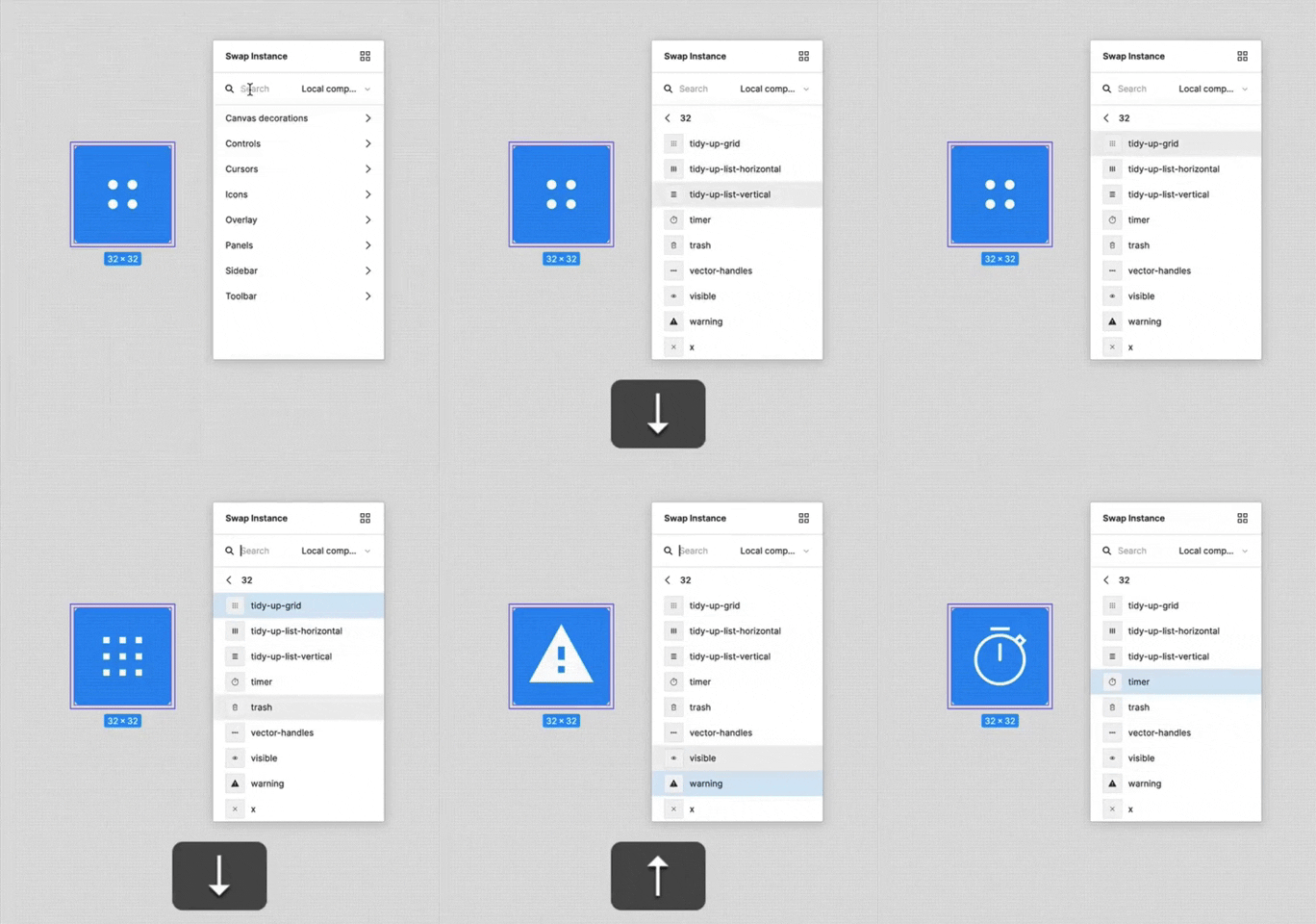
156. Figma - Keyboard Navigated Menu
This pattern enables users to efficiently navigate and select menu items using keyboard arrows, enhancing accessibility and speed for power users.

88. Fake-News Warning
This warning banner informs users that content is not fact-checked, promoting critical thinking and directing them to authoritative sources for sensitive topics.

105. Floating Tooltip Blackout
This pattern presents a floating tooltip with a dim overlay, guiding users to initiate or schedule a meeting with clear options and keyboard shortcuts for efficiency.

29. General Form Errors Banner
This banner provides a clear, concise message to users, offering an alternative action to streamline the process of adding multiple subscribers.

72. Google Maps - Congratulation Displaying Results
This pattern celebrates user contributions with a congratulatory message and visual feedback, encouraging continued engagement by highlighting the impact of their shared content.

154. Order Status Top Banner
This top banner provides real-time order status and restaurant information, allowing users to quickly track their food preparation and estimated arrival time.

136. Fitbit - Sleep Graph Visualization
This pattern provides users with a clear, interactive visualization of their sleep stages, enabling quick comprehension of sleep quality and duration.
46. Dribbble - Posting Graphics Online
This pattern outlines the user experience for posting graphics online, focusing on the initial onboarding flow for new users on a web-based desktop platform, similar to how Dribbble handles content submission. It encompasses the steps and interactions required to upload, describe, and publish visual content, guiding users through their first contribution. Notable behavior: File Upload; Form Submission; Uploading (progress).
158. Automatic Tooltip Blackout (2)
This pattern automatically displays a tooltip, often accompanied by a dimmed background, to guide users or highlight new features. It's commonly used in onboarding flows to draw attention to specific UI elements and provide contextual information.

36. Scroll Required for User Confirmation
This pattern ensures users fully review important terms by requiring them to scroll through content before enabling a confirmation action.

34. Premium gimmicks
This pattern entices users to upgrade to a premium subscription by blurring out valuable content, like profile viewers, and offering a free trial to unlock it.

12. Pricing Comparison (3-tier)
This pattern helps users compare three distinct pricing tiers, highlighting features and costs to facilitate an informed subscription decision.

1. Steps Guidance
This pattern guides users through multi-step processes with clear, numbered instructions and corresponding visual cues for efficient task completion.

14. Delete Search History
Users can clear their recent search history with a single tap, enhancing privacy and decluttering the search interface for a fresh start.

143. Platform Sign-in/up
This pattern enables users to quickly create a new account or sign in to an existing one, streamlining access to platform features.
16. Incremental pricing
Incremental pricing presents cost adjustments based on user selections or progression through steps. Users make decisions via toggle fields and buttons, influencing the final price.

50. Food Order Receipt
This pattern provides a clear, detailed summary of a food order, including items, prices, and delivery information, ensuring users have a complete record of their purchase.

71. Trip Tracking
This pattern provides real-time trip progress and driver details, empowering users with transparency and reducing anxiety during rideshare services.
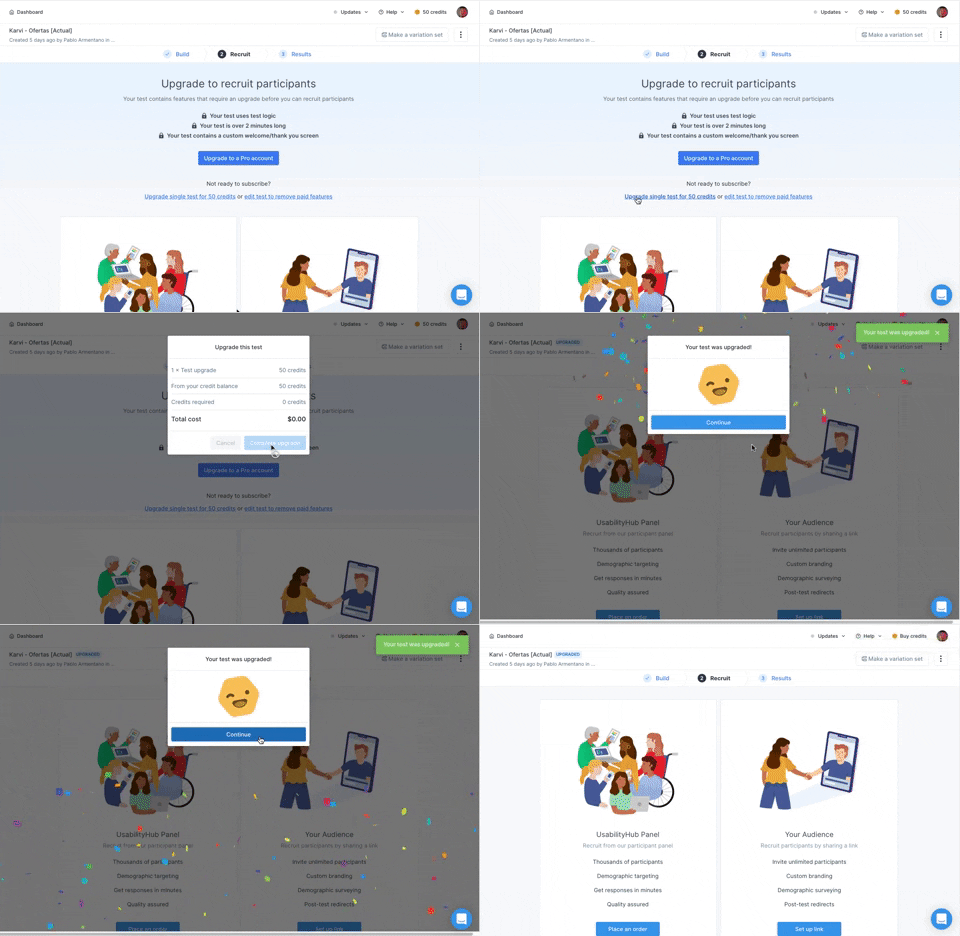
166. Generated Effect: Confetti Explosion
A celebratory confetti explosion visually confirms successful user actions, enhancing positive reinforcement and delight.

77. Walking Directions
This pattern displays a walking route on a map, clearly indicating the path with a dotted line and providing an estimated travel time for efficient navigation.
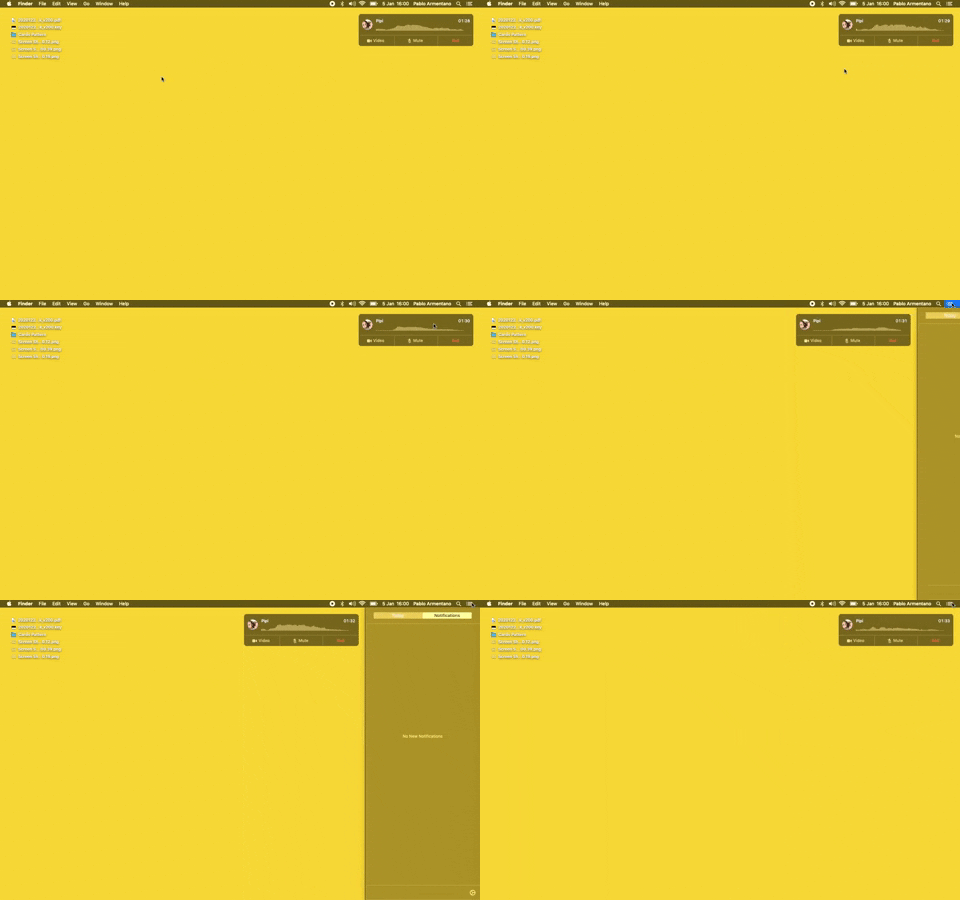
23. Floating Voice Widget with Actions
This floating voice widget provides persistent awareness of an active call, allowing users to quickly mute, unmute, or end the conversation without interrupting their workflow.

19. Twitter - Email Validation on Sign Up
This pattern enables users to create an account by providing their name and email, with real-time validation ensuring data accuracy and a smooth onboarding experience.

112. Share on Social Networks
This pattern enables users to effortlessly share content across popular social networks and via email, boosting content reach and engagement.

188. Trello - Color shapes for Colour-blind
This pattern allows users to toggle a colorblind-friendly mode, enhancing accessibility by adding distinct shapes to color labels for improved differentiation.
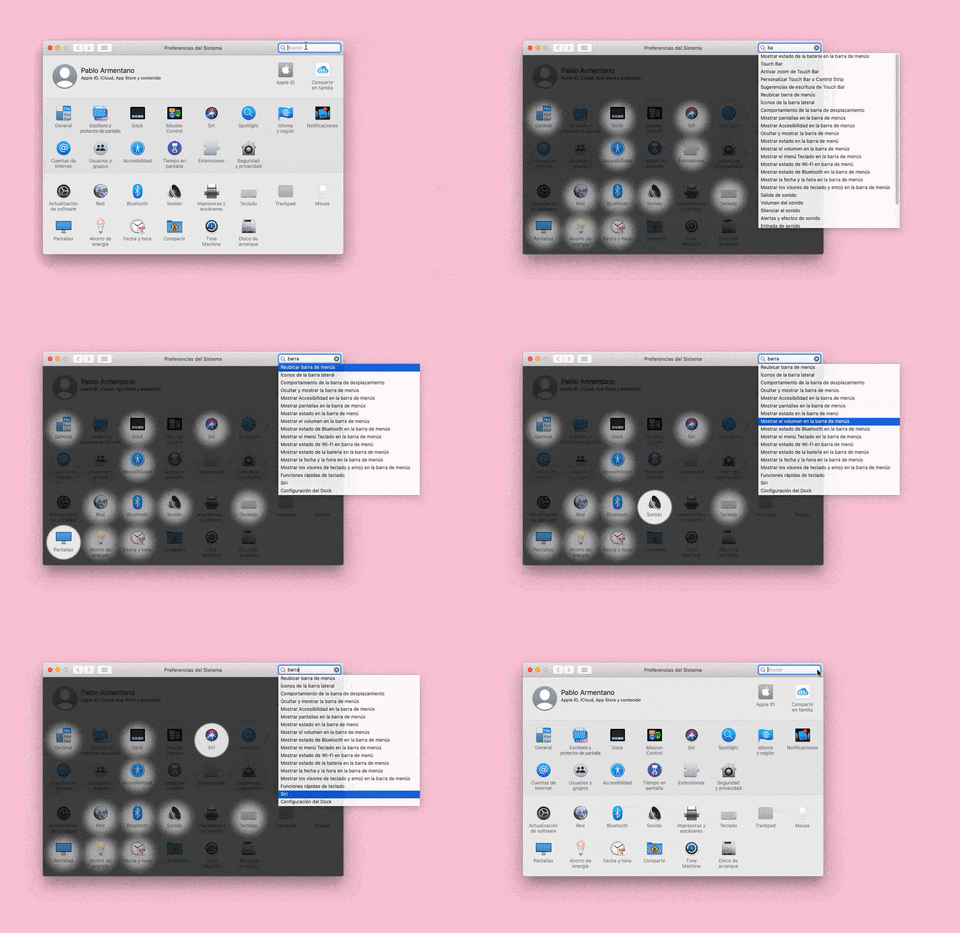
155. Menu Search Highlighting
This pattern highlights matching items within a dropdown menu as a user types into an associated search input, aiding in quick pathfinding and user selection.

16. Double Account Entrance
This pattern offers users a clear choice between creating a new account or signing in, streamlining access and reducing decision fatigue.

4. Floating Status Banner
A floating status banner presents non-blocking, transient messages to users, typically positioned at the top or bottom of the viewport. It delivers immediate feedback or critical updates without interrupting the user's primary workflow.

6. Modal Blackout w/ Form
This modal prompts users to log in with an existing account, offering clear options to proceed or use an alternative, ensuring a smooth authentication flow.

146. Intelligencer - Hamburger Menu
The hamburger menu icon provides a compact way to reveal a navigation drawer, allowing users to access various sections of the website efficiently.

160. Pocket - Content Highlighting
Users can highlight and save specific text within an article, enabling focused review and easy access to key information later.
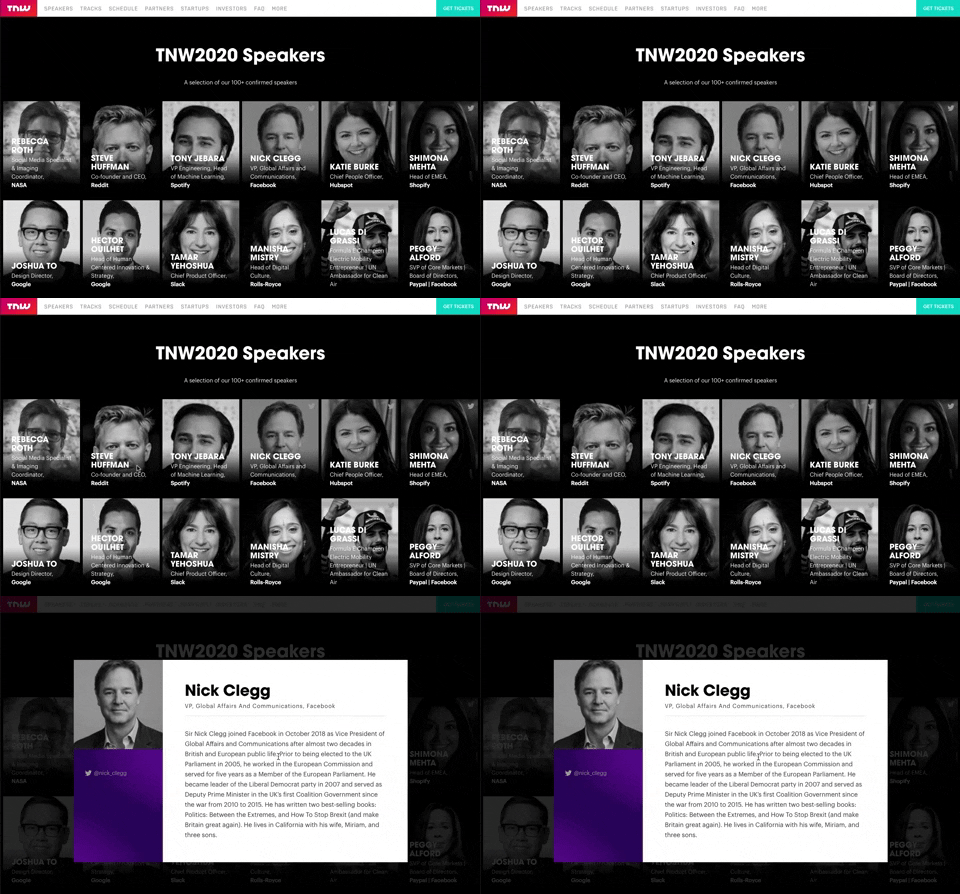
139. Transition: Zoom-Out on Hover
This transition subtly scales down an image on hover, providing visual feedback and highlighting interactive elements without obscuring content.

10. Dedicated Screen for Action Confirmation
This dedicated screen ensures users explicitly confirm or deny third-party access to their LinkedIn data, promoting transparency and control over personal information.